
What You’ll Learn
- ✓ How to apply Excel highlight rules to instantly flag key values
- ✓ How to use Excel data bars and color scales to visualize magnitude
- ✓ How to add Excel icon sets for at-a-glance status indicators
- ✓ How to write custom formula rules — including full-row highlighting
- ✓ How to manage, edit, prioritise, and safely remove formatting rules
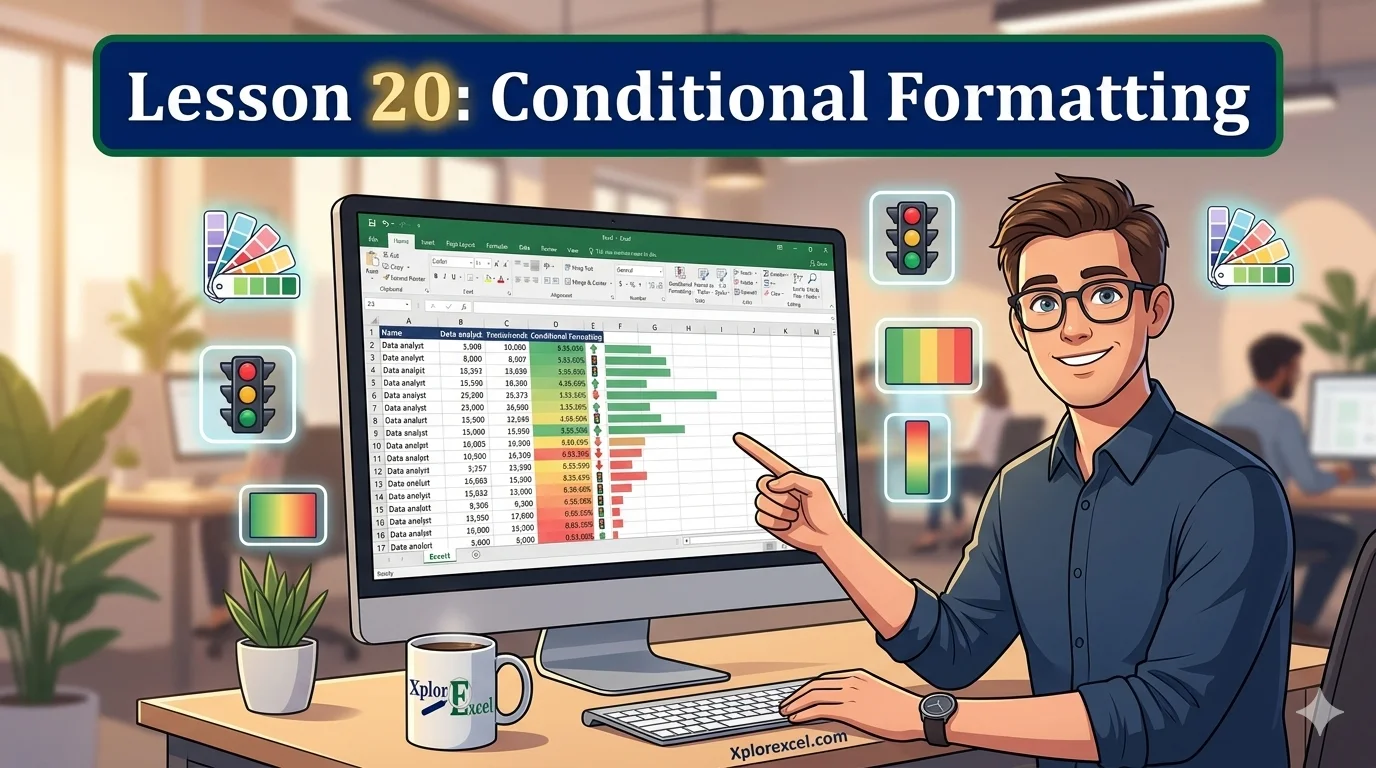
Conditional formatting in Excel is the feature that turns a flat, forgettable spreadsheet into something that actually communicates — and once you start using it, you will wonder how you ever managed without it.
Here’s the thing: most people who work in Excel spend time every week manually coloring cells. Red for bad, green for good, yellow for “needs attention.” They do it by eye, one cell at a time, every time the data changes. It works — but it is slow, it breaks the moment someone pastes new data, and it depends entirely on the person doing it having enough time and attention to get it right.
Conditional formatting fixes all of that. You set a rule once. Excel applies it automatically, every time, to every relevant cell. Your data updates, your formatting follows. No manual effort required. In this guide you will learn every major tool: highlight rules, data bars, color scales, icon sets, and custom formula-based rules. You will also learn how to manage, edit, and troubleshoot rules — the part most tutorials skip entirely.
What Is Conditional Formatting in Excel?
How It Works
Think of conditional formatting like a traffic light system for your data. You define a rule — “if this value is above 100, turn it green” — and Excel checks every cell in your range against that rule. When the condition is true, the format appears. When it is false, the format disappears. When the value changes, the format updates in real time.
It is essentially an if-then statement built into your cells. No formulas visible in the cell itself, no extra columns needed. Just a rule sitting quietly in the background, keeping your spreadsheet honest.
Where to Find It on the Ribbon
You will find conditional formatting in Excel on the Home tab. Look for the Conditional Formatting button in the Styles group — it is usually between Cell Styles and Format as Table. Click it and a dropdown appears with all the main options: Highlight Cells Rules, Top/Bottom Rules, Data Bars, Color Scales, Icon Sets, New Rule, Clear Rules, and Manage Rules. We are going through all of them.
Conditional Formatting Tools at a Glance
| Tool | Best For | Quick Access |
|---|---|---|
| Highlight Rules | Flagging specific values, duplicates, top/bottom N | Home → Conditional Formatting → Highlight Cells Rules |
| Data Bars | Visualising relative magnitude within a range | Home → Conditional Formatting → Data Bars |
| Color Scales | Heat-map view of an entire dataset distribution | Home → Conditional Formatting → Color Scales |
| Icon Sets | Dashboard status indicators (arrows, traffic lights) | Home → Conditional Formatting → Icon Sets |
| Formula Rules | Any custom logic — row highlighting, date comparisons | Home → Conditional Formatting → New Rule |
Excel Highlight Rules — Spot Key Values Instantly
Highlight rules are your entry point — simple, fast, and immediately useful. You pick a condition, pick a color, and any cell that meets the condition gets that color automatically.
Greater Than, Less Than, and Between
Say you have a column of monthly sales figures and you want anything above 10,000 highlighted green. Select the column. Go to Conditional Formatting → Highlight Cells Rules → Greater Than. A small dialog box appears. Type 10000, choose Green Fill with Dark Green Text from the dropdown, click OK. Every cell above the threshold is now green — and stays that way as values change.
The Between rule asks for two boundary values and highlights anything that falls inside them — useful for flagging scores in a specific performance band, or stock quantities inside a reorder range.
Highlight Duplicate or Unique Values
You’ve probably seen someone manually scanning a long list looking for repeated entries. There is a much better way. Under Highlight Cells Rules, select Duplicate Values. Every repeated entry is instantly highlighted. Flip the dropdown to Unique and you highlight entries that appear only once. For anyone cleaning data, managing contact lists, or auditing a product catalog, this rule alone saves hours.
Top 10 / Bottom 10 Rules
The Top/Bottom Rules option is built for rankings. Highlight the top 10 performers, the bottom 10 scores, values above average, values below average. You can change the number 10 to anything — highlight the top 3, the bottom 5, whatever fits your data. This is the kind of rule that makes a weekly report take ten seconds instead of ten minutes.
Excel Data Bars — Built-In Bar Charts Inside Your Cells
Excel data bars are exactly what they sound like: miniature bar charts living inside individual cells. The length of each bar represents the relative size of that cell’s value compared to the rest of the range. The bigger the number, the longer the bar. You get an immediate sense of magnitude without needing a separate chart.
Gradient vs. Solid Fill Data Bars
When you open Conditional Formatting → Data Bars, you get two style options: Gradient Fill (fades from solid on the left to lighter on the right) and Solid Fill (uniform color throughout). Functionally identical — it is a pure aesthetic choice. Click More Rules at the bottom of the menu to customize minimum and maximum values, change the bar color, and control negative value display.
Handling Negative Values in Data Bars
By default, negative values get a bar extending to the left from a center axis. In the More Rules dialog, click Negative Value and Axis to set a separate color for negative bars — often red — and choose where the axis sits. For profit-and-loss tables, this makes positive and negative values visually unmistakable at a glance.
Excel Color Scale — Visualize Your Entire Data Range at a Glance
An Excel color scale is like applying a heat map to your data. Every cell in your selected range gets a color based on where its value falls between the minimum and maximum. Low values get one color, high values get another, and everything in between gets an interpolated shade. Instead of reading every number, you read the color gradient — and the pattern jumps out at you.
2-Color vs. 3-Color Scales
A 2-color scale uses one color at the bottom and another at the top. Red to green is the classic choice: low scores look bad, high scores look good. A 3-color scale adds a midpoint color — red-yellow-green gives you more nuance, making it easy to separate “good,” “okay,” and “needs work” at a glance. For larger datasets or multi-stakeholder dashboards, 3-color scales communicate more clearly.
Customizing Min, Midpoint, and Max Colors
By default, Excel anchors the scale to the actual minimum and maximum values in your range. If you want more control, go to Conditional Formatting → Color Scales → More Rules. You can set each anchor point to a specific number, percentile, or percentage. For a 1-to-10 satisfaction score, set the minimum to 1 and the maximum to 10 — instead of letting a single outlier compress the entire color range.
Excel Icon Sets — Add Instant Visual Signals to Your Data
Excel icon sets put small icons directly inside your cells: arrows, traffic lights, stars, flags, check marks. They are perfect for dashboards where you want someone to scan a column and know immediately what is good, what is bad, and what needs attention.
Choosing the Right Icon Set for Your Data
Excel organizes icon sets into four groups: Directional (arrows for trends), Shapes (colored circles or traffic lights for status), Indicators (check marks and crosses for pass/fail), and Ratings (stars or bars for scoring). Trust me on this: match the icon set to your audience’s existing mental model. If your team already thinks in red-yellow-green for project status, use traffic lights — do not make them learn a new visual language.
Customizing Icon Thresholds
Automatic thirds often do not match the real logic of your data. Open Manage Rules → Edit Rule to set precise numeric, percentage, or percentile thresholds for each icon. You can also check the box to show only the icon and hide the underlying number, giving your dashboard a cleaner look.
Conditional Format Formula in Excel — Unlock Unlimited Logic
Here is where conditional formatting in Excel stops being a feature and starts being a superpower. Instead of choosing from a preset menu of conditions, you write your own formula. If your formula evaluates to TRUE for a cell, the formatting applies. If it returns FALSE, it does not. Any logic you can express in an Excel formula — no matter how specific or complex — can drive your formatting.
How to Write a Custom Formula Rule
Go to Conditional Formatting → New Rule → Use a formula to determine which cells to format. Type your formula in the box. Click Format to choose how matching cells should look. Click OK. The formula must be written as if you are writing it for the top-left cell of your selected range — Excel adjusts references automatically as it evaluates the rest of the range.
Highlight an Entire Row Based on a Cell Value
This is probably the most-requested conditional formatting technique of all time — and it depends on one small but critical detail: anchoring your column reference with a dollar sign. Here is exactly how to do it:
Step-by-Step: Highlight an Entire Row
- Select your entire data range — for example, A2:F50.
- Go to Conditional Formatting → New Rule → Use a formula.
- Enter the formula:
=$C2>10000 - Click Format, choose your fill color, and click OK.
- Every cell in any row where column C exceeds 10,000 will now be highlighted automatically.
Use TODAY() to Flag Overdue Dates Automatically
If you manage deadlines in Excel, this rule will change your mornings. Put your task deadlines in column B, select your full data range, and create a new formula rule with either of these formulas:
Formula Syntax
=$B2<TODAY()
Highlights the entire row red when the deadline in column B has passed.
=$B2<=TODAY()+3
Highlights the entire row amber when the deadline is within 3 days.
=$C2>10000
Highlights the entire row when the value in column C exceeds 10,000. The $ locks the column; the row reference stays relative.
⚠️ Common Mistake
Forgetting the dollar sign in formula rules. If you write =C2>10000 without the $ before C, Excel shifts the column reference as it moves across your range — checking D, then E, then F instead of always checking C. Always write =$C2 to lock the column. And always make sure your formula references the first row of your selection — if your range starts at row 2 and your formula says =$C3, Excel will be off by one row throughout your entire dataset.
Managing, Editing, and Removing Conditional Formatting Rules
Creating rules is only half the job. Managing them is where things get messy if you do not know what to look for.
Using the Manage Rules Panel
Go to Conditional Formatting → Manage Rules. This panel lists every active rule for your current selection — or for the whole sheet if you change the dropdown at the top. From here you can create, edit, delete, and reorder rules. This is where you go when your formatting is behaving unexpectedly.
Understanding Rule Priority and Stop If True
Excel evaluates rules from top to bottom in the Manage Rules panel. The Stop If True checkbox tells Excel to stop checking further rules for a cell once that rule applies — useful when you have a strict hierarchy: “If overdue → red, stop. Otherwise check if due soon → amber.” Move rules up and down using the arrow buttons. High priority rules go at the top.
How to Clear Conditional Formatting Safely
Go to Conditional Formatting → Clear Rules. Choose Clear Rules from Selected Cells (removes rules only from your highlighted range) or Clear Rules from Entire Sheet (wipes everything). Do not try to remove conditional formatting by deleting cell content or using Format Cells — those methods will not touch your rules.
💡 Pro Tip: Copying Rules Without Breaking Them
When you copy a cell with conditional formatting and paste normally, Excel resets the applied range to only the pasted cells. Use Format Painter or Paste Special (Ctrl + Alt + V) → Formats Only instead. Always open Manage Rules after pasting to verify the applied range is still correct.
💡 Pro Tip: Avoiding Performance Issues With Large Datasets
Volatile functions like TODAY(), NOW(), and INDIRECT() in formula rules recalculate every time anything in the sheet changes. Apply rules to a defined range like A2:A1000 rather than entire columns (A:A). It makes a noticeable difference in file responsiveness.
💡 Pro Tip: Conditional Formatting vs. Manual Formatting
Manual formatting looks the same forever regardless of data changes — useful for static printed reports. But for any living spreadsheet that gets updated regularly, conditional formatting in Excel is almost always the right choice. If the formatting decision is based on a value, let Excel make it. You set the rule once and walk away.
🧪 Try It Yourself
Build this in a blank Excel sheet and you will have touched every major conditional formatting tool:
- In column A, type Sales Rep. In A2:A6, enter five names.
- In column B, type Revenue. In B2:B6, enter five varied numbers — mix some above and below 10000.
- In column C, type Due Date. In C2:C6, enter a mix of past and future dates.
- Select B2:B6. Apply a Red-Yellow-Green color scale from the Color Scales menu.
- Select B2:B6 again. Add a blue gradient Data Bar rule on top.
- Select A2:C6. Create a formula rule:
=$C2<TODAY(). Set the fill to red. - Open Manage Rules. Move the overdue row rule to the top (highest priority).
- Change one Revenue value to 0 — watch the color scale update instantly.
- Change one Due Date to yesterday — watch the whole row turn red.
Frequently Asked Questions
Why is my conditional formatting rule not working?
Nine times out of ten it is one of three things: the formula reference is anchored in the wrong place, the formula is off by one row compared to your selected range, or a higher-priority rule in the Manage Rules panel is overriding the result. Check all three before assuming something is broken.
Can I apply conditional formatting to an entire column?
Yes, but be specific about the range. Applying a rule to A:A forces Excel to evaluate millions of empty cells. Use A2:A1000 instead — or however far your actual data goes. Your file will perform much better.
Does conditional formatting slow down Excel?
It can. The biggest culprits are formula rules using volatile functions (TODAY, NOW, INDIRECT) applied to large ranges, and spreadsheets with dozens of overlapping rules built up over time. Check your Manage Rules panel regularly and remove anything you no longer need.
Further Learning
📚 Authoritative External Resources
The official Microsoft reference for formula-based rules. Documents every formula type with working examples — bookmark it for when your custom rules behave unexpectedly.
One of the most thorough conditional formatting guides available. Covers advanced rule management, edge cases, and troubleshooting scenarios that most tutorials miss entirely.
What’s Next?
Conditional formatting works best on data that is clean and consistent from the start. If you have not yet explored Data Validation in Excel — the next lesson in this series — it pairs naturally with conditional formatting: validation controls what can be entered, and conditional formatting makes problems visible the moment something goes wrong.
And if you have not yet completed Pivot Tables in Excel (Lesson 19), that lesson shows you how to summarise large datasets rapidly — a perfect companion to the visual formatting skills you have just learned here.
← Previous Lesson
Pivot Tables in ExcelNext Lesson →
Data Validation in Excel →