
Running a business without tracking your stock is like running a shop in the dark — you never know what you have, what is running out, or what you are losing money on. Whether you run a small retail outlet, a wholesale business, an e-commerce store, or manage office supplies for your organisation, keeping a proper record of your inventory is absolutely essential.
The good news is that you do not need expensive software like SAP, Tally, or Zoho Inventory to manage your stock effectively. A well-built Inventory Management Template in Microsoft Excel can do everything you need — track stock levels, record purchases, log sales, and automatically generate a live stock report — all in one file.
In this post, you will learn what inventory management is, why Excel is a great tool for it, how our free template is structured, which formulas power it, and how to use it step by step. You can also download the free XploreXcel Inventory Management Template at the end of this article and get started in minutes.
📌 Introduction
Managing a project without a proper plan is like driving without a map — you might reach your destination eventually, but you will waste a lot of time and energy along the way. The same is true for running a business without a proper inventory system. Whether you are a business owner, a store manager, or an accounts executive, keeping an accurate track of your stock is one of the most important things you can do to protect your profits and keep your customers happy.
A Gantt Chart helps project managers track tasks — and in the same way, a well-built Inventory Management System in Excel helps business owners track their stock. The best part is, you do not need any special training or expensive software. If you have Microsoft Excel, you already have everything you need.
In this article, we will walk you through our free XploreXcel Inventory Management Template — what it contains, how the formulas work, and how to use it to manage your purchases, sales, and stock levels automatically.
📌 What is Inventory Management?
Inventory management is the process of tracking the goods and materials your business holds — from raw materials and work-in-progress to finished goods that are ready for sale. At its core, a good inventory system answers three key questions at any given moment:
- How much stock do I currently have? — The exact quantity of every product in your warehouse or store right now.
- What stock came in? — Every batch of goods you received from suppliers, with dates, quantities, and costs.
- What stock went out? — Every item sold to customers or dispatched, with dates, quantities, and sale prices.
For example, imagine Priya runs a stationery shop. She stocks notebooks, pens, printer paper, files, and folders. Every day, she receives new stock from suppliers and sells items to customers. Without a proper system, she would have no idea when to reorder stock, how much her inventory is worth, or which items are out of stock. Our Inventory Management Template solves all of these problems automatically.
📌 Why Build Your Inventory System in Excel?
Excel is used in virtually every Indian office and business. Here is why building your inventory system in Excel makes complete sense:
| Reason | Details |
|---|---|
| No extra software cost | Excel is already installed in most offices — no monthly subscription fees required |
| Works offline | No internet required — perfect for shops and warehouses with poor connectivity |
| Fully customisable | Add your own products, categories, suppliers, and columns as your business needs change |
| Easy to share | Send via WhatsApp, email, or Google Drive — anyone can open it without special software |
| Formula powered | Auto-calculates stock levels, values, and status with zero manual effort |
| Conditional formatting | Automatically highlights low stock and out-of-stock items in colour for instant visibility |
| Scalable | Works equally well for 10 products or 500 products — simply add more rows |
📌 Structure of the Inventory Management Template
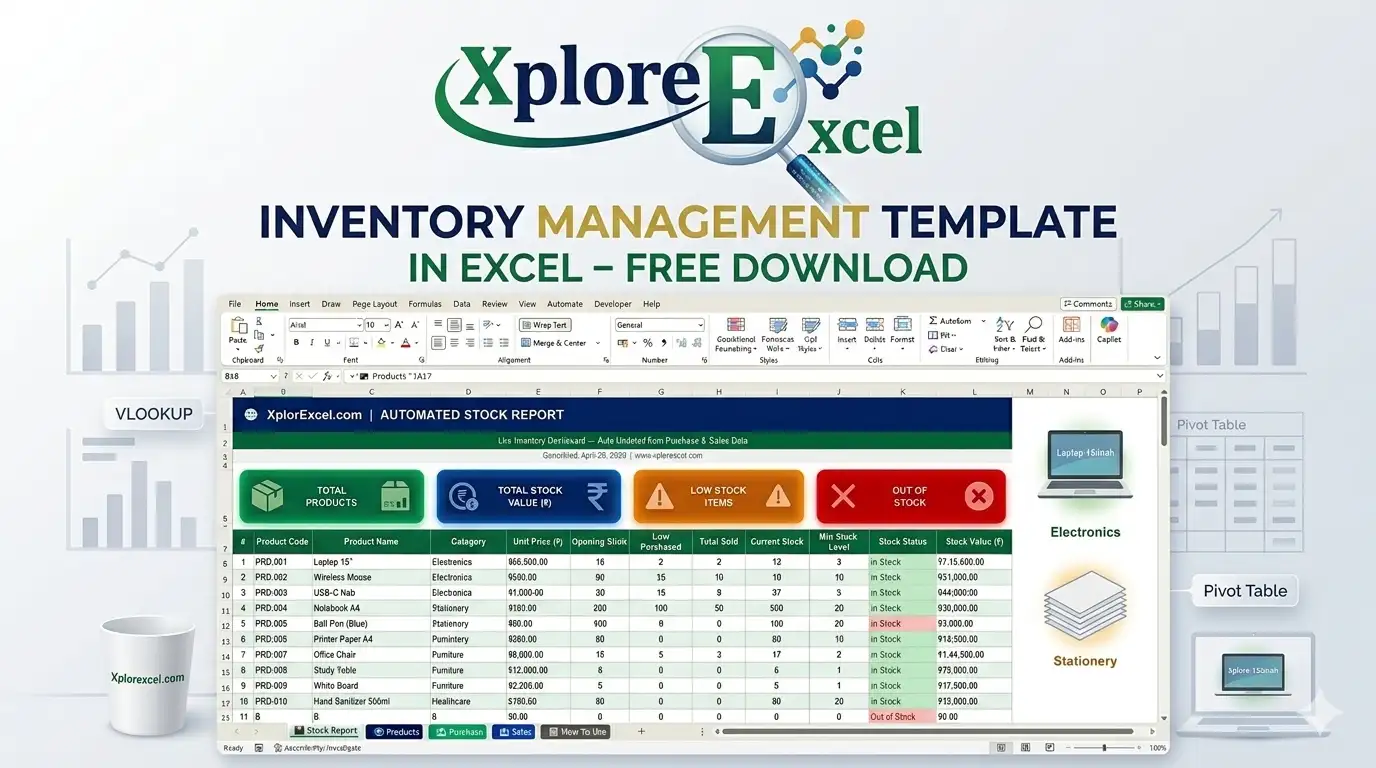
Our free XploreXcel Inventory Management Template is organised into 5 sheets, each serving a specific purpose. Together they create a complete, automated inventory system:
| Sheet | Purpose | What You Do Here |
|---|---|---|
| 📊 Stock Report | Automated live dashboard | View only — all data is auto-pulled from other sheets |
| 📦 Products | Products master list | Add all your products, prices, and minimum stock levels |
| 📥 Purchase | Incoming stock entries | Record every purchase from suppliers here |
| 📤 Sales | Outgoing stock entries | Record every sale or dispatch to customers here |
| 📋 How To Use | Instructions guide | Quick reference for you and your team members |
Products Master Sheet — Column Guide
| Column | Purpose | Example |
|---|---|---|
| Product Code | Unique ID for each product | PRD-001, PRD-002 |
| Product Name | Full name of the item | Wireless Mouse, Notebook A4 |
| Category | Group the product belongs to | Electronics, Stationery, Furniture |
| Unit of Measure | How the product is counted | Pcs, Box, Ream, Kg |
| Unit Price (₹) | Cost or sale price per unit | ₹850, ₹120 |
| Opening Stock | Stock quantity available at the start | 50, 200 |
| Min Stock Level | Reorder point — when to restock | 10, 30 |
| Current Stock | Auto-calculated live balance | Formula — do not type here |
| Status | Auto In Stock / Low Stock / Out of Stock | Formula — do not type here |
📌 Key Excel Formulas Used in This Template
These are the powerful formulas that run behind the scenes and make the entire template work automatically. Understanding them will also help you customise the template for your own needs.
1. Calculate Current Stock
This is the most important formula in the entire template. It calculates how much stock you have right now by adding the total purchased to the opening stock, then subtracting what has been sold:
= Opening Stock + Total Purchased – Total Sold
In Excel, the SUMIF function is used to pull purchase and sales quantities automatically from the other sheets:
=F2 + SUMIF(‘📥 Purchase’!C:C, A2, ‘📥 Purchase’!F:F) – SUMIF(‘📤 Sales’!C:C, A2, ‘📤 Sales’!F:F)
Here, A2 is the Product Code, column C in the Purchase and Sales sheets contains Product Codes, and column F contains quantities. The SUMIF function adds up quantities only for that specific product code — so every product’s stock is tracked independently.
2. Auto Status using IF Formula
To automatically display whether a product is In Stock, Low Stock, or Out of Stock based on current quantity versus the minimum stock level:
=IF(H2<=0, “Out of Stock”, IF(H2<=G2, “Low Stock”, “In Stock”))
- H2 = Current Stock column
- G2 = Minimum Stock Level column
- If stock is 0 or below → shows “Out of Stock”
- If stock is at or below the minimum level → shows “Low Stock”
- Otherwise → shows “In Stock”
3. Auto-Calculate Total Purchase Amount
In the Purchase sheet, the Total Amount column calculates automatically so you never have to do the maths manually:
=IF(C2=””, “”, F2 * G2)
This multiplies Quantity Purchased by Unit Price. The IF wrapper ensures blank rows do not show a zero value — keeping your sheet clean and professional.
4. Auto-Calculate Total Sales Revenue
Similarly, in the Sales sheet, the Total Revenue column calculates automatically for every transaction you enter:
=IF(C2=””, “”, F2 * G2)
This multiplies Quantity Sold by Sale Price per unit, giving you the exact revenue for every line item.
5. Stock Value Calculation
In the Stock Report dashboard, the total value of stock on hand is automatically calculated for every product:
=Current Stock × Unit Price
For example: if you have 45 units of a ₹850 Wireless Mouse, the stock value shows as ₹38,250. The dashboard sums all product values together to give you your Total Inventory Value in a single KPI card at the top.
6. Auto Serial Number
In both the Purchase and Sales sheets, the serial number column fills automatically as you enter data — so you never have to type row numbers manually:
=IF(C2=””, “”, ROW()-6)
This shows a number only when a Product Code is entered in that row, and skips blank rows cleanly — so your entry log always looks neat regardless of how much data you have entered.
📌 Step-by-Step: How to Use the Template
Follow these steps in order when you first set up the template. It takes less than 15 minutes to get everything up and running:
Set Up Your Products Master (📦 Products Sheet)
This is your starting point. Open the Products sheet and fill in columns A to G for each product: Product Code, Product Name, Category, Unit of Measure, Unit Price, Opening Stock (how many units you have right now), and Minimum Stock Level (the quantity below which you want a reorder alert). The Current Stock and Status columns are formula-driven — do not type anything there.
Record Your Purchase Entries (📥 Purchase Sheet)
Every time you receive stock from a supplier, add a new row in the Purchase sheet. Enter the Date, Product Code (must be exactly the same as in the Products sheet — codes are case-sensitive), Supplier Name, Quantity Purchased, and Unit Price. The Total Amount and Serial Number fill in automatically. Never delete the formula cells in columns A and H.
Record Your Sales Entries (📤 Sales Sheet)
Every time you sell goods or dispatch stock to a customer, add a new row in the Sales sheet. Enter the Date, Product Code, Customer Name, Quantity Sold, and Sale Price per unit. Total Revenue and Serial Number calculate automatically. Make sure the Product Code matches exactly with the Products sheet — even one character difference will break the formula link.
View Your Auto Stock Report (📊 Stock Report)
You do not need to do anything in this sheet — it updates itself the moment you save data in the Purchase or Sales sheets. The Stock Report dashboard shows Current Stock, Total Stock Value, and colour-coded status alerts for every product. The four KPI cards at the top give you a quick summary of Total Products, Total Inventory Value, Low Stock Items, and Out of Stock Items.
Read the Instructions (📋 How To Use Sheet)
The template includes a built-in instructions sheet that covers all the rules, colour codes, and tips. Share this with your team members or store staff so everyone knows how to enter data correctly. Consistent, accurate data entry is the key to keeping your stock report reliable and useful.
Pro Tip — Product Code Consistency is Critical
The Product Code is the key that links all four sheets together. Always use the exact same code (e.g., PRD-001) in the Products, Purchase, and Sales sheets. Even a single extra space or capital letter difference will cause the formulas to not match, resulting in incorrect stock counts. It is a good idea to copy-paste Product Codes rather than typing them manually in the Purchase and Sales sheets.
📌 Colour Coding System in the Template
Our template uses a simple, consistent colour coding system so that anyone — even someone seeing the file for the first time — can understand the status of your inventory at a glance:
| Colour | Status | Meaning |
|---|---|---|
| 🟢 Green | In Stock | Stock is healthy and above the minimum level — no action needed |
| 🟡 Yellow | Low Stock | Stock has dropped to or below the minimum level — time to reorder soon |
| 🔴 Red | Out of Stock | Stock is at zero — immediate action required, you cannot fulfil orders |
| 🌿 Light Green | Auto-formula cell | These cells contain live formulas — do not type or delete anything here |
| 🔵 Navy Blue | Header / Total row | Column headers and summary totals — branded to XploreXcel colours |
Important — Do Not Overwrite Formula Cells
Cells with a light green background contain formulas that auto-calculate. If you accidentally type in these cells, the formula will be replaced and the automatic calculations will stop working for that product. If this happens, simply press Ctrl + Z to undo your change immediately.
📌 Pro Tips to Get More from Your Inventory Template
💡 Tip 1 — Use Dropdown Lists for Categories and Payment Modes
Add a dropdown list to the Category column in the Products sheet and the Payment Mode column in the Purchase and Sales sheets. Go to Data → Data Validation → List and type your options (e.g., Cash, Cheque, Bank Transfer, UPI). This prevents spelling mistakes and keeps your data consistent for filtering later.
💡 Tip 2 — Use NETWORKDAYS for Accurate Lead Time Tracking
If you want to track how many working days it takes for a supplier to deliver, use =NETWORKDAYS(Order_Date, Delivery_Date) instead of simple subtraction. This automatically excludes Saturdays and Sundays from the count, giving you a more accurate picture of supplier lead times.
💡 Tip 3 — Filter by Date Range for Monthly Reports
Use Excel’s built-in AutoFilter (select any header cell → Data → Filter) on the Purchase and Sales sheets to quickly filter entries by date range. This lets you see all purchases in January, or all sales in a particular week, without any extra formulas. For advanced monthly totals, combine this with the SUMIFS formula.
💡 Tip 4 — Protect the Sheet to Prevent Accidental Edits
Once your template is set up, protect the formula cells so staff members cannot accidentally overwrite them. Go to Review → Protect Sheet, then unlock only the data-entry cells (Date, Product Code, Qty, Price columns) and lock the formula columns. Set a simple password so only you can make structural changes to the workbook.
💡 Tip 5 — Freeze Panes for Easy Scrolling
In both the Purchase and Sales sheets, click on cell B7 and go to View → Freeze Panes → Freeze Panes. This locks the header row and the logo banner in place so that when you scroll down through hundreds of rows of data, you can always see the column headings clearly.
💡 Tip 6 — Print Your Stock Report for Meetings
To print the Stock Report on a single page for a team meeting or stocktake review, go to Page Layout → Orientation → Landscape → Fit Sheet on One Page. The colour coding and clean table layout make it easy to read as a printout — a professional way to present inventory data to managers or business partners.
Tip — Update Opening Stock at Year End
At the end of each financial year (or whenever you want to reset the template), update the Opening Stock figures in the Products sheet to match your closing physical count, then clear the Purchase and Sales data rows for the new year. This keeps your file size manageable and your reports accurate for the current period only.
⚡ Download the Free Inventory Management Template
Don’t want to build it from scratch? Download the XploreXcel Inventory Management Template — fully ready with all formulas, colour coding, KPI dashboard, and instructions already set up. Just add your products, enter your purchases and sales, and your stock report updates automatically!
🎯 Conclusion
An Inventory Management System in Excel is one of the most practical and cost-effective tools you can build for your business. Whether you are managing electronics, stationery, furniture, healthcare products, or any other type of stock, keeping accurate records of what comes in and what goes out is the foundation of a profitable, well-run operation.
Our free XploreXcel Inventory Management Template gives you everything you need right away — a products master, purchase entry log, sales entry log, and an automated stock report dashboard — all in one branded, formula-powered Excel workbook. No coding, no expensive software, no complicated setup required.
Here is a quick recap of what you learned in this post:
- ✅ What inventory management is and why it matters for your business
- ✅ Why Excel is the perfect tool for Indian SMEs and growing businesses
- ✅ How the 5-sheet template is structured and what each sheet does
- ✅ The key formulas that power the auto stock calculations (SUMIF, IF, and more)
- ✅ Step-by-step instructions on how to set up and use the template
- ✅ The colour coding system for instant stock status visibility
- ✅ Pro tips to make the template even more powerful for your specific business
Download the free template, set it up with your products, and let us know how it is working for you in the comments below. If you found this post helpful, please share it with your colleagues, shopkeeper friends, or business network. Happy learning! 😊
