
What You’ll Learn
- ✓What every Excel error code actually means — N/A, VALUE, REF, DIV/0, and more
- ✓How to use the Excel IFERROR function correctly with real-world examples
- ✓Why Excel IFNA is usually the smarter choice for lookup formulas
- ✓The masking trap that silently corrupts totals and averages
- ✓A step-by-step debugging workflow for fixing Excel formula errors
Error handling in Excel is probably not the first thing you think about when you sit down to build a spreadsheet. You are focused on the formula, the data, the layout. And then you press Enter and half your column fills up with #N/A errors, and suddenly that is the only thing you are thinking about.
Here’s the thing — most people’s response to this situation is to Google “how to remove #N/A in Excel,” find IFERROR, wrap their formula in it, and move on. The errors disappear. The spreadsheet looks clean. Problem solved, right? Not quite. Error handling in Excel done badly is arguably worse than no error handling at all, because it creates the illusion that everything is working when it might not be.
This lesson is going to show you how to do it properly — how to use IFERROR and IFNA correctly, how to choose between them, and how to avoid the trap that catches most intermediate Excel users.
What Are Excel Error Types and What Do They Mean?
Before you start handling errors, you need to know what Excel is actually trying to tell you. Each error code is a specific message. Ignoring what the message says and just making it disappear is like unplugging a fire alarm because the noise is annoying.
#N/A — Value Not Available
This one is everywhere. #N/A means Excel went looking for something and could not find it. You see it constantly with VLOOKUP, HLOOKUP, MATCH, and XLOOKUP. If you ask Excel to find a value that does not exist in your lookup range, it returns #N/A. The formula is not broken. The data just is not there. That distinction matters a lot for how you respond to it.
#VALUE! — Wrong Data Type
#VALUE! shows up when a formula gets fed the wrong kind of data. Try to add a number to a cell that contains the word “none” — typed in manually by a colleague — and you will get #VALUE!. The formula cannot process text where it expects a number.
#REF! — Broken Cell Reference
#REF! means a cell reference in your formula points to a location that no longer exists. Delete a column that a formula depends on, and everything referencing that column turns into #REF! immediately. Almost always caused by someone reorganising the spreadsheet without checking what formulas were using it.
#DIV/0! — Division by Zero
#DIV/0! appears whenever a formula divides by zero or an empty cell. You see this constantly in financial models where denominators — revenue, units, headcount — start out blank before data is entered.
#NAME?, #NULL!, and #NUM! — Quick Reference
The Excel IFERROR Function — Syntax and How It Works
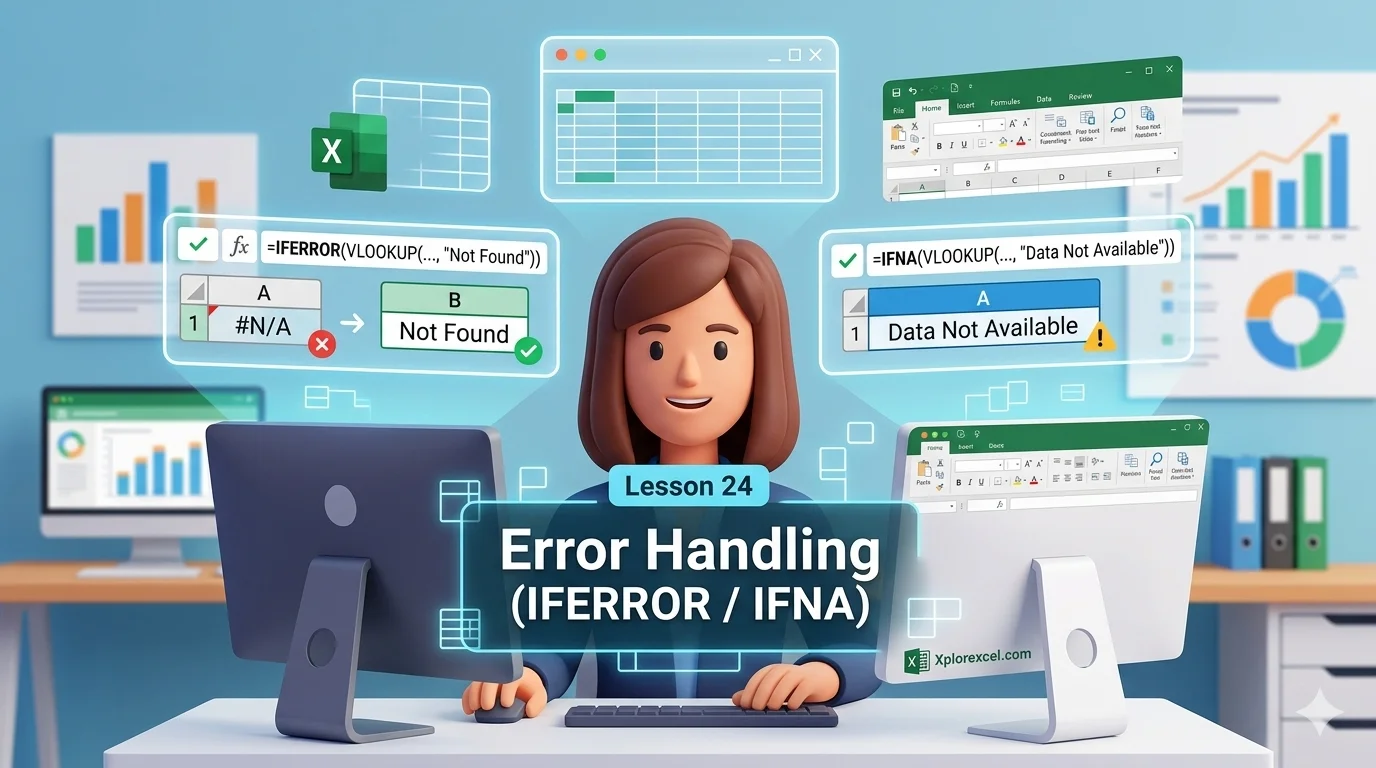
The Excel IFERROR function is the most commonly used error handler in Excel. The idea is simple: you give it a formula to run, and you tell it what to return if that formula produces an error. Any error. All seven of them.
Syntax
IFERROR(value, value_if_error)
Example — VLOOKUP with IFERROR
=IFERROR(VLOOKUP(A2, RepTable, 2, 0), "New Rep")
Example — Chained IFERROR (two lookup tables)
=IFERROR(VLOOKUP(A2, CurrentDB, 2, 0), IFERROR(VLOOKUP(A2, ArchiveDB, 2, 0), "Not found"))
Using IFERROR with VLOOKUP
You manage a sales report. You use VLOOKUP to pull each rep’s region from a reference table. Three new reps joined this month and have not been added to the table yet. Every row for those reps shows #N/A, and your report looks like it is falling apart before Monday morning’s meeting.
Wrapping in IFERROR returns “New Rep” for any rep not found in the table. The report is clean, the label is informative, and you can still see which rows need updating. If you want a solid foundation in VLOOKUP before combining it with error handlers, Lesson 12 on VLOOKUP at XplorExcel walks through it in full detail.
What to Return — This Decision Matters More Than You Think
When you write IFERROR, you have to choose what goes in the second argument. Most people choose whatever looks cleanest in the cell and move on. That is a mistake. Your options:
- An empty string
""— the cell looks blank - Zero — the cell shows 0
- A text label like
"Not found"or"Check data" - Another formula — for chaining fallbacks
⚠️ Common Mistake
Returning 0 from IFERROR in a column that gets averaged. If 20 of your 100 rows have lookup errors and IFERROR fills them with 0, your AVERAGE formula now divides the total by 100 instead of 80 — making the average artificially low. Use "" or a text label for genuinely missing data. Reserve 0 only for situations where zero is actually the correct value.
Error Handling in Excel with IFNA — The Smarter Choice for Lookups
Here is where most tutorials drop the ball. They teach you IFERROR and send you on your way. But there is a second function — IFNA — and for lookup formulas specifically, it is almost always the better choice.
IFNA works exactly like IFERROR with one key difference: it only catches the #N/A error. Everything else — #VALUE!, #REF!, #DIV/0!, #NAME? — passes through unchanged.
Syntax
IFNA(value, value_if_na)
Example — IFNA with VLOOKUP
=IFNA(VLOOKUP(A2, RepTable, 2, 0), "New Rep")
Trust me on this — at first glance IFNA looks like a downgrade. Why would you want a function that catches fewer errors? The answer is that formula bugs are not the same as missing data, and you should not treat them the same way.
When VLOOKUP returns #N/A because a value is not in your table, that is an expected outcome. You want to handle it gracefully. But if VLOOKUP returns #REF! because someone deleted a column, that is a genuine bug. You need to see that error so you can fix it. IFNA gives you clean output for the expected case while letting actual formula errors stay visible.
IFERROR vs IFNA — When to Use Which
💡 Pro Tip
Default to IFNA for any lookup formula. Most tutorials teach IFERROR as the go-to function — which is why so many inherited spreadsheets quietly produce wrong answers. Every formula bug gets hidden behind a clean-looking fallback. Make IFNA your first instinct for lookups and you will catch problems earlier and debug workbooks much faster.
The Masking Trap — When Error Handling Goes Wrong
This is the section most tutorials skip entirely, and it is probably the most important part of this lesson.
Error handling in Excel becomes a liability when you use it to make a broken spreadsheet look fixed without actually fixing anything. It is the spreadsheet equivalent of putting a rug over a crack in the floor. The floor is still cracked.
Here is how this plays out. You have 500 rows of VLOOKUP results. Fifty of them return #N/A because those records genuinely do not exist in the reference table. You wrap the whole column in IFERROR with "" as the fallback. The errors disappear. Two weeks later, someone asks for an AVERAGE of that column. Excel calculates the average over 450 rows with no indication that 50 rows of data are absent.
How Silent Errors Corrupt Your Totals
You’ve probably seen a financial model or tracker where the totals seem off but nobody can explain why. The column sums to a plausible number. No errors are visible. But the number is wrong. Nine times out of ten, the culprit is an IFERROR applied too broadly on a formula that had a bug nobody ever saw.
The principle: understand the error before you decide how to handle it. Error handling should be a deliberate choice made after you know what is causing the error — not a first instinct applied to make red cells disappear.
Advanced Patterns — Chaining and Nesting IFERROR
Once you are comfortable with the basics, IFERROR becomes more than just a cleanup tool. You can use it to build actual conditional logic into your formulas.
Checking Two Tables with Chained IFERROR
Imagine you are reconciling invoices against two separate databases — a current system and an older archive. You want to check the current system first. If the invoice is not there, check the archive. If it is in neither place, return “Not found.”
Chained IFERROR — Two-Table Lookup
=IFERROR(VLOOKUP(A2, CurrentDB, 2, 0), IFERROR(VLOOKUP(A2, ArchiveDB, 2, 0), "Not found"))
XLOOKUP’s Built-In Error Argument — When IFERROR Is Redundant
If you have moved to XLOOKUP, you may not need IFERROR at all. XLOOKUP has a built-in fourth argument called if_not_found that handles the #N/A case directly:
XLOOKUP with built-in error handling
=XLOOKUP(A2, LookupRange, ReturnRange, "Not found")
Adding IFERROR around an XLOOKUP that already has an if_not_found argument is redundant. Lesson 18 on XLOOKUP at XplorExcel covers its full argument set — worth reading before deciding how to structure your lookup formulas going forward.
The Legacy Pattern — IF(ISERROR) in Older Spreadsheets
If you ever open a spreadsheet built more than ten or fifteen years ago, you will likely see something like this:
Legacy Pattern (pre-Excel 2007)
=IF(ISERROR(VLOOKUP(A2, RepTable, 2, 0)), "Not found", VLOOKUP(A2, RepTable, 2, 0))
This runs the VLOOKUP twice — once to check for an error, once to return the result. It works, but it is verbose and slower to calculate. IFERROR replaced this pattern in Excel 2007. You do not need to write it yourself, but you need to recognise it when you open an inherited file.
How to Fix Excel Formula Errors — A Debugging Workflow
When you hit errors in a spreadsheet — especially one you did not build — resist the urge to immediately wrap everything in IFERROR. Follow this sequence first.
Debugging Workflow — Step by Step
Remove the error handler temporarily
Strip out the IFERROR or IFNA wrapper. Change IFERROR(VLOOKUP(...), "") back to just VLOOKUP(...). You need to see the raw error.
Identify the error type
Read the error code. #N/A means the lookup value is missing. #REF! means a reference is broken. #VALUE! means data types are mismatched. Each one tells you where to look next.
Use Evaluate Formula
Go to the Formulas tab and click Evaluate Formula. Excel steps through the formula one piece at a time and shows you exactly where it breaks. Essential for nested formulas.
Fix or wrap deliberately
If it is a formula bug — wrong reference, deleted column, typo — fix the root cause. If the error is expected and acceptable, wrap it with IFNA or IFERROR with a meaningful fallback value. Never skip steps 1 to 3.
💡 Pro Tip
While building a complex model, add a temporary “Error Check” column. Use IFERROR(yourFormula,"ERROR") to flag failures as “ERROR” and successes as “OK.” Once everything shows “OK,” delete the column. It is a simple habit that saves hours of debugging later.
Practice Exercise
🧪 Try It Yourself
Set up a small workbook with two sheets. On Sheet1, put five product codes in column A and five prices in column B. On Sheet2, put only three of those five product codes in column A, and their descriptions in column B.
- In Sheet2 column C, write a VLOOKUP that looks up each product code from Sheet2 column A in Sheet1 — no error handler yet.
- Two rows should show #N/A. Good — the formula is working correctly.
- Wrap the VLOOKUP in IFNA and return “Not in Sheet1” for missing codes.
- Now deliberately break the formula — delete column B on Sheet1. Notice that IFNA does not hide the #REF! error. It is still visible.
- Replace IFNA with IFERROR. The #REF! error disappears. This is the masking trap in action.
- Restore the deleted column. Ask yourself: which function is actually appropriate here? For a lookup where missing data is expected — IFNA is almost always the right answer.
Key Takeaways
- →IFERROR catches all seven error types. Use it when you want a comprehensive fallback and have already tested the formula for bugs.
- →IFNA catches only #N/A. For lookup formulas, this is almost always the better choice because formula bugs stay visible.
- →Your fallback value matters. Returning 0 silently affects averages. Choose based on what missing data actually means in context.
- →The legacy IF(ISERROR()) pattern does the same job as IFERROR but runs the formula twice. Recognise it in older files.
- →XLOOKUP has a built-in
if_not_foundargument — IFERROR is often redundant when using it. - →A spreadsheet without visible errors is not the same as a spreadsheet without actual errors. Always strip the handler and read the raw error before deciding how to respond.
Further Reading
For the authoritative technical reference on syntax, argument descriptions, and version compatibility:
← Previous Lesson
Next Lesson →
Download the Practice Workbook
Work through the questions in Excel, then check your answers.