
What You’ll Learn
- ✓ How to import live data from websites using Get Data → From Web
- ✓ How to set up an Excel SQL connection to a live database
- ✓ How to handle Excel JSON import from files and live APIs
- ✓ How to configure automatic refresh and set up an Excel live data feed
- ✓ When Excel reaches its limits — and what to use instead
Excel and external data are more connected than most users realise, and if you have never set up a live data connection before, you are about to save yourself a serious amount of time every single week.
Here is a scene you might recognise. It is Monday morning. You need to update the weekly report. So you open your browser, export a CSV from the CRM, copy a table from a supplier’s website, wait for IT to send you the database extract they promised by nine, and then spend the next forty minutes cleaning up inconsistent formatting before you can do any actual analysis. By the time the data is ready, half the morning is gone.
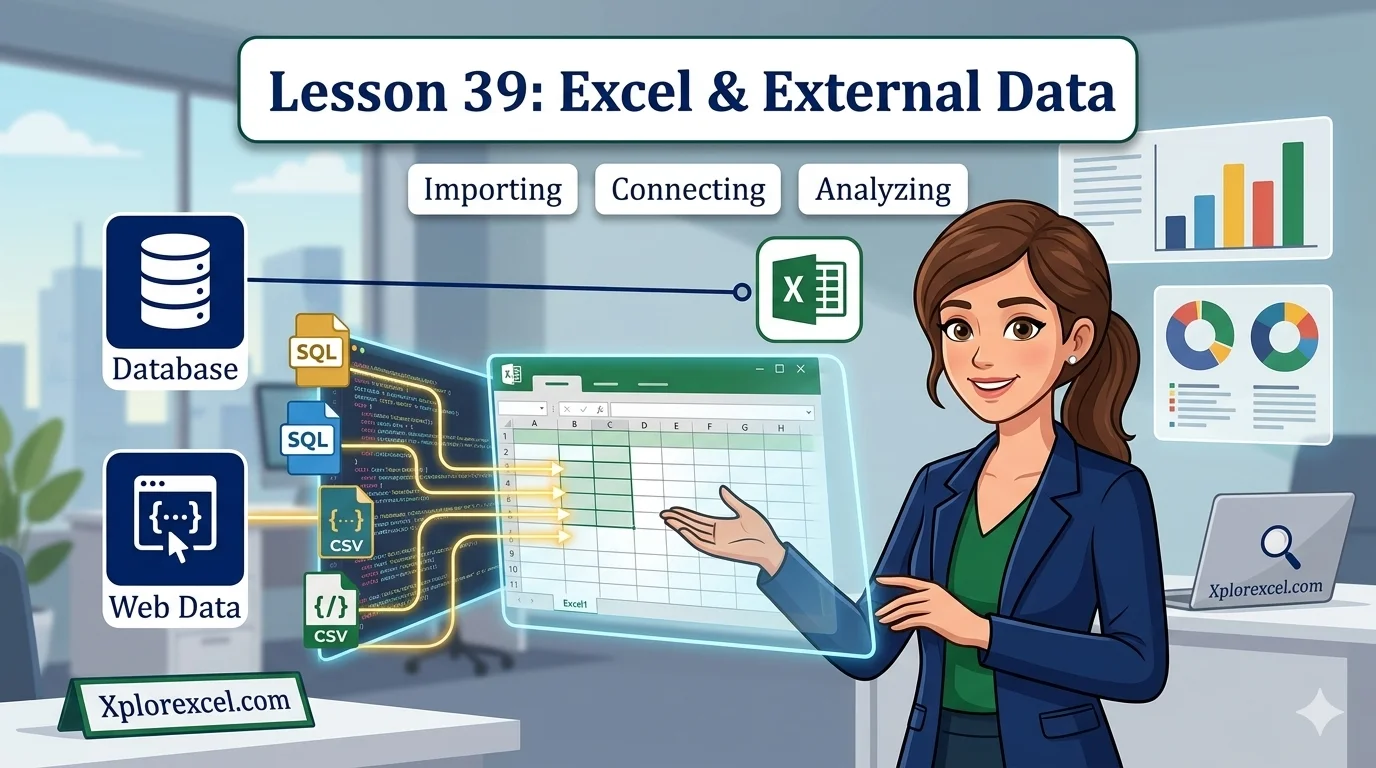
This lesson is the better way. You are going to learn how to connect Excel directly to websites, SQL databases, and live APIs — clean and reshape data before it even touches your spreadsheet — and set up automatic refresh so everything stays current without you having to babysit it. This is an advanced lesson. If you have not used Power Query before, start with Lesson 20 on Power Query Basics and come back here once you are comfortable with the foundations.
Why Excel and External Data Belong Together
The Copy-Paste Trap: Why Manual Imports Fail at Scale
The copy-paste workflow feels fine when you are doing it once. The problem is it is never once. It is every Monday. Every month-end. Every time someone sends a revised file. And every manual step you add is another place where something can quietly go wrong.
You grab the wrong tab. You paste into the wrong row. You miss the last three rows because they were cut off below the fold. The numbers look right, but they are not — and you do not find out until someone spots a discrepancy in a meeting.
Here is the thing: this is not a skill problem. It is a process problem. The copy-paste approach is fundamentally unreliable at scale because humans are not machines. Once you connect directly to a source, the data comes in the same way every time — through the same steps, in the same format. Repeatable by design.
What Power Query Actually Does (And Why It Matters)
Power Query is the engine underneath every external data connection in Excel. Think of it as the middleman between your data source and your spreadsheet. It picks up the raw data, does whatever cleaning and reshaping you have told it to do, and hands the finished result to your sheet.
When you use Get Data from any source, you are using Power Query. The steps you build in the Power Query Editor get saved as a recipe. Every time you refresh, Excel runs that same recipe again on the latest data. You set it up once and it just works.
How to Import Web Data into Excel
Using Get Data → From Web: Step by Step
Pulling a table from a website is one of the most common Excel and external data tasks. Here is exactly how to do it.
Steps: Import Data From a Website
- Open Excel and go to the Data tab on the ribbon.
- Click Get Data → From Other Sources → From Web.
- Paste the full URL of the page that contains the table you want.
- Click OK. Excel connects to the page and looks for tables.
- The Navigator panel opens — preview each detected table on the right.
- Select the table that contains the data you need.
- Click Transform Data to open Power Query and clean first, or Load to import directly.
- To refresh later: right-click anywhere in the loaded table → Refresh.
💡 PRO TIP
If you keep getting a blank Navigator or no tables detected, the page is almost certainly loading its data with JavaScript rather than static HTML. Excel can only read what is already in the page source. If the data loads after the page does, Excel cannot see it. Look for an API or a direct export option from the source system instead.
Choosing the Right Table When Excel Finds Multiple
Do not just grab the first table in the Navigator list. Websites use HTML table formatting for layout elements all the time, not just for data. You might see five or six results labelled Table 0, Table 1, Document, and so on. Click through each one and check the preview on the right until you find the actual data you are after.
Limitations of Web Scraping in Excel
The From Web connector is useful but it has real limits you need to know about before you rely on it for anything critical.
- It cannot access pages that require you to log in.
- It cannot handle JavaScript-rendered content — which covers most modern web applications.
- Elements styled to look like tables but not actually coded as HTML tables will not be detected.
- Large or slow-loading pages may time out before Excel can read them.
⚠️ COMMON MISTAKE
Assuming your web connection will keep refreshing just because it worked the first time. If the page structure changes even slightly, the table name in the Navigator may change too and your query will break on the next refresh. Always test the refresh after any major website update before you rely on that connection in a live report.
Excel SQL Connection: Pulling Data Directly From a Database
Setting Up a Native SQL Server Connection
Steps: Connect Excel to SQL Server
- Go to Data → Get Data → From Database → From SQL Server Database.
- Enter the server name or IP address in the Server field. Ask IT if you do not have it.
- Enter the database name, or leave blank to browse all available databases.
- Click OK.
- Choose your authentication method: Windows or Database.
- Once authenticated, the Navigator shows all tables and views your account can access.
- Select a table, or click Transform Data to write a targeted SQL query.
Windows Authentication vs SQL Server Authentication
Windows authentication uses the credentials you are already logged in with on your computer. In a corporate environment on the same network as the server, this usually just works — no extra passwords required.
SQL Server authentication uses a separate username and password specific to the database. You will need these from whoever manages the server. One thing to be careful about: if you save these credentials in the connection and share the file, anyone who opens it may be able to use that connection. Think before you share.
Writing or Pasting a Query vs Importing a Full Table
Trust me on this: never load an entire database table into Excel if you can avoid it. A production table with two million rows will either crash the import, hit Excel’s row limit of 1,048,576, or turn your file into a slow, bloated mess. Use the SQL Statement field under Advanced Options to paste a targeted query. Pull only the columns you need, add a WHERE clause to limit the date range or filter by status, and do the heavy lifting at the database level.
Example SQL Query — Targeted Import
SELECT OrderID, CustomerName, OrderDate, TotalValue FROM dbo.Orders WHERE OrderDate >= '2024-01-01' AND Status = 'Completed'
Paste this into Data → Get Data → From SQL Server → Advanced Options → SQL Statement
⚠️ COMMON MISTAKE
Loading a full database table when a filtered query would do the job. If the connection was built without a WHERE clause, check it before you inherit the performance problem. A table with two million rows will silently truncate at Excel’s row limit of 1,048,576 — and you will not always get a warning that rows were cut off.
Common SQL Connection Errors and How to Fix Them
| Error Message | Likely Cause | Fix |
|---|---|---|
| Data source name not found | Wrong server name or no network access | Check server name; connect VPN if remote |
| Login failed | Wrong credentials or insufficient permissions | Verify username/password; ask IT to check permissions |
| Query timeout | Query returning too much data or server under load | Add WHERE clause to narrow results; try off-peak |
Excel JSON Import: Connecting to APIs and JSON Files
Why JSON Matters for Excel Users
You have probably seen JSON if you have ever looked at data from a REST API. It looks like a wall of curly braces, square brackets, and key-value pairs — and if you have never worked with it before, it feels impenetrable.
Here is the thing: almost every modern data source uses JSON. Financial APIs, weather data, logistics tracking, e-commerce platforms, CRM systems with API access — all of it comes back as JSON by default. If you can bring JSON into Excel and flatten it into columns and rows, you unlock a huge range of data sources that most Excel users never touch.
Importing a Local JSON File via Power Query
Steps: Import a Local JSON File
- Go to Data → Get Data → From File → From JSON.
- Navigate to the JSON file on your computer and click Import.
- The Power Query Editor opens showing the raw structure — records, lists, or both.
- Click the expand icon at the top of the main column to start flattening the structure.
- Select the fields you want to include and click OK.
- Keep expanding any columns that still show Record or List until all data is flat.
- Rename columns, change data types where needed, then click Close and Load.
Connecting to a Live API Endpoint
Steps: Connect to a Live API (Excel Live Data Feed)
- Go to Data → Get Data → From Other Sources → From Web.
- Paste the API endpoint URL. Include the API key as a URL parameter if required.
- Excel retrieves the raw JSON response.
- Follow the same Power Query expansion steps as the local JSON import above.
- If authentication headers are required, use the Advanced option in the From Web dialog to add custom headers.
💡 PRO TIP
API responses are often nested three or four levels deep before you reach the actual values. Every time you see Record or List in a column, that is another layer to expand. Keep going until you hit plain text or numbers. Power Query saves every expansion step, so the entire process runs automatically on every refresh — you only build it once.
Setting Up an Excel Live Data Feed
Manual Refresh vs Refresh on Open
Manual refresh is the default. You right-click the table and click Refresh, or go to Data and click Refresh All. Everything updates on demand — you stay in control of when data is pulled.
Refresh on open is one step further. Go to Data → Queries and Connections, right-click your query, select Properties, and under the Usage tab tick Refresh data when opening the file. Now every time someone opens the file, Excel pulls fresh data automatically before they see anything. No manual step required.
Scheduling Automatic Refresh
In the same Query Properties dialog, tick Refresh every and set a number of minutes. While the file is open, Excel refreshes on that schedule automatically — useful for dashboards that need near-live data, like a sales board updating every fifteen minutes.
Important caveat: this only runs while the file is open on your computer. If you need data to refresh on a schedule without someone keeping the file open, you need Excel Online with a data gateway, Power BI, or a scripted scheduled task. Plain Excel desktop cannot refresh in the background while closed.
What Happens When a Connection Breaks
Connections break. Servers go down, URLs change, API keys expire. When Excel cannot refresh, it throws an error in the Queries and Connections panel and your data stays frozen at the last successful refresh — it does not disappear, but it is stale, and it might not look stale. For any report that uses external data, build in a last-refreshed timestamp so you and your colleagues always know how current the data actually is.
Managing Your External Data Connections
Viewing and Editing Existing Connections
Go to Data → Queries and Connections. This is the control panel for every connection in your workbook. Right-click any connection to edit its properties, trigger a manual refresh, or open it in the Power Query Editor to update transformation steps. If a data source changes — a server gets renamed, a URL is updated — you fix it here rather than rebuilding from scratch.
Removing Connections Without Deleting Your Data
If you delete a connection from the panel, the data already loaded into your sheet stays put — it just becomes static. This is occasionally useful when you want to lock in a snapshot of data at a specific point in time without keeping a live connection running.
Sharing Files With External Connections
When you share a file with external data connections, the person receiving it needs to be able to reach the same data source you used. A SQL connection that works on your corporate network will fail when someone opens it from home without a VPN. A web connection with authentication will prompt them for credentials they may not have.
Tell colleagues what connections the file uses before you share it. For structuring and matching the data that comes in through these connections, see Lesson 35 on VLOOKUP and Data Matching, which covers how to combine external imports with your existing sheet data.
Excel and External Data: Quick Reference
| Source Type | Excel Path | Best For | Key Limitation |
|---|---|---|---|
| Website (HTML table) | Get Data → From Web | Static public tables | No JS-rendered content |
| SQL Server | Get Data → From Database | Corporate databases, CRMs | Needs network/VPN access |
| JSON File | Get Data → From File → From JSON | API exports, config files | Nested structure needs expanding |
| Live API (JSON) | Get Data → From Web (API URL) | Financial feeds, live tracking | Auth headers require manual setup |
When to Stop Using Excel for External Data
Row Limits and Performance Thresholds
Excel works well with external data up to a point. Once you are regularly pulling hundreds of thousands of rows, refresh times get long, files get heavy, and the experience degrades fast. The hard row limit is 1,048,576 rows per sheet. Exceed that and data is silently truncated — you will not always get a clear warning. Write targeted queries with WHERE clauses that limit what you bring in, and you will avoid this problem in most cases.
When Power BI, Python, or an ETL Tool Is the Right Call
Excel is a fantastic analysis tool. It is not a data infrastructure tool. When you find yourself regularly pulling millions of rows, joining multiple sources before loading, building reports that need to be automatically published, or maintaining connections that must run without human intervention — you have outgrown what Excel is designed to do.
That is not a failure. That is knowing your tools. Power BI, Python with pandas, or a purpose-built ETL platform will handle that kind of work without the limitations. Knowing when to hand off is part of being genuinely good at this.
🧪 Try It Yourself
Here is a practical exercise to run through the full workflow covered in this lesson.
- Open a blank Excel workbook.
- Go to Data → Get Data → From Other Sources → From Web.
- Use this URL: https://en.wikipedia.org/wiki/List_of_countries_by_GDP_(nominal)
- In the Navigator, find the table with country names and GDP figures.
- Click Transform Data — rename the columns to something readable in Power Query.
- Click Close and Load.
- Go to Data → Queries and Connections, right-click your query → Properties.
- Tick Refresh data when opening the file → click OK.
- Save the file, close it, and reopen it. Watch the data pull in automatically.
That is the complete loop: connect, transform, load, refresh. Once that sequence makes sense to you, every other Excel and external data connection you build follows exactly the same logic.
📚 Further Reading
→
Microsoft Docs: Import data from external data sources (Power Query)
The official reference covering all Get Data connectors, authentication options, and refresh settings in Excel.
→
Contextures: Power Query Tutorials
Detailed worked examples with screenshots covering web imports, transformations, and common query scenarios. Worth bookmarking.
Previous Lesson
Next Lesson
Lorem ipsum dolor sit amet, consectetur adipiscing elit. Ut elit tellus, luctus nec ullamcorper mattis, pulvinar dapibus leo.