
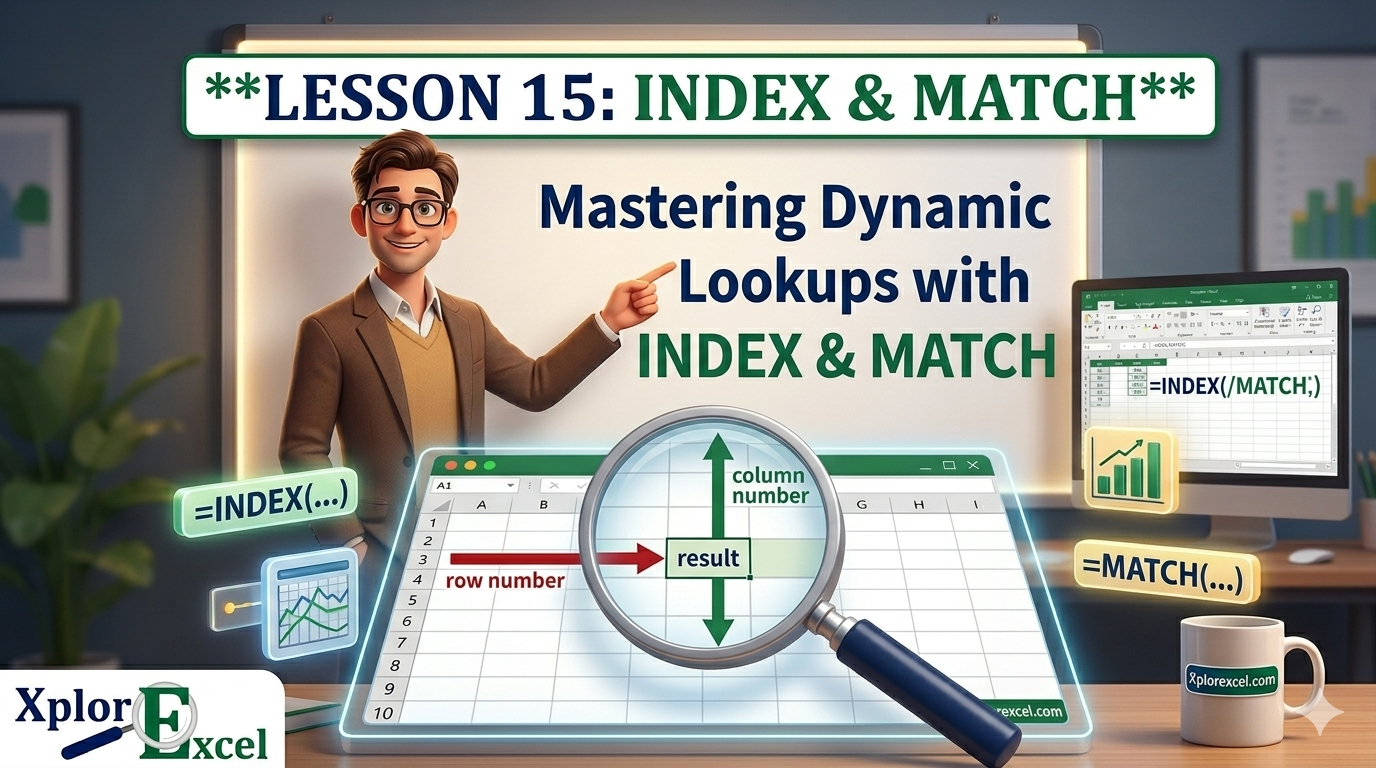
What You’ll Learn
- ✓ How INDEX and MATCH each work on their own — and why they are better combined
- ✓ Why INDEX MATCH beats VLOOKUP for dynamic, real-world data
- ✓ How to build a two-way lookup for grid-based data like pricing matrices
- ✓ How to handle #N/A errors cleanly with IFERROR
- ✓ Real-world use cases from HR, Finance, and Sales teams
INDEX and MATCH in Excel are the two functions that will make you feel like you have finally graduated from the beginners’ table — and once you get them, you will wonder how you ever survived without them.
Here is the thing. Most people learn VLOOKUP, use it for a year or two, and think they have lookups sorted. Then one day a colleague inserts a column into the data table, or they need to return a value from a column to the left of their search column, and VLOOKUP just falls apart. Silently. No error. Just wrong numbers flowing into a report that someone is going to present to senior management on Friday morning.
This lesson is going to save you from that Friday morning. You will learn what each function does on its own, how they work together, how to build a two-way lookup, how to handle errors gracefully, and when to use this approach over VLOOKUP. Real examples. Plain language. Formulas you can use today.
Why INDEX and MATCH in Excel Belong in Every Analyst’s Toolkit
The Problem with VLOOKUP and Why You Need an Alternative
You have probably seen a VLOOKUP formula that worked fine for six months and then suddenly started returning wrong data. Nobody touched the formula. Something changed in the table, and VLOOKUP quietly broke. Here is what VLOOKUP cannot do:
- It can only look to the right. Your lookup column must be the leftmost column in your selected range. If the value you want to return is in a column to the left of where you are searching, VLOOKUP simply cannot do it.
- It uses a hard-coded column number. When you write VLOOKUP and set col_index_num to 3, that number is frozen. Insert a column into your table and your formula now returns data from the wrong column — no warning, no error, just wrong.
- It scans the whole table range on every lookup. On large datasets this adds up to slower, heavier workbooks.
These are not rare problems. These are the everyday reality of working with data that other people also touch. INDEX and MATCH in Excel were built for exactly this kind of messiness.
What Makes INDEX MATCH Different
Instead of one function trying to do everything and cutting corners along the way, INDEX MATCH splits the job cleanly in two. One function finds where something is. The other retrieves what is there. That separation is what gives you flexibility that VLOOKUP just cannot match.
Understanding the INDEX Function in Excel
Syntax: =INDEX(array, row_num, [col_num])
INDEX is simpler than most people expect. It returns the value of a cell at a specific position inside a range. Think of it as coordinates — you tell INDEX which range to look in, which row to go to, and optionally which column, and it returns whatever is at that intersection.
- array — the range you want to retrieve a value from
- row_num — the row number inside that range
- col_num — optional, the column number inside that range
What INDEX Returns: A Simple Demo
Say you have a list in cells A1 to A5: London, Paris, Berlin, Madrid, Rome. The formula =INDEX(A1:A5, 3) returns Berlin. INDEX went to position 3 in that range and handed back the value.
The obvious question is: how do you know which row number to ask for when you are working with real data? You will not always know it. That is the job of MATCH.
Using INDEX with a Single Row or Column
When your array is one column, you only need row_num. When it is one row, you only need col_num. When it covers both rows and columns — like a pricing table — you need both. You will see this play out in the two-way lookup section shortly.
Understanding the MATCH Function in Excel
Syntax: =MATCH(lookup_value, lookup_array, [match_type])
MATCH searches for a value inside a row or column and returns its position as a number — not the value itself, just the number that tells you where it sits.
- lookup_value — what you are searching for
- lookup_array — the row or column to search in (must be a single row or column)
- match_type — 0 for exact match, 1 for less than, -1 for greater than
What MATCH Actually Returns: A Position, Not a Value
This is the single most important concept in this entire lesson. MATCH does not return the value you are looking for. It returns a number telling you where that value lives.
Using that same city list in A1:A5, the formula =MATCH("Berlin", A1:A5, 0) returns 3. Not Berlin — the number 3. Because Berlin is the third item in that range.
That number 3 is precisely what INDEX needs to retrieve the right result. You can already see these two functions are designed to hand off to each other.
Exact Match vs Approximate Match: The match_type Argument
Combining INDEX and MATCH: How the Formula Works
The Core Logic: MATCH Finds the Row, INDEX Returns the Value
Here is an analogy that makes this click for most people. Imagine you are looking for a book in a library. MATCH is the catalogue — you search it and it tells you the book is on shelf 7. INDEX is you physically walking to shelf 7 and picking it up. MATCH gives you the location. INDEX does the retrieval.
That is the entire relationship between these two functions.
Building Your First Excel INDEX MATCH Formula Step by Step
Here is a real scenario. You have an employee table. Names are in column A. Employee IDs are in column B. You want to type an ID into cell E2 and get the corresponding name back. VLOOKUP cannot do this — the return column A is to the left of the lookup column B. INDEX MATCH handles it without any issue.
Step-by-Step: Your First INDEX MATCH Formula
- Identify your return range — the column containing your answer. That is column A (employee names).
- Identify your lookup range — the column you are searching in. That is column B (employee IDs).
- Identify your lookup value — the ID you are searching for, sitting in cell E2.
- Write the MATCH part first:
=MATCH(E2, B:B, 0)— this returns the row number where the ID appears in column B. - Nest MATCH inside INDEX:
=INDEX(A:A, MATCH(E2, B:B, 0))— INDEX takes that row number and returns the name from column A.
Breaking Down the Formula in Plain English
Formula Breakdown
=INDEX( A:A, MATCH( E2, B:B, 0 ) )
A:A — Go to column A to retrieve your answer (employee names)
E2 — Find the value in cell E2 (the ID you typed)
B:B — By searching in column B (employee IDs)
0 — Using an exact match
Read inside out: MATCH runs first → hands a row number to INDEX → INDEX returns the value at that row.
💡 PRO TIP
Before you nest MATCH inside INDEX, test it on its own. Click an empty cell and type only: =MATCH(E2, B:B, 0). If it gives you a row number, your lookup is working. If it throws an error, you know the problem is in the MATCH part, not INDEX. Always build in layers — it saves you a lot of troubleshooting time.
INDEX MATCH vs VLOOKUP: Which Should You Use?
Advantage 1: Look Left — Reverse Lookup
Trust me on this — the ability to look left is more useful than it sounds. In the real world, ID columns, code columns, and key columns sit all over the place. INDEX and MATCH in Excel do not care which side of the lookup column your answer is on.
Advantage 2: Column-Order Independent
With the Excel INDEX MATCH formula, you reference your return column by address — not by a hard-coded number. Insert or delete a column in your table and the formula adjusts automatically. Your VLOOKUP would have already returned the wrong data without telling you.
Advantage 3: More Stable on Large Datasets
MATCH searches one column. INDEX retrieves from one column. VLOOKUP reads across the entire table width every time. On large data ranges this performance difference becomes noticeable.
When VLOOKUP Is Still Fine
If your table is small, stable, and the lookup column will always sit on the left — VLOOKUP is perfectly fine. There is no point adding complexity where none is needed. INDEX and MATCH in Excel simply give you better options when your data is less predictable or more dynamic.
To compare both approaches side by side and decide which fits your data, see the XplorExcel lesson on VLOOKUP and HLOOKUP.
⚠️ COMMON MISTAKE
Never leave the match_type argument blank. Writing =MATCH(E2, B:B) without a third argument defaults to 1, which requires your data to be sorted ascending. On unsorted data this returns an incorrect row number — and your INDEX formula returns the wrong answer with zero indication that anything went wrong. Write the 0. Every time.
Excel Two-Way Lookup with INDEX and MATCH
What Is a Two-Way Lookup?
A one-way lookup returns a value from a column based on a row match. A two-way lookup returns the value at the intersection of a specific row AND a specific column — matching in both directions at the same time.
This is something VLOOKUP simply cannot do. INDEX MATCH with two MATCH functions inside it absolutely can.
Formula Structure: Two MATCH Functions Inside INDEX
Two-Way Lookup Formula
=INDEX(table_range, MATCH(row_value, row_labels, 0), MATCH(col_value, col_labels, 0))
The first MATCH finds the row. The second MATCH finds the column. INDEX uses both coordinates to return the value at that exact intersection.
Real Example: Pulling Prices from a Product-Tier Matrix
You have a pricing table. Products listed down column A (rows 2 to 6). Customer tier headers — Bronze, Silver, Gold — across row 1 (columns B to D). You want to return the right price automatically based on a product selected in G2 and a tier selected in H2.
Pricing Matrix Formula
=INDEX(B2:D6, MATCH(G2, A2:A6, 0), MATCH(H2, B1:D1, 0))
MATCH(G2, A2:A6, 0) — finds the row for the selected product
MATCH(H2, B1:D1, 0) — finds the column for the selected tier
INDEX(B2:D6, …) — returns the price at that exact row/column intersection
Handling Errors in Your INDEX MATCH Formula
Why #N/A Happens and What It Means
When your formula returns #N/A, it means MATCH could not find the lookup value in the lookup range. Common culprits are a number stored as text, trailing spaces you cannot see, or a value that simply does not exist in your data. Check the data first. Then fix the formula.
Wrapping with IFERROR for Clean Results
Once you are confident your formula logic is correct and the error is just handling for genuinely missing values, wrap the whole thing in IFERROR.
With Error Handling
=IFERROR(INDEX(A:A, MATCH(E2, B:B, 0)), “Not found”)
If the lookup succeeds, you get your result. If MATCH cannot find the value, you get “Not found” instead of a red error cell. For a full breakdown of IFERROR and how to use it across different scenarios, see the XplorExcel lesson on IF and IFERROR functions.
Real-World Use Cases for INDEX and MATCH
HR: Looking Up Employee Data from a Non-Standard Table
An HR manager has a staff database where Employee ID is in column C, not column A. They need to return the employee name from column A by searching for an ID. One formula: =INDEX(A:A, MATCH(search_cell, C:C, 0)). Done. VLOOKUP would not even start.
Finance: Building a Report Dashboard with Dynamic Column References
A finance analyst pulls monthly actuals from a system export where the column order changes every month. With VLOOKUP they were updating the column index number every month manually. With INDEX and MATCH in Excel, the formula references the header name and finds the right column automatically every time — regardless of where it has ended up.
Sales: Pulling from a Pricing Matrix by Product and Customer Tier
A sales team has a pricing grid — products down the rows, customer tiers across the columns. They use dropdowns for product and tier, and a two-way INDEX MATCH formula returns the correct price instantly. No manual table hunting. No copy-paste errors. The formula does the work.
INDEX MATCH in Modern Excel: XLOOKUP and Beyond
When to Consider XLOOKUP Instead
If you are on Microsoft 365 or Excel 2021 or later, XLOOKUP is available and it handles many of the same scenarios with a simpler syntax. Left lookups, built-in error handling, and returning full rows or columns are all easier in XLOOKUP.
Here is the thing though — INDEX and MATCH in Excel are not going anywhere, for two very good reasons. First, they work in every version of Excel from 2010 onwards. If you share files with colleagues on older versions, INDEX MATCH is the safe choice. XLOOKUP will break in Excel 2019 and earlier. Second, the two-way lookup with two MATCH functions inside INDEX is still one of the cleanest solutions available for grid-based lookups.
Compatibility Note: Excel 2019, Microsoft 365, and Older Versions
If your team uses mixed Excel versions, INDEX MATCH is the version-safe formula to use across the board.
Quick-Reference Formula Cheat Sheet
All Formulas at a Glance
Basic INDEX MATCH
=INDEX(return_column, MATCH(lookup_value, lookup_column, 0))
With IFERROR Error Handling
=IFERROR(INDEX(return_column, MATCH(lookup_value, lookup_column, 0)), “Not found”)
Two-Way Lookup
=INDEX(table_range, MATCH(row_value, row_labels, 0), MATCH(col_value, col_labels, 0))
Test MATCH on Its Own First
=MATCH(lookup_value, lookup_column, 0)
Try It Yourself
🧪 Hands-On Exercise
Open a blank Excel workbook and type in this small table:
| Column A | Column B | Column C |
|---|---|---|
| Product A | 101 | 15.00 |
| Product B | 204 | 22.50 |
| Product C | 309 | 8.75 |
| Product D | 412 | 31.00 |
| Product E | 517 | 19.99 |
- In cell E1, type the number 309.
- In cell F1, write:
=INDEX(A1:A5, MATCH(E1, B1:B5, 0))— your result should be Product C. - Change E1 to 412. The result should update to Product D automatically.
- Switch to returning the price:
=INDEX(C1:C5, MATCH(E1, B1:B5, 0))— with E1 as 412, you should get 31.00. - Now try entering 999 in E1 and see what happens. Then wrap your formula in IFERROR to display “Not found” instead of the error.
Frequently Asked Questions
Can INDEX MATCH replace VLOOKUP entirely?
For most lookup tasks, yes. INDEX and MATCH in Excel handle everything VLOOKUP can do, plus the scenarios where VLOOKUP breaks. The only reason to stick with VLOOKUP is if it is already working in a stable table and changing it adds unnecessary risk.
Does INDEX MATCH work with multiple criteria?
Yes, but it requires an array formula approach where you combine multiple MATCH conditions using multiplication inside the formula. This is an advanced technique covered in a separate XplorExcel lesson on multi-criteria lookups.
Why is my INDEX MATCH returning the wrong value?
Nine times out of ten it is a missing or incorrect match_type in MATCH. Check that you have written 0 as the third argument. Also check that your lookup value and the data in your lookup array are stored in the same format — a number stored as text looks identical on screen but will not match a genuine number.
📚 Further Reading
The definitive syntax reference for INDEX, including all optional arguments and array usage.
One of the most thorough free INDEX MATCH references available, with worked examples and pattern variations.
← Previous Lesson
VLOOKUP & HLOOKUP in ExcelNext Lesson →
Text Functions in ExcelDownload the Practice Workbook
Work through the questions in Excel, then check your answers.