
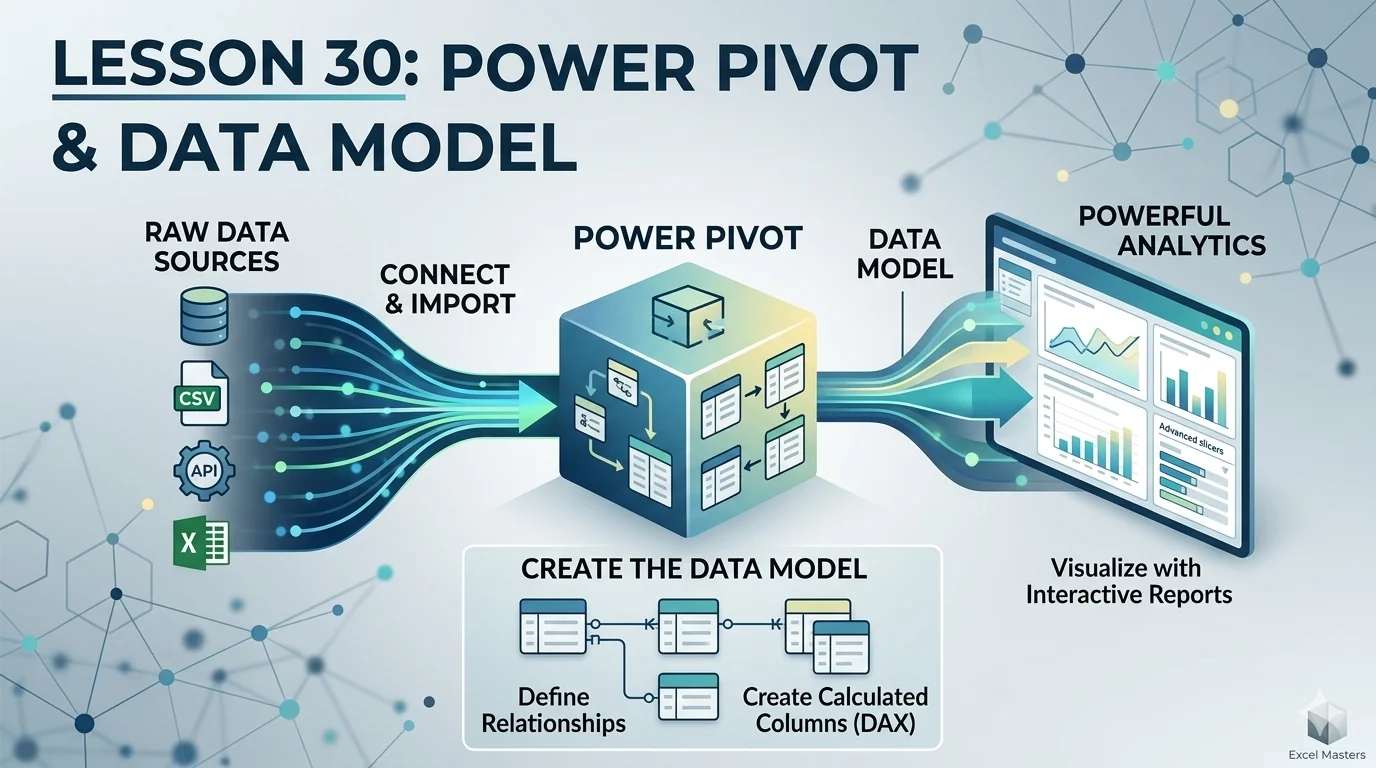
What You’ll Learn
- ✓ What the Excel Data Model is and why it exists
- ✓ How to load tables into the Data Model using Power Query
- ✓ How to build table relationships in Diagram View
- ✓ The difference between calculated columns and DAX measures
- ✓ The 5 DAX functions that cover 80% of real-world use cases
Power Pivot and Data Model in Excel are what happen when Excel decides to stop pretending it’s just a spreadsheet and start acting like a proper analytics engine. You’ve probably been there — three sheets open, a VLOOKUP stitching them together, a PivotTable that only knows about one of them, and a report that takes an hour to rebuild every Monday morning. That is the wall this lesson helps you break through.
This is Lesson 30 in the XplorExcel series. It builds on Lesson 29 on Power Query and assumes you’re comfortable with PivotTables from earlier lessons. If you haven’t covered those yet, go back first. This one hits the ground running.
By the end of this guide, you’ll know how to build a working Data Model, create relationships between tables, write your first DAX measures, and generate PivotTable reports that pull from multiple data sources at once. This is the foundation of Excel business intelligence.
Why Standard PivotTables Hit a Wall
The Flat-Table Problem: One Table, One Story
Here’s the thing — a standard PivotTable is only ever as smart as the single table you point it at. Every column you want to slice by — product name, region, sales rep, category — has to exist in that one table. That’s fine when your data is small and pre-combined. But that’s almost never how real data works.
You’ve probably seen it: transactions in one sheet, product details in another, customer data in a third file from a different system entirely. To use a normal PivotTable, you copy everything together with VLOOKUP or INDEX-MATCH. It works until someone changes a product ID. Or adds a row at the top of the reference table. Or opens the file on a different computer and all the paths break.
What Happens When Your Data Lives in Multiple Sheets
The moment your data lives in two separate tables, a regular PivotTable cannot join them. It simply doesn’t have that concept. You’re either combining the data manually upstream, or you’re using the Data Model. That’s the gap Power Pivot fills.
What Is the Excel Data Model?
Think of the Data Model as a mini database that lives inside your Excel file. It’s invisible in the normal grid — you won’t see it in any cell — but when you load tables into it, Excel hands them off to a separate, dedicated engine built for fast analytical queries.
Columnar Storage and In-Memory Processing
Normal Excel stores data row by row, which is fine for data entry but slow for analysis. The Data Model stores data column by column. Most analytical questions — total revenue, units sold by region — only need one or two columns across potentially millions of rows. Columnar storage is built exactly for that.
The engine keeps everything in memory with aggressive compression. That’s why Power Pivot handles a million rows without grinding to a halt, while a normal Excel table starts sweating at 100,000.
How the Data Model Differs from a Worksheet Range
Data in a worksheet lives in cells and gets processed by Excel’s standard calculation engine. Data in the Data Model lives in xVelocity — the in-memory engine — and gets queried using DAX (Data Analysis Expressions). You interact with it through the Power Pivot interface and a special PivotTable field list that shows tables from across the whole model. Same Excel file. Very different engine under the hood.
How to Load Data Into the Data Model
Using Power Query (the Recommended Route)
The cleanest path into the Data Model is through Power Query. When you finish your transformations and click Close and Load, a dialogue appears with options. Instead of loading to a sheet, choose Only Create Connection and tick Add this data to the Data Model. Do that for every table you want in the model.
This is the recommended route because Power Query lets you clean messy source data before it lands in the model. Inconsistent category names, extra spaces, blank rows — handle it all upstream before the model ever sees it.
The “Add This Data to the Data Model” Checkbox
If your data is already in an Excel Table on a sheet, go to the Power Pivot tab in the ribbon and click Add to Data Model. Excel loads it as a linked table — staying in sync with whatever is on the sheet.
Linked Tables: When and Why to Be Careful
Trust me on this: linked tables are fine for small, stable reference data — a list of region codes, a currency table — that rarely changes. They become a headache when the underlying sheet gets reorganised, a colleague renames a column header, or rows get inserted above the table. For serious reporting, Power Query is a cleaner, more reliable pipeline.
Building Relationships in the Power Pivot and Data Model in Excel
This is the part most Excel Power Pivot tutorials rush through. They shouldn’t. Relationships are the whole point. Without them, your loaded tables are just isolated datasets that happen to share the same file.
Primary Keys and Foreign Keys
A relationship needs two things: a column in one table where every value is unique (the primary key), and a column in another table that references those values (the foreign key). A Products table with a ProductID column — where every product has exactly one ID — is the primary key side. A Sales table with a ProductID column — where the same product appears in hundreds of rows — is the foreign key side. That is a one-to-many relationship: one product, many transactions.
One-to-Many vs Many-to-Many
One-to-many works smoothly. Many-to-many — where both tables have repeating values in the key column — causes problems. Excel will either refuse to build the relationship or produce totals that are silently wrong. If you hit this, you usually need a bridge table, or you need to reconsider which table should be the “one” side.
Using Diagram View to Map Your Model Visually
Go to Power Pivot > Manage > Diagram View. This is where the model becomes something you can actually see. Each table appears as a box with its column list. Drag a field from one box to the matching field in another to create the relationship.
Take five minutes to arrange the diagram cleanly — fact table in the centre, dimension tables around it like spokes on a wheel. This is called a star schema, and it’s the structure Power Pivot works best with.
Common Relationship Mistakes and How to Catch Them
The most common mistake is connecting a foreign key to another foreign key. When that happens, your PivotTable totals are wrong — usually inflated or doubled. The first thing to check when results look off is Diagram View. Confirm the relationship arrow points from the fact table to the dimension table, and that the “one” side column truly has unique values.
Excel DAX Formulas: The Engine Behind Power Pivot
DAX stands for Data Analysis Expressions. It’s the formula language used inside Power Pivot. It looks like Excel formulas — parentheses, function names, commas — but it operates on entire columns and tables, not individual cells. The learning curve is real, but you don’t need to master all 250+ functions to do meaningful work.
Calculated Columns vs Measures — The Distinction That Matters Most
A calculated column adds a new column to a table in the model. It’s evaluated row by row and stored. Use it when you need a per-row value — like multiplying quantity by unit price to get a line total.
A measure doesn’t get stored anywhere. It gets calculated fresh every time you interact with the PivotTable, based on whatever filters and slicers are currently active. Use measures for aggregations: total revenue, conversion rate, average order value.
The rule of thumb: row-level computation → calculated column. Filter-responsive summary → measure.
Row Context vs Filter Context (Plain-English Explanation)
Row context means the formula knows which row it’s on. Calculated columns use row context.
Filter context means the formula knows what filters are currently active — the slicer selections, the row and column fields in your PivotTable. Measures use filter context. Understanding even just this much will save you hours of debugging confusing DAX results.
The 5 DAX Functions That Cover 80% of Real-World Use Cases
DAX Measures — Core Functions
1. CALCULATE — Override or add filters
East Revenue := CALCULATE(SUM(Sales[Revenue]), Sales[Region] = "East")
2. SUMX — Row-by-row iteration then sum
Total Revenue := SUMX(Sales, Sales[Quantity] * Sales[UnitPrice])
3. RELATED — Pull value from a related table
= RELATED(Products[Category])
4. ALL — Remove filters (denominator calculations)
% of Total := DIVIDE([Total Revenue], CALCULATE([Total Revenue], ALL(Sales)))
5. FILTER — Return a filtered table
High Value Rev := CALCULATE(SUM(Sales[Revenue]), FILTER(Sales, Sales[Revenue] > 1000))
Naming Conventions for Measures
Name your measures clearly. Use descriptive prefixes on large models — “Total Revenue” instead of “Revenue”, “Gross Margin %” instead of “Margin”. A well-named measure is self-documenting. Someone opening your file a year later should understand every measure without reverse-engineering the DAX.
Quick Reference: DAX Functions at a Glance
| Function | Use When… | Context |
|---|---|---|
| CALCULATE | You need to override active filters | Filter context |
| SUMX | Revenue needs row-level calculation before summing | Row + filter |
| RELATED | You need a column from a related table | Row context |
| ALL | You need a denominator that ignores slicer filters | Filter context |
| FILTER | Conditions are too complex for basic CALCULATE arguments | Filter context |
Building Your First Power Pivot PivotTable
Once the model is set up and relationships are in place, creating a PivotTable from it takes three clicks. Insert > PivotTable, then choose Use this workbook’s Data Model. The field list shows every table in the model. Drag fields from different tables into the same PivotTable — the relationships do the joining for you.
Pulling Fields from Multiple Tables into One PivotTable
Transaction Date from your Sales table in Rows. Product Category from your Products table in Columns. A Total Revenue measure in Values. No VLOOKUP. No helper columns. The relationship handles it.
Adding Slicers Across a Multi-Table Model
Slicers work exactly as in standard PivotTables, but they now filter across the entire model. A Region slicer correctly filters a Product Category breakdown because the relationship chain connects them.
Real-World Example: Sales Dashboard
Three tables: Transactions (OrderID, ProductID, Quantity, UnitPrice, Date), Products (ProductID, Category, Subcategory), Regions (TransactionID, Region). Load all three into the Data Model, create relationships, write a SUMX measure for Total Revenue. You now have a cross-table report that handles 500,000 rows and refreshes in seconds. The same report in a flat-table VLOOKUP setup would take minutes to open and hours to maintain.
Power Pivot Measures: Building Reusable Business Logic
What a Measure Actually Is (and Isn’t)
A measure is a named formula stored in the Data Model’s measure grid. It’s reusable across every PivotTable in the workbook. It recalculates dynamically based on filter context. It is not a cell formula. It is not a calculated column. It exists in the model, not on any sheet.
Step-by-Step: Creating Revenue, Margin, and YoY Growth Measures
📋 Creating Your First Three Measures
- Open Power Pivot and click Manage.
- Click an empty cell in the measure grid at the bottom of your Sales table.
- Type this and press Enter:
Total Revenue := SUMX(Sales, Sales[Quantity] * Sales[UnitPrice]) - Add a margin measure:
Gross Margin % := DIVIDE([Total Revenue] - [Total Cost], [Total Revenue]) - Add year-over-year growth:
YoY Growth % := DIVIDE([Total Revenue] - CALCULATE([Total Revenue], SAMEPERIODLASTYEAR(Calendar[Date])), CALCULATE([Total Revenue], SAMEPERIODLASTYEAR(Calendar[Date])))
DIVIDE is used instead of a slash because it handles divide-by-zero gracefully — returning blank instead of an error.
Using KPIs in Power Pivot
Right-click any measure in the Power Pivot grid and choose Create KPI. Set a target value or a target measure, define your status thresholds, and pick an indicator style. The KPI appears in the PivotTable field list with colour-coded status indicators — red, yellow, green — directly in your report. For management dashboards, this is one of the fastest ways to add built-in context.
When NOT to Use Power Pivot
Here’s something most Excel Power Pivot tutorials won’t tell you: Power Pivot is not always the right tool.
File Size and Sharing Limitations
Workbooks with a Data Model are larger. Some sharing environments don’t handle them well — certain SharePoint configurations, older Excel versions, or files sent to clients running Excel 2010 or earlier. If file compatibility is a priority, test before you build the whole report in the Data Model.
Excel Version Compatibility
Power Pivot is built into Excel 2016, 2019, and Microsoft 365. In Excel 2013, it required a manually enabled add-in. Before handing a Power Pivot workbook to a colleague, check what version they’re running.
When Power Query Alone Is Enough
If your analysis involves one table, your data is already clean and flat, and you don’t need cross-table relationships, Power Query handles it perfectly well on its own. Adding the Data Model to a simple single-table report adds complexity without adding value. Scope the problem first, then choose the tool.
💡 PRO TIP
Store all your measures in a dedicated, empty table called “Measures” — not scattered across your fact and dimension tables. Create the table in Power Pivot as a blank single-row placeholder and put all your DAX measures there. It keeps the model tidy, makes measures easy to find, and prevents the confusion of hunting for a calculation that might be attached to any of five different tables.
⚠️ COMMON MISTAKE
Writing Total Revenue := SUM(Sales[Revenue]) when there is no pre-calculated Revenue column in the data — only Quantity and UnitPrice. The measure returns blank or zero and you spend twenty minutes wondering what went wrong. Always check whether the column you’re summing actually exists, or whether you need SUMX to compute revenue row by row first.
🎯 TRY IT YOURSELF
Build a two-table model from scratch. Create a Sales table with columns: OrderID, ProductID, Quantity, UnitPrice. Create a Products table with columns: ProductID, ProductName, Category.
- Load both tables into the Data Model via Power Query (Connection Only, Add to Data Model).
- Open Power Pivot, go to Diagram View, and create a relationship from Sales[ProductID] to Products[ProductID].
- Write this measure in the Sales measure grid:
Total Revenue := SUMX(Sales, Sales[Quantity] * Sales[UnitPrice]) - Insert a PivotTable from the Data Model. Add Category (from Products) to Rows and Total Revenue to Values.
- Add a slicer on Category. Confirm that Total Revenue updates correctly when you filter.
If your totals look inflated or wrong, go straight to Diagram View. Confirm the relationship direction is correct and that Products[ProductID] is the “one” side.
Key Takeaways
- → The Data Model stores data in compressed columnar format — which is why it’s fast at scale.
- → Relationships replace VLOOKUP. Build them in Diagram View and get the direction right.
- → Measures are for aggregations. Calculated columns are for row-level values. Know the difference.
- → CALCULATE, SUMX, RELATED, ALL, and FILTER will get you through most of what you’ll actually need.
- → Knowing when not to use Power Pivot is just as valuable as knowing how.
📚 Further Reading & Resources