Why You Need Excel Shortcuts for Data Entry
If you spend hours every day entering data in Excel — whether it’s sales figures for a GST report, MIS data for your manager, or employee records in Tally — you already know how painful it can be to keep clicking around with your mouse. Every extra click, every trip to the ribbon, every repetitive action adds up to minutes lost every hour.
The good news? Excel has a powerful set of keyboard shortcuts that can cut your data entry time in half. Whether you’re preparing a monthly MIS report, reconciling bank statements, or filling in stock inventory, these shortcuts work instantly — no special setup required. In this guide, we’ll walk you through the Top 20 Excel shortcuts for data entry that every working professional in India should know.
What Are Excel Data Entry Shortcuts?
Excel data entry shortcuts are keyboard combinations that let you enter, edit, copy, navigate, and format data without touching the mouse. Instead of clicking through menus, you press a key or two and the action happens instantly.
Real Indian Example: Priya works as an accounts assistant at a Mumbai trading firm. Every Monday, she manually enters weekend sales data — product name, quantity, price, and GST amount — into an Excel sheet. Earlier, she used to click into each cell, type the data, then click the next cell. After learning shortcuts like Tab, Ctrl+D, and Ctrl+Enter, she now finishes the same task in 20 minutes instead of 45.
Top 20 Excel Shortcuts for Data Entry — Quick Reference
Here is the complete list of the 20 most useful Excel data entry shortcuts, grouped by category:
| # | Shortcut | Action | Category |
|---|---|---|---|
| 1 | Tab | Move to the next cell (right) | Navigation |
| 2 | Shift+Tab | Move to the previous cell (left) | Navigation |
| 3 | Enter | Confirm entry and move down | Navigation |
| 4 | Ctrl+Enter | Fill selected range with same value | Filling |
| 5 | Ctrl+D | Fill Down — copy cell above | Filling |
| 6 | Ctrl+R | Fill Right — copy cell to the left | Filling |
| 7 | Alt+Enter | Insert a line break inside a cell | Editing |
| 8 | F2 | Edit the active cell | Editing |
| 9 | Escape | Cancel the current entry | Editing |
| 10 | Delete | Clear cell content (keep format) | Editing |
| 11 | Ctrl+; | Insert today’s date (static) | Date & Time |
| 12 | Ctrl+Shift+: | Insert current time (static) | Date & Time |
| 13 | Ctrl+C | Copy selected cells | Copy & Paste |
| 14 | Ctrl+V | Paste copied data | Copy & Paste |
| 15 | Ctrl+Alt+V | Paste Special dialog box | Copy & Paste |
| 16 | Ctrl+Z | Undo the last action | Undo / Redo |
| 17 | Ctrl+Y | Redo the undone action | Undo / Redo |
| 18 | Ctrl+Shift+End | Jump to last used cell in sheet | Navigation |
| 19 | Ctrl+Home | Go to cell A1 (beginning) | Navigation |
| 20 | Ctrl+' | Copy formula from cell above | Filling |
Example: Before vs After Using Shortcuts
Amit works as an MIS executive at a Delhi-based FMCG distributor. Here’s how his daily data entry workflow changed after learning these shortcuts:
| Task | Before (Mouse) | After (Shortcut) | Time Saved |
|---|---|---|---|
| Enter today’s date in 50 rows | Type manually each time | Ctrl+; + Ctrl+D | ~4 minutes |
| Fill same GST % in 100 cells | Copy → click each cell → paste | Select range → type → Ctrl+Enter | ~6 minutes |
| Fix a wrong entry | Double-click the cell, retype | Press F2, edit, press Enter | ~2 minutes |
| Navigate large data table | Scroll with mouse | Ctrl+End / Ctrl+Home | ~3 minutes |
| Paste only values (no formula) | Right-click → Paste Special → Values | Ctrl+Alt+V → V → Enter | ~2 minutes |
Step-by-Step: How to Use the Most Important Shortcuts
Let’s walk through the 5 most impactful shortcuts with a real scenario. Suresh is preparing a weekly stock entry report for his Bangalore warehouse in Excel.
Use Tab to Move Across Columns Quickly
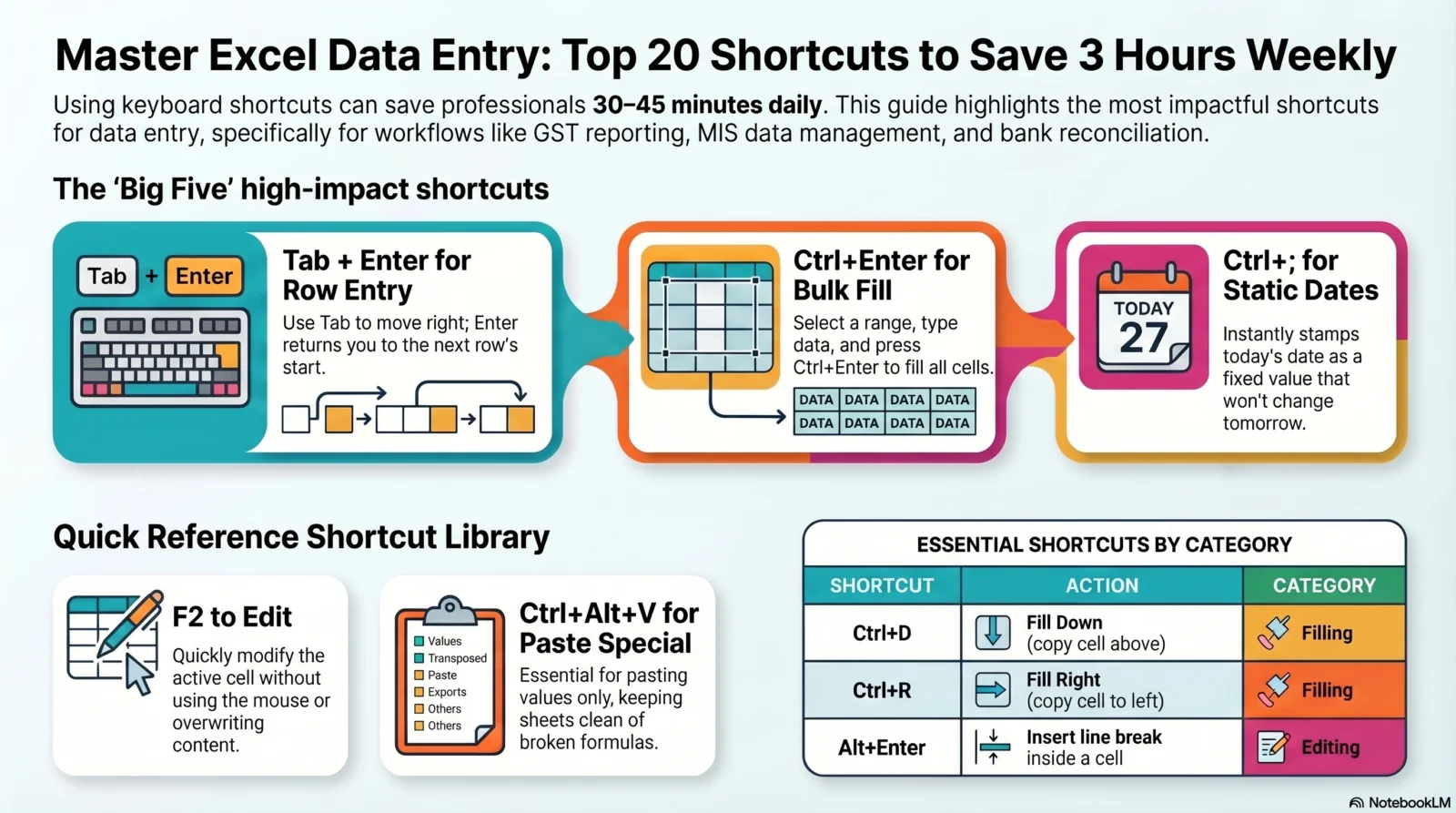
After typing a value in a cell, press Tab instead of Enter to move to the next column. When you press Enter at the end of a row, the cursor jumps back to the first column of the next row — perfect for tabular data like stock entries.
Use Ctrl+; to Stamp Today’s Date
Click on the cell where you need the date. Press Ctrl+; — Excel instantly inserts today’s date as a static value. This means it won’t change tomorrow when you reopen the file, which is exactly what you want for transaction logs and attendance records.
Use Ctrl+D to Fill Down Repeated Values
Type a value in a cell (e.g., “Mumbai” in column C). Select that cell plus the cells below it (C2:C20). Press Ctrl+D. All selected cells are instantly filled with “Mumbai.” This saves enormous time when the same branch or category appears in many rows.
Use Ctrl+Enter to Fill a Selection with One Value
Select a range of cells (say D5:D50). Type the value you want (e.g., “18%” for GST rate). Instead of pressing Enter, press Ctrl+Enter. Excel fills every selected cell with that value simultaneously — a huge time-saver for bulk entries.
Use Ctrl+Alt+V to Paste Values Only
After copying a range with Ctrl+C, go to your destination and press Ctrl+Alt+V to open Paste Special. Press V to select “Values,” then Enter. This pastes only the data — no formulas, no formatting — which is essential when sharing reports from SAP or Tally exports.
When to Use These Shortcuts — Indian Work Scenarios
- GST Data Entry: Use
Ctrl+Enterto fill the same GST percentage across hundreds of invoice rows instantly. - MIS Report Preparation: Use
TabandCtrl+Dto move across columns and fill repeated department names without lifting your hands off the keyboard. - Tally Export Cleanup: Use
Ctrl+Alt+Vto paste only values when importing data from Tally reports — keeps your sheet clean and formula-free. - Attendance & Payroll Sheets: Use
Ctrl+;to stamp the submission date in payroll sheets so it stays fixed month after month. - SAP Data Entry: Use
F2to quickly edit a cell when reconciling SAP data exports without accidentally overwriting the cell contents. - Bank Reconciliation: Use
Ctrl+HomeandCtrl+Shift+Endto quickly jump between the first and last entries in long transaction sheets.
Common Mistakes Beginners Make
Many beginners press Enter to move to the next column. Enter moves you down, not right. Use
Tab to move right across columns. Bonus: after pressing Tab across a row, pressing Enter returns you to the start of the next row automatically.Delete clears cell content but keeps formatting intact — great for reuse. Backspace puts you in Edit mode and deletes one character. Use Delete for bulk clearing; use Backspace when editing a specific character.Many users think
Ctrl+; works like the TODAY() formula and updates every day. It doesn’t — it stamps a fixed date. If you want a dynamic date that always shows today, use the =TODAY() formula instead.When you copy formula-based cells and paste with
Ctrl+V, Excel pastes the formulas, which often break or shift references. Always use Ctrl+Alt+V → V → Enter to paste values only, especially in shared workbooks.Pro Tips to Level Up Your Data Entry Speed
💡 Combine Tab + Enter for Row Entry
Use Tab to move right across columns while filling a row. When you reach the last column and press Enter, the cursor automatically jumps back to the first column of the next row — no clicking needed!
💡 AutoComplete for Repeated Text
Excel automatically suggests previously typed text in a column. Accept it with Enter or reject it with any other key. This speeds up entering repeated city names, product codes, or employee IDs.
💡 Use Ctrl+’ to Repeat a Formula
Press Ctrl+' to copy the exact formula from the cell directly above — without changing references. Useful when you want to replicate a formula but keep it pointing to the same cells.
💡 Use Alt+Enter for Multi-line Cells
When typing an address or multi-line remark inside a cell, press Alt+Enter to insert a line break within the same cell — great for address fields in customer master files.
Conclusion
Mastering Excel shortcuts for data entry is one of the best investments you can make in your professional productivity. Whether you’re an accounts executive entering GST data, an HR professional maintaining payroll, or an analyst building MIS reports — these 20 shortcuts will cut your keyboard time significantly and help you focus on the work that actually matters.
Start with just 3–4 shortcuts this week and practise them daily. Within a month, they will become muscle memory. Here are your key takeaways:
Ctrl+Enter for bulk fill
Ctrl+D to fill down
Ctrl+; for static date
F2 to edit a cell
Ctrl+Alt+V for paste values
Ctrl+Z to undo anytime
Free Download
Practice Sheet: Top 20 Excel Shortcuts for Data Entry
Reinforce your learning with our free, beginner-friendly Excel practice workbook. It includes exercises for every shortcut covered in this post — designed specifically for Indian work scenarios like GST entries, MIS reports, and payroll sheets.
⬇ Download Free Practice Sheet — xplorexcel.com
No sign-up required · Instant download · 100% free