📌 Introduction
Have you ever copied data from a website, a PDF, or another application into Excel and found that your formulas, such as VLOOKUP or SUMIF, stop working? The most common reason is hidden spaces and invisible characters in your data.
Excel has two very simple but powerful functions to fix this problem: TRIM and CLEAN Functions. In this post, you will learn what these functions do, how to use them, when to use them, and how to combine them for the best results — with real examples.
📌 What is the TRIM Function?
The TRIM function removes all extra spaces from a text string. This includes:
- Spaces at the beginning of the text (leading spaces)
- Spaces at the end of the text (trailing spaces)
- Extra spaces between words — it keeps only one single space between words
Syntax of TRIM
- text — the cell reference or text string you want to clean
TRIM Example
| Cell A1 (Original Dirty Data) | Formula in B1 | Clean Result |
|---|---|---|
| ” Rahul Sharma “ | =TRIM(A1) | “Rahul Sharma” |
| ” New Delhi” | =TRIM(A1) | “New Delhi” |
| “Sales Report “ | =TRIM(A1) | “Sales Report” |
| ” Invoice #1001″ | =TRIM(A1) | “Invoice #1001” |
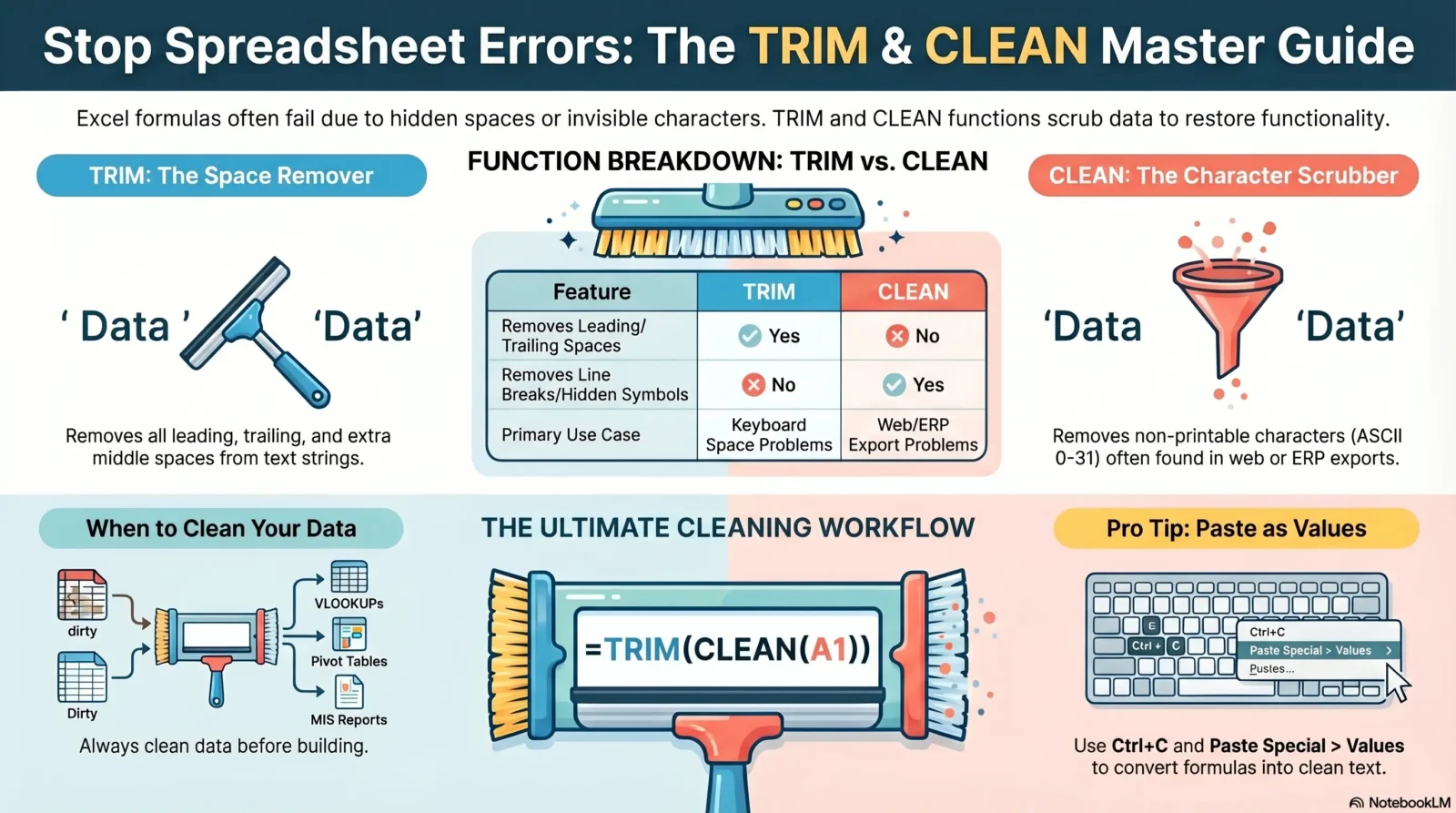
TRIM only removes regular keyboard spaces. It does NOT remove invisible characters like line breaks or special hidden characters that come from other software.
📌 What is the CLEAN Function?
The CLEAN function removes non-printable characters from text. These are invisible characters with character codes 0 to 31 in the ASCII table. They usually come when you copy-paste data from:
- Websites and browsers
- PDF files
- ERP software like Tally, SAP, or Zoho
- Other operating systems (Linux or Mac files opened in Windows)
Syntax of CLEAN
- text — the cell reference or text containing the invisible characters
CLEAN Example
| Situation | Formula | What CLEAN Does |
|---|---|---|
| Data pasted from a website with hidden line breaks | =CLEAN(A1) | Removes the line break characters completely |
| Data exported from Tally or SAP with hidden symbols | =CLEAN(A1) | Removes all non-printable hidden symbols |
| Cell shows a small box or square symbol | =CLEAN(A1) | Removes those box/square characters |
| VLOOKUP not matching, even though the values look the same | =CLEAN(A1) | Removes the hidden character causing the mismatch |
CLEAN removes invisible characters but does NOT remove extra spaces. This is why we always recommend using TRIM and CLEAN together.
📌 Use TRIM and CLEAN Functions Together — Best Practice
To fully clean messy data in one step, combine both functions like this:
Here is what happens step by step:
- CLEAN(A1) runs first — removes all invisible non-printable characters
- TRIM(…) runs on the result — removes all extra spaces
TRIM + CLEAN functions Combined Example
| Original Data in A1 | Problem | Formula | Clean Result |
|---|---|---|---|
| ” Amit Kumar[line break]” | Extra spaces + line break | =TRIM(CLEAN(A1)) | “Amit Kumar” |
| ” Invoice #1001[hidden]” | Extra spaces + hidden symbol | =TRIM(CLEAN(A1)) | “Invoice #1001” |
| “[box] New Delhi “ | Box symbol + extra spaces | =TRIM(CLEAN(A1)) | “New Delhi” |
| ” Priya Sharma[special]” | Spaces + special character | =TRIM(CLEAN(A1)) | “Priya Sharma” |
📌 Step-by-Step: How to Clean a Full Column
Follow these steps to clean an entire column of messy data in Excel:
Suppose your dirty data is in column A (from A1 to A100).
Click on an empty cell — for example, cell B1.
Type this formula: =TRIM(CLEAN(A1)) and press Enter.
Click on B1 again and drag the formula down to B100 using the small green square at the bottom-right corner of the cell.
Select range B1:B100 and press Ctrl + C to copy.
Right-click on B1 → click Paste Special → select Values → click OK. This removes formulas and keeps only clean text.
You can now delete column A if you no longer need the original data.
After copying, press
Alt + E + S + V then Enter to Paste as Values instantly — no mouse needed!📌 When Should You Use TRIM and CLEAN Functions?
- When VLOOKUP or SUMIF is not finding a match, even though the value looks the same
- When data is imported from a website, PDF, or ERP software like Tally, SAP, or Zoho
- When sorting or filtering does not give the correct results
- When you see strange boxes, squares, or symbols inside your cells
- When duplicate values are not being detected properly
- Before building any MIS report, dashboard, or pivot table from raw imported data
- When names or codes do not match between two sheets, even though they look identical
📌 Quick Comparison: TRIM vs CLEAN
| Feature | TRIM | CLEAN |
|---|---|---|
| Removes leading spaces (before text) | ✔ Yes | ✘ No |
| Removes trailing spaces (after text) | ✔ Yes | ✘ No |
| Removes extra spaces between words | ✔ Yes | ✘ No |
| Removes invisible / non-printable characters | ✘ No | ✔ Yes |
| Removes line breaks from pasted data | ✘ No | ✔ Yes |
| Removes box / square symbols | ✘ No | ✔ Yes |
| Works on Tally / SAP exported data | ~ Partly | ✔ Yes |
| Best used for | Space problems | Hidden character problems |
| Recommended formula | =TRIM(CLEAN(A1)) — Use both together always | |
📌 Pro Tips
Always clean your data before applying VLOOKUP, SUMIF, or COUNTIF. This prevents 90% of formula errors.
Use =TRIM(CLEAN(A1)) As your default, TRIM alone will miss hidden characters.
After cleaning, always use Paste Special → Values to convert formulas into plain text. Makes your file lighter and faster.
Compare =LEN(A1) vs =LEN(TRIM(CLEAN(A1))) — If numbers differ, hidden characters exist.
🎯 Conclusion
TRIM and CLEAN are two of the most useful and underrated functions in Excel. Every person who works with data — whether it is a salary sheet, customer list, MIS report, or purchase register — will face messy data at some point. Instead of wasting hours checking why your formulas are not working, simply apply =TRIM(CLEAN(A1)) to your data first.
Just remember these three simple rules:
CLEAN = removes invisible characters
=TRIM(CLEAN(A1)) = fixes both at once
Try these functions on your own data today and see the difference. If you have any questions or want to share your experience, feel free to write in the comments below. Happy learning! 😊