
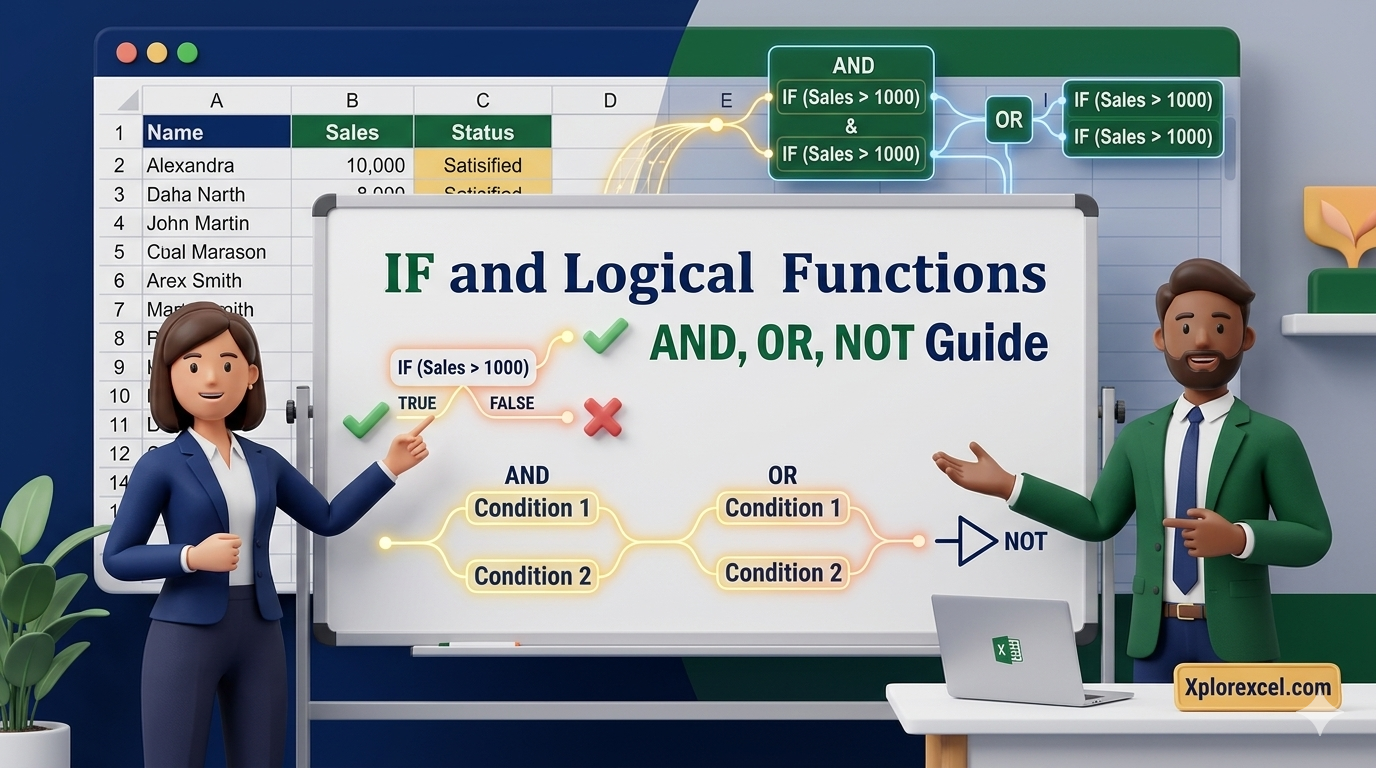
What You’ll Learn
- ✓ How the Excel IF function works and how to write your first formula
- ✓ Using AND and OR to test multiple conditions inside a single formula
- ✓ Building nested IF formulas for multi-tier decision logic
- ✓ Using the IFS function as a cleaner alternative to deeply nested IFs
- ✓ Handling errors gracefully with IFERROR and avoiding the most common mistakes
IF and logical functions in Excel are the closest thing a spreadsheet has to a brain — and once you get comfortable with them, you will wonder how you ever managed without them. Picture this: you have got 200 rows of employee data and your manager wants to know who qualifies for a bonus by end of day. Without these functions, you are scrolling, checking, and typing manually for the next two hours. With one well-written IF formula, you are done in thirty seconds.
That is not an exaggeration. That is just what happens when you let Excel make the decisions instead of you.
This guide walks you through everything — from the very first IF formula, through combining conditions with AND and OR, building multi-tier logic with nested IFs, and switching to the cleaner IFS function when nesting gets out of hand. Real examples throughout, no fluff.
What Are IF and Logical Functions in Excel?
Here is the thing — logical functions are not complicated once you see what they are actually doing. Every one of them asks Excel a yes-or-no question and does something different depending on the answer.
TRUE and FALSE are the only two possible answers Excel cares about. Feed it a condition, it evaluates it, and returns one of those two values. Everything else follows from there.
The Excel IF function is the foundation. AND, OR, and NOT are the tools you stack on top of it to handle more complex decisions.
How Excel Evaluates TRUE and FALSE
Before writing your first formula, try this quick experiment. Type =B2>50 into any empty cell. Excel will display either TRUE or FALSE — not “yes” or “no”, not 1 or 0. Just TRUE or FALSE.
That result is what every logical formula feeds on. When you write an IF formula, you are essentially saying: run this test — if it comes back TRUE, show me this, and if it comes back FALSE, show me that instead. Once that clicks, the rest of this guide will make a lot of sense.
The Building Blocks: IF, AND, OR, NOT at a Glance
| Function | What It Does | Returns TRUE When… |
|---|---|---|
IF | Tests one condition, returns different values based on result | The logical test evaluates to TRUE |
AND | Checks whether all conditions in a list are TRUE | Every single condition is TRUE |
OR | Checks whether at least one condition is TRUE | At least one condition is TRUE |
NOT | Reverses a logical result | The original condition is FALSE |
IFS | Tests multiple conditions in one formula (Excel 2019+) | The first matching condition is TRUE |
Excel IF Function — Syntax and How It Works
The Excel IF function follows this structure — three arguments, separated by commas, wrapped in one pair of brackets. That is the whole structure. Every IF formula you ever write, no matter how complex it looks, follows this exact pattern.
Syntax
=IF(logical_test, value_if_true, value_if_false)
logical_test — The condition you want to check (e.g., B2>=50)
value_if_true — What Excel returns when the condition is TRUE
value_if_false — What Excel returns when the condition is FALSE
Example
=IF(B2>=50, “Pass”, “Fail”)
Breaking Down the Three Arguments
In plain English, every IF formula says: if this condition is true, give me this result — otherwise give me that result. So =IF(B2>=50, "Pass", "Fail") translates directly to: if the value in B2 is 50 or above, return Pass. If not, return Fail.
IF with Numbers vs IF with Text
One rule trips up a lot of people: text needs quotation marks, numbers do not.
- –
=IF(B2>=50, 1, 0)— works, because 1 and 0 are numbers - –
=IF(B2>=50, "Pass", "Fail")— works, because Pass and Fail are in quotes - –
=IF(B2>=50, Pass, Fail)— breaks, Excel reads Pass as a named range
The same rule applies when comparing text in the logical test: =IF(A2="Yes", "Complete", "Pending")
Your First IF Formula (Step-by-Step)
How to Write Your First IF Formula
- Click the cell where you want the result to appear.
- Type
=IF(to open the formula. - Click the cell you want to test, or type its address (e.g., B2).
- Type your condition right after the cell reference (e.g.,
>=50). - Type a comma, then enter your TRUE result (e.g.,
"Pass"). - Type another comma, then enter your FALSE result (e.g.,
"Fail"). - Close with
)and press Enter.
Finished formula: =IF(B2>=50, "Pass", "Fail")
💡 PRO TIP
If you want the cell to stay blank when the condition is false, use two quotation marks with nothing between them as your false value: =IF(B2>=50, "Pass", ""). Excel will show an empty cell instead of a result, which is often much cleaner in a shared report or dashboard.
Excel AND OR Function — Testing Multiple Conditions
One condition is rarely enough in real work. That is exactly where the Excel AND OR function pairing becomes essential.
Using AND — All Conditions Must Be True
AND checks a list of conditions and only returns TRUE if every single one of them passes. If even one condition fails, the whole thing returns FALSE. Think of AND as a strict gatekeeper — everyone on the list has to qualify.
Syntax
=AND(condition1, condition2, …)
Example
=AND(B2>=50, C2=”Submitted”)
On its own, AND just gives you a TRUE or FALSE. Place it inside an IF formula and it becomes genuinely useful.
Using OR — At Least One Condition Must Be True
OR is more lenient. It returns TRUE if any one of the conditions is TRUE, and only returns FALSE when every single condition fails.
Syntax
=OR(condition1, condition2, …)
Example
=OR(B2=”Manager”, B2=”Director”)
Combining AND / OR Inside an IF Formula
The logical_test slot of your IF formula is exactly where AND and OR belong.
Using AND inside IF
=IF(AND(B2>=50, C2=”Submitted”), “Eligible”, “Not Eligible”)
Using OR inside IF
=IF(OR(B2=”Manager”, B2=”Director”), “Leadership”, “Team Member”)
⚠️ COMMON MISTAKE
A very common slip is putting AND or OR around the IF rather than inside it. Writing =AND(IF(B2>=50, ...), ...) is backwards. AND and OR belong in the logical_test slot of IF — not wrapped around the whole formula. If your formula is not working and looks inside-out, this is likely why.
Excel Nested IF — Handling Multiple Outcomes
Sometimes two outcomes are not enough. You need three, four, or five different results depending on where a value falls. That is where nested IFs come in — and they are not as frightening as they look once you see the pattern.
How Nesting Works (Decision Tree Approach)
Think about how you would explain grading out loud. You would say: if the score is 90 or above, it is an A. If not, check whether it is 80 or above — if so, it is a B. If not, check 70, then 60, and if nothing matches, it is an F.
That is nested IF logic. Instead of putting a simple result in the value_if_false slot, you put another IF formula there. Excel works through each test in order and stops the moment it finds a match.
Nested IF Example: Auto-Assigning Letter Grades
Nested IF — Grade Formula
=IF(B2>=90, “A”, IF(B2>=80, “B”, IF(B2>=70, “C”, IF(B2>=60, “D”, “F”))))
How It Evaluates
- Is B2 ≥ 90? If yes → return A. Done.
- If not, is B2 ≥ 80? If yes → return B. Done.
- If not, is B2 ≥ 70? If yes → return C. Done.
- If not, is B2 ≥ 60? If yes → return D. Done.
- If none matched → return F.
When Nesting Gets Too Deep — Warning Signs
Trust me on this — once you stack five or six IFs inside each other, the formula becomes a nightmare to edit. If you find yourself staring at more than four or five levels of nesting, that is your signal to switch to IFS instead.
IFS Function — The Cleaner Alternative to Nested IF
The IFS function arrived in Excel 2019 and does exactly what nested IFs do — but in a format that is far easier to read, write, and fix. You list your conditions and results in pairs. Excel works through them in order and returns the result for the first condition that is TRUE.
IFS Syntax vs Nested IF Syntax
IFS Syntax
=IFS(condition1, result1, condition2, result2, condition3, result3, …)
Grade Formula with IFS
=IFS(B2>=90, “A”, B2>=80, “B”, B2>=70, “C”, B2>=60, “D”, B2<60, “F”)
Side-by-Side Comparison with the Same Example
| Approach | Formula | Availability |
|---|---|---|
| Nested IF | =IF(B2>=90,"A",IF(B2>=80,"B",IF(B2>=70,"C",IF(B2>=60,"D","F")))) | All Excel versions |
| IFS | =IFS(B2>=90,"A",B2>=80,"B",B2>=70,"C",B2>=60,"D",B2<60,"F") | Excel 2019+ / M365 |
Which Should You Use? (Version Compatibility Note)
Use IFS if everyone who opens your file is on Excel 2019, Excel 2021, or Microsoft 365. Use nested IF if your file might be opened in older versions — IFS does not exist in Excel 2016 or earlier and will break. When in doubt, nested IF works everywhere and is still a solid, professional approach.
NOT Function — Flipping Logical Results
The NOT function does one thing: it reverses a logical result. TRUE becomes FALSE, FALSE becomes TRUE. It becomes useful when you want to exclude a specific value rather than list every value you want to include.
NOT inside IF — Exclude a Category
=IF(NOT(C2=”Inactive”), “Send Report”, “Skip”)
Instead of listing all the statuses you want to include, you simply exclude the one you do not want. Clean, simple, and easy to update when new statuses are added later.
Real-World IF Formula Excel Examples
You have probably seen plenty of generic formula examples with made-up data in columns A and B. Here are three that actually look like something you might be working on right now.
Example 1 — Bonus Eligibility Checker (HR & Payroll)
Scenario: Your manager wants to know by end of day which employees qualify for a year-end bonus. The rule — they must have hit their sales target AND been employed for at least six months.
=IF(AND(B2>=C2, D2>=6), “Bonus”, “No Bonus”)
B2 = actual sales | C2 = target | D2 = months employed
Drop this into the first row, drag it down the list, and the whole thing is sorted in under a minute.
Example 2 — Inventory Stock Alert System (Retail)
Scenario: You manage stock and want the spreadsheet to flag automatically whether each product needs reordering, is fine, or is overstocked.
Excel 2019+ / M365
=IFS(B2<=10, “Reorder”, B2<=50, “OK”, B2>50, “Overstocked”)
Older Excel versions
=IF(B2<=10, “Reorder”, IF(B2<=50, “OK”, “Overstocked”))
Example 3 — Student Grade Tracker (Education)
Scenario: A teacher enters raw scores out of 100 and wants Excel to assign letter grades automatically — no manual categorising required.
=IF(B2>=90, “A”, IF(B2>=80, “B”, IF(B2>=70, “C”, IF(B2>=60, “D”, “F”))))
Enter scores in column B, put this formula in column C, drag it down for the whole class. Every grade updates automatically the moment you enter or change a score.
🧪 TRY IT YOURSELF
- Open a blank Excel sheet.
- In cells A1 to A5, type these scores: 95, 82, 74, 61, 45.
- In cell B1, enter the nested IF grade formula above.
- Drag B1 down to B5. You should see: A, B, C, D, F.
- Now rewrite the formula using IFS and confirm the results match.
If both produce the same grades, you have got both approaches working — and you understand why they produce the same output.
IFERROR with IF — Handling Errors Gracefully
A great formula can still fall apart when the data is messy. Missing values, empty cells, or accidental division by zero will all return an error code instead of a useful result. IFERROR is how you deal with that.
Why IF Alone Won’t Catch Errors
IF evaluates TRUE or FALSE. When the calculation inside your formula produces an error — say, because a cell that should hold a number is empty — IF does not intercept it. It just displays the error and moves on.
Wrapping IF in IFERROR (and Vice Versa)
=IFERROR(IF(B2/C2>=0.8, “Target Met”, “Below Target”), “Check Data”)
If C2 is empty and the division fails, IFERROR catches the error and returns “Check Data” instead of an error code. The rest of the formula runs exactly as normal for any rows where the data is complete.
Common Mistakes with Excel Logical Formulas (And How to Fix Them)
⚠️ COMMON MISTAKE 1 — Missing or Mismatched Parentheses
Every IF you open needs one closing bracket. Three nested IFs means three closing brackets at the end of your formula. If your bracket count is off by even one, Excel flags an error — and its suggested fix is not always what you intended.
Fix: Count your IFs, count your closing brackets. They must be equal.
⚠️ COMMON MISTAKE 2 — Comparing Text Without Quotes
=IF(B2=Yes, ...) looks reasonable but will not work. Excel reads Yes as a named range, not a word. When that named range does not exist, you get an error.
Fix: Always put text in quotes: =IF(B2="Yes", ...)
⚠️ COMMON MISTAKE 3 — Forgetting the Value If False Argument
Technically, Excel lets you skip the value_if_false argument. But if you do, Excel returns the word FALSE when the condition is not met — which rarely looks good in a report or shared file.
Fix: Always include a false value. If you want nothing to appear, use an empty string: =IF(B2>=50, "Pass", "")
FAQ — IF and Logical Functions in Excel
Can IF return a formula instead of text?
Yes, and this is one of the more powerful things you can do with it. Both the true and false values can be formulas rather than text or numbers. For example: =IF(B2>0, SUM(C2:C10), 0) returns the sum of a range only when a condition is met, and returns zero otherwise.
How many IFs can I nest in Excel?
Up to 7 in Excel 2007 and earlier. Up to 64 in Excel 2010 and later. In practice, anything beyond four or five levels becomes very hard to manage — that is the point where IFS is a much better choice.
What’s the difference between IF and IFS?
IF handles one condition at a time and needs to be nested to handle multiple outcomes. IFS handles multiple conditions in a single formula without any nesting. IFS is cleaner and easier to read but only available in Excel 2019, Excel 2021, and Microsoft 365.
Can I use IF with VLOOKUP or SUMIF?
Absolutely. IF works naturally with VLOOKUP when you want different lookup results depending on a condition. SUMIF and COUNTIF are essentially built-in versions of IF combined with SUM and COUNT — you will find both covered in detail in the SUMIF and COUNTIF lesson on XplorExcel.com. For lookup-based logic, the VLOOKUP and HLOOKUP in Excel lesson is exactly where to go next.
What to Learn Next
You now have a solid understanding of IF and logical functions in Excel — from the basics right through to error handling and real-world scenarios.
The natural next step is applying that same conditional thinking inside calculations. The SUMIF and COUNTIF lesson on XplorExcel.com shows you how to sum and count data based on conditions automatically — incredibly useful for reports and dashboards.
And if any of the formula structure in this lesson felt unfamiliar, the Named Ranges in Excel lesson is a solid foundation to revisit before moving on.
📚 Authoritative Excel Resources
Complete syntax reference and examples direct from Microsoft Support documentation.
One of the most practical Excel references available, with a wide range of IF scenarios and edge cases.
Download the Practice Workbook
Work through the questions in Excel, then check your answers.