
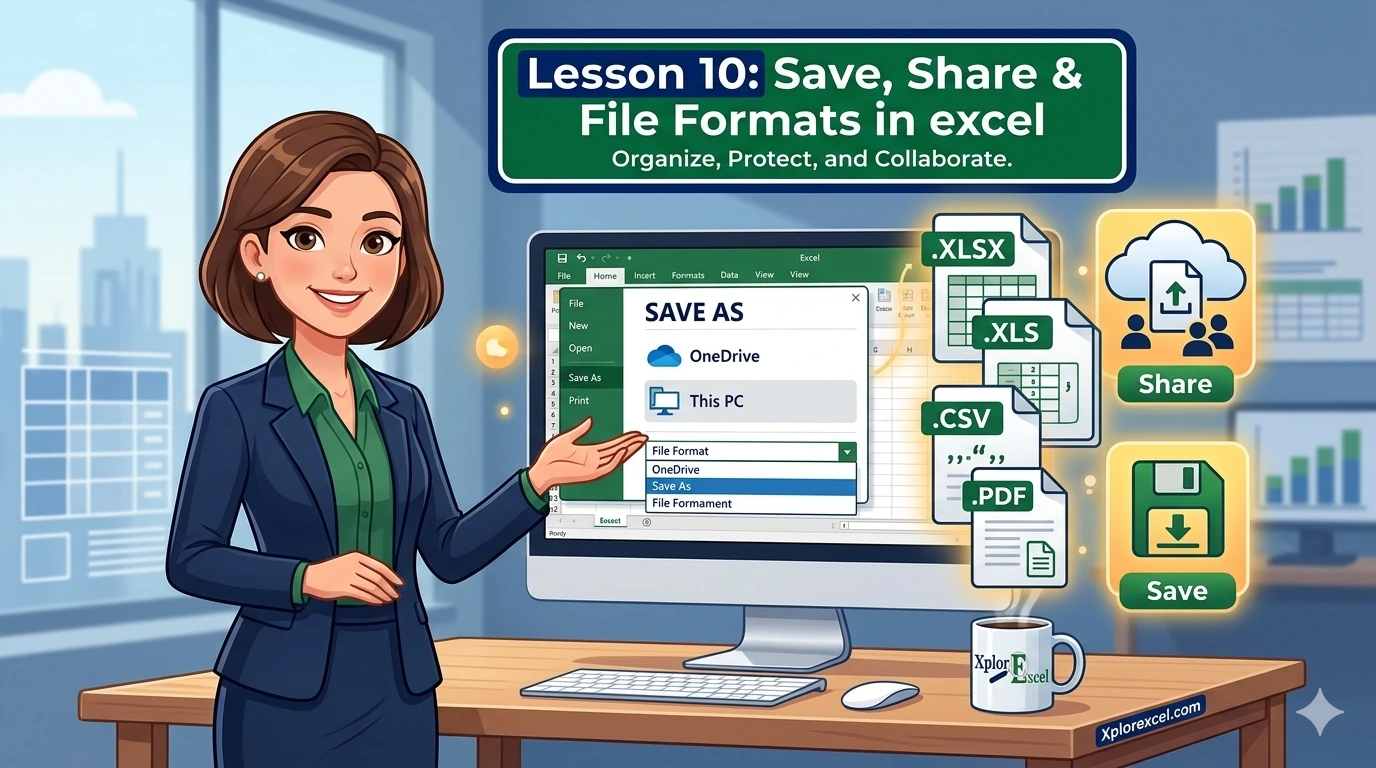
What You’ll Learn in This Lesson
- ✓ The real difference between Save, Save As, and Save a Copy
- ✓ What AutoSave actually does and why it doesn’t always turn on
- ✓ Excel file formats explained in plain, honest language
- ✓ Three ways to share your Excel workbook with others
- ✓ How to rescue a file you forgot to save
Save, share and file formats in Excel might not sound like the most exciting topic in the world — but they are the ones that will save you from a genuine panic moment at work. You know the feeling: you spent an hour on a spreadsheet, something goes wrong, and suddenly the file is gone, broken, or in a format nobody can open. This guide exists so that never happens to you.
We are going to walk through everything — how to save properly, which format to use and when, and how to share your workbook with someone else without anything going wrong. By the end, this whole area of Excel will feel completely comfortable.
Think of this lesson as your Excel safety net. Once you understand how save, share and file formats in Excel all connect, you will work with a lot more confidence — and a lot less second-guessing.
How to Save a Workbook in Excel
Most people learn one save method and stick with it forever. Here is the thing — Excel actually gives you three different options, and they all do different things. Using the wrong one at the wrong moment can mean accidentally overwriting a file you needed, or losing track of which version you are working on.
Save vs. Save As vs. Save a Copy
Save is the straightforward one. It updates the file you are currently working on with your latest changes. Press Ctrl+S and it is done — no dialog box, no prompts. Use this constantly while you work. Every few minutes is not too often.
Save As is for when you want to create a new version of the file. Maybe you want to give it a different name, save it in a different folder, or change the file format entirely. The thing most people do not realise is that after you Save As, Excel switches you over to the new file. Your original stays untouched, but now you are working in the copy.
Save a Copy does something slightly different. It also creates a new file, but you stay in the original. Think of it like making a photocopy — the copy goes somewhere else, but you keep working on the one in your hands. This is perfect when you want to send someone a version of your file but keep going on your own.
Keyboard Shortcuts for Saving
Keyboard Shortcuts
Ctrl + S — Save the current file immediately
F12 — Open the Save As dialog directly
💡 Pro Tip
Make Ctrl+S a reflex. Press it whenever you pause to think, whenever you switch tasks, whenever you get up from your desk. You will never lose a significant chunk of work again.
What Is AutoSave and How Do You Turn It On?
AutoSave is the little toggle in the very top-left corner of your Excel window. When it is on, Excel saves your file automatically every few seconds without you having to do a thing.
Here is the catch that trips everyone up: AutoSave only works when your file is stored on OneDrive or SharePoint. If your file is sitting on your desktop or in a folder on your computer, that AutoSave toggle will be greyed out. You cannot turn it on for a local file.
To get AutoSave working, save your file to OneDrive first. Go to File, then Save As, and choose OneDrive from the list of locations. Once the file is there, AutoSave activates automatically. If you do not have OneDrive, Excel’s AutoRecover feature saves a temporary backup — we will cover recovering that later.
Excel File Formats Explained
This is where most beginners get confused, and it is completely understandable. When you click Save As, Excel offers you a long list of formats and it is not obvious which one to pick. Here is the honest, plain-language breakdown of the formats you will actually encounter.
.xlsx — The Default Modern Format
This is the one Excel uses when you create a new file and save it. It supports everything — formulas, formatting, charts, multiple sheets, named ranges, the works. Unless you have a specific reason to use something else, save everything as .xlsx. It is the right choice for day-to-day work.
.xls — The Legacy Format and Compatibility Mode
The .xls format predates Excel 2007. You will mostly encounter it when someone sends you an old file. When you open one, you will see “Compatibility Mode” in brackets in the title bar. That is Excel telling you it is working in a restricted mode.
You’ve probably seen that label and ignored it. To fix it, go to File, then Info, and click Convert. Excel upgrades the file to .xlsx and everything goes back to normal.
.xlsm — When You Need Macros
If your workbook contains macros — automated scripts written in VBA — you must save it as .xlsm. That M stands for macro-enabled. If you try to save a macro workbook as .xlsx, Excel will warn you that the macros will be deleted. Always save macro files as .xlsm.
Excel Save as CSV — How It Works and What You Lose
CSV stands for Comma-Separated Values. It is a plain text file where your data is stored as rows and columns separated by commas. No formulas. No formatting. No charts. No multiple sheets. Just raw data from a single worksheet.
So why use CSV at all? Because almost every system in the world can read one. Databases, websites, CRMs, accounting software — they all accept CSV. When you need to move data out of Excel into another system, CSV is usually what that system wants. Trust me on this though: always keep your .xlsx original safe before you export anything as CSV.
PDF — The Best Format for Sharing Read-Only Files
Saving as PDF turns your spreadsheet into a document that looks exactly like your Excel file but cannot be edited. It opens on any device, in any browser, even if the recipient does not have Excel installed. Use PDF when you are sharing something final — a report, invoice, or budget summary — and you do not want anyone changing a single cell.
.ods — For Google Sheets and LibreOffice Users
The .ods format is used by Google Sheets and LibreOffice. You will rarely need it, but if someone who does not use Microsoft Office is having trouble opening your file, saving as .ods can fix that.
How to Save an Excel File as CSV
Before you do anything else: save your workbook as .xlsx first and make sure that copy is somewhere safe. Once you save as CSV, formulas are gone. Formatting is gone. If the .xlsx disappears, you cannot get any of that back.
Step-by-Step: Save as CSV
- Click File in the top menu.
- Select Save As from the left panel.
- Choose the location where you want to save the file.
- Give your file a name in the file name box.
- Click the file type dropdown below the name — it currently shows Excel Workbook (.xlsx).
- Scroll down and select CSV UTF-8 (Comma delimited) (.csv) — the most widely compatible option.
- Click Save.
- When the warning appears about incompatible features, click Keep Current Format.
- Your CSV is saved.
⚠️ Common Mistake
Saving your only copy as CSV and discovering too late that all your formulas are gone. Treat CSV files as exports, not replacements. Your .xlsx is your working file — the CSV is just a version you made for a specific purpose.
How to Share an Excel Workbook — 3 Easy Methods
There are three main ways to share your workbook. Which one you pick depends on what you want the other person to do with the file.
Method 1 — Share via OneDrive (Real-Time Collaboration)
This is the best method when you want multiple people working on the same file at the same time. Everyone edits one shared version and changes appear in real time. No more emailing three different copies back and forth and trying to figure out whose version has the latest numbers.
Step-by-Step: Excel OneDrive Share
- Open your workbook and click File.
- Select Save As and choose OneDrive as the save location.
- Name the file and click Save.
- Click the Share button in the top-right corner of Excel — it looks like a silhouette with a small plus sign.
- In the sharing panel, type the email address of the person you want to share with.
- Click the dropdown that says Can Edit to set the permission level.
- Add a message if you want.
- Click Send. The person receives an email with a link to the file.
Can Edit — the person can add data, change formulas, delete content. Use for team members actively contributing.
Can View — the person can open and read the file but cannot change a single thing. Use when you want someone to review without any risk of edits.
💡 Pro Tip
Check the permission level before you hit Send. Every time. Sharing with Can Edit when you meant Can View takes two seconds to fix beforehand and a lot longer to sort out afterward.
Method 2 — Share as an Email Attachment
This is the right call when you are sending a one-off copy to someone and you do not need ongoing collaboration — just a file in their inbox.
- Click File and then Share.
- Select Email.
- Choose Send as Attachment for an editable .xlsx file, or Send as PDF for a read-only version.
- Your email app opens with the file already attached. Add the recipient’s address and send.
The rule of thumb is simple: if the person needs to work with the data, send .xlsx. If you are sharing a finished document you do not want edited, send PDF.
Method 3 — Share a Link via OneDrive
If your file is already saved on OneDrive, generating a shareable link is often the cleanest option. The recipient always opens the latest version — there is no old attachment floating around in someone’s inbox from three weeks ago.
- Click the Share button in the top-right corner.
- At the bottom of the sharing panel, click Copy Link.
- Click the settings next to the link to control who can access it and what they can do.
- Set it to Anyone with the link can view or Anyone with the link can edit.
- For extra security, add an expiry date or a password in the link settings.
- Copy the link and paste it wherever you need — an email, a message, a project tool.
Save, Share and File Formats in Excel — Common Mistakes to Avoid
You now know the right way to handle save, share and file formats in Excel. Here is what tends to go wrong for beginners — and how to make sure it does not happen to you.
⚠️ Common Mistake 1
Saving over the original when you meant to make a copy. After you use Save As, Excel switches you to the new file. Always check the file name in the title bar to confirm which file you are working in.
⚠️ Common Mistake 2
Sending an .xlsx when a PDF was needed. If someone asks for a report or invoice, they almost certainly want a PDF. When in doubt, PDF is the safer choice.
⚠️ Common Mistake 3
Ignoring Compatibility Mode. If you spot “Compatibility Mode” in your title bar, convert the file to .xlsx before doing any complex work with charts or formulas.
⚠️ Common Mistake 4
Turning AutoSave off and forgetting to save manually. If you are worried about AutoSave saving unwanted changes, use Version History instead — it lets you roll back to any earlier state without disabling AutoSave.
⚠️ Common Mistake 5
Sharing with Edit access when View was intended. A link set to Can Edit means anyone with that link can delete your data. Take two seconds to verify the permission before you copy and paste it anywhere.
How to Recover Unsaved or Previous Versions of an Excel File
Recovering an Unsaved File Using AutoRecover
Excel crashed. You closed a file without saving. Whatever happened — here is how to try to get your work back.
- Open Excel and click File.
- Select Open from the left panel.
- Scroll to the bottom and click Recover Unsaved Workbooks.
- Select your file from the list and click Open.
- Immediately click Save As and save it properly to your chosen location.
Restoring a Previous Version via Version History
If your file is saved on OneDrive, Version History keeps a complete record of every saved version with timestamps. This is brilliant for those moments when you realise you deleted something important three days ago and only just noticed.
- Click File and then Info.
- Look for Version History on the right side and click it.
- A panel opens showing a list of versions with dates and times.
- Click any version to preview it in a new window.
- If that is the version you want, click Restore at the top of the preview window.
💡 Pro Tip
Version History is one of the genuinely great reasons to save your Excel files on OneDrive rather than your local drive. It is like having an unlimited undo button that works across days and weeks, not just the current session.
Frequently Asked Questions
What is the best format to save an Excel file in?
For everyday use, .xlsx is the right answer. It preserves everything and works with all modern versions of Excel. Only switch to another format when you have a specific reason — CSV for exporting data, PDF for sharing finished documents.
How do I share an Excel file without others editing it?
Two options. Either send it as a PDF attachment via email. Or share a OneDrive link with the permission set to Can View. Both prevent the recipient from making any changes.
Why does my Excel file say Compatibility Mode?
Your file is saved in the older .xls format. Go to File, then Info, and click Convert to upgrade it to .xlsx. The Compatibility Mode label will disappear.
Can I save an Excel file as a PDF?
Yes. Go to File, then Save As, and choose PDF from the file type dropdown. Alternatively, go to File, then Export, and select Create PDF/XPS. The PDF will look identical to your spreadsheet and cannot be edited by the recipient.
🎯 Try It Yourself
The best way to make this stick is to actually do it. Here is a short exercise that touches all three main areas of this lesson:
- Open an Excel workbook you have been working on, or create a simple one with a few rows of data — product names and prices works perfectly.
- Press F12 to open the Save As dialog. Save a copy of the file as CSV UTF-8 to your Desktop. When the warning appears, click Keep Current Format.
- Now open that CSV file from your Desktop. Look at what happened to your formulas — they are gone, replaced by their calculated values. Close the CSV file.
- Go back to your original .xlsx file. Click the Share button and practice generating a OneDrive link. Set the permission to Can View and copy the link.
- If your file is on OneDrive, toggle AutoSave on and watch it activate in the top-left corner.
Connect This to What You Already Know
The file you are saving and sharing is only as useful as the data inside it. If you want to make sure your workbooks are clean and well-organised before you share them with someone else, the lesson on entering and formatting data in Excel is worth revisiting. A well-formatted file makes a much better impression on whoever receives it.
And when you are ready to start doing real work inside those files — running calculations, building totals, working with percentages — the Excel formulas for beginners lesson on XplorExcel.com walks you through the most essential formulas step by step.
📚 Additional Resources
Microsoft Support — Save a Workbook in Another File Format
The official Microsoft documentation covering every Excel file format, compatibility details, and edge cases. Great to keep bookmarked.
Visit Microsoft Support →Exceljet — Excel Tips and Formula Reference
One of the most trusted Excel resources online. Clear, accurate, and genuinely beginner-friendly — perfect for quick lookups and formula references.
Visit Exceljet →Wrapping Up
You now have a solid, practical understanding of how to save share and file formats in Excel all work together. You know which save method to use in which situation, how to pick the right file format for any scenario, how to share with the right permissions, and how to recover your work if something goes wrong.
The habits that will protect you going forward are simple: save often with Ctrl+S, always keep your .xlsx original before exporting to CSV, and check your sharing permissions before sending. Those three things alone will prevent most of the file problems that trip up beginners. You have finished Lesson 10 — on to the next one.
Previous Lesson
← Print & Page Setup in ExcelNext Lesson
Cell References in Excel →