
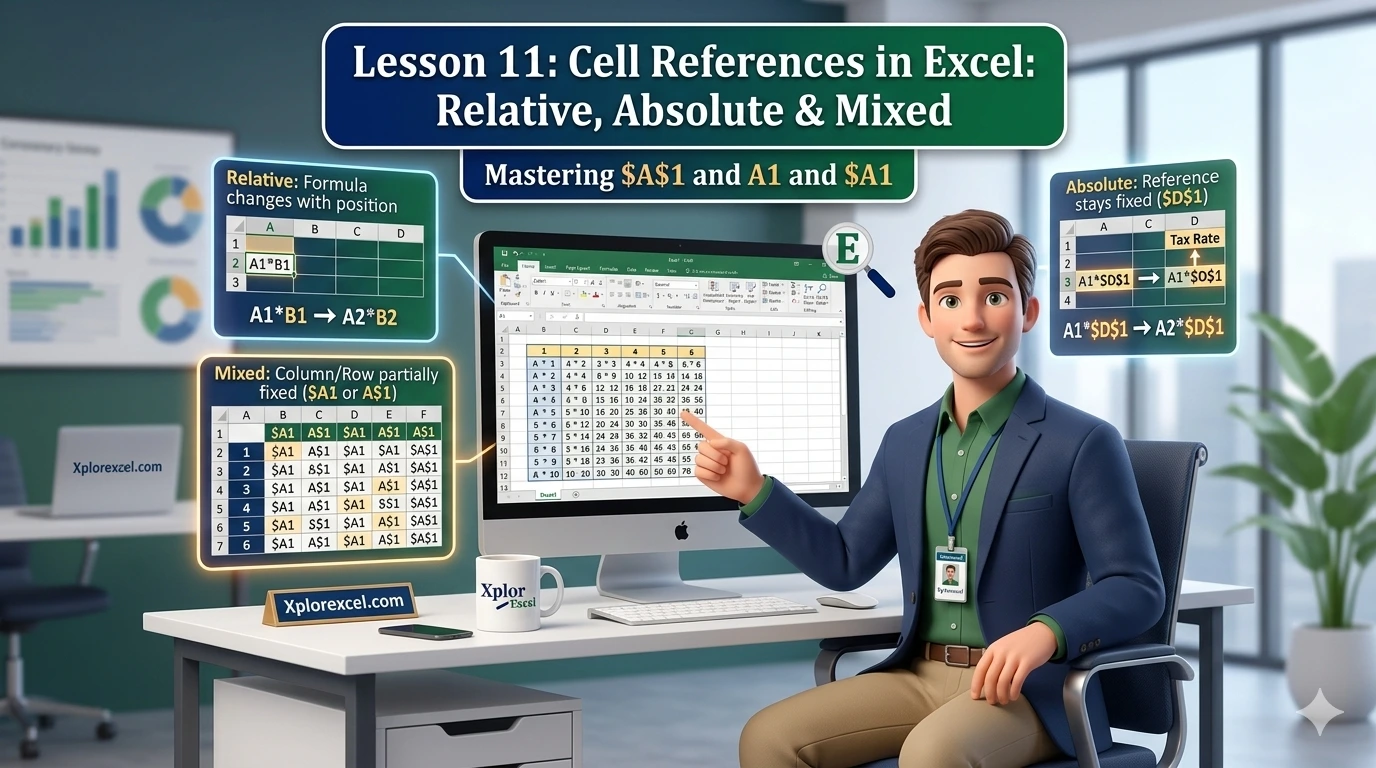
What You’ll Learn
- ✓ What a cell reference is and why every formula depends on it
- ✓ How relative references shift automatically when formulas are copied
- ✓ How to lock a cell using an absolute reference and the dollar sign ($)
- ✓ When to use mixed references for two-dimensional tables
- ✓ The F4 shortcut that cycles through all reference types in seconds
Cell references in Excel are the reason your formulas either work beautifully or fall apart the moment you try to copy them. Picture this: you spend twenty minutes building a clean spreadsheet, you type a formula that works perfectly in the first row, you drag it down to fill the rest of the column, and suddenly half the cells are showing zeros, wrong numbers, or that dreaded green error triangle. Sound familiar? That single problem is almost always caused by one misunderstood thing: cell references.
This is Lesson 11 at XplorExcel.com. If you have not yet read Lesson 10 on writing your first Excel formula, go back and do that one first. This lesson builds directly on it, and you will get a lot more out of it if the basics of formulas are already clear in your head.
By the end of this lesson, you will know exactly what a cell reference is, how the three types work, when to use each one, and how to stop your copied formulas from ever breaking again. Let us get into it.
What Are Cell References in Excel?
Think of a spreadsheet like a city grid. Every block in that grid has an address. In Excel, each cell’s address is made up of a column letter and a row number. Cell A1 is at the corner of column A and row 1. Cell D7 is in column D, row 7. Easy enough.
A cell reference in Excel is simply when you use one of those addresses inside a formula. Instead of typing the number 500 directly, you type B3, and Excel goes and fetches whatever is sitting in B3 at that moment.
Here is the thing: that distinction matters more than it might seem. If you type the number directly, it never changes unless you go back and edit the formula yourself. But if you reference a cell, the formula updates automatically the moment that cell’s value changes. That is not a small difference. That is the entire reason Excel formulas are useful.
How Excel Uses Cell Addresses in Formulas
When you write a formula like =A1+B1, Excel reads it as: go grab the value in A1, go grab the value in B1, and add them together. The result shows up wherever you typed the formula.
You can reference cells from anywhere in your spreadsheet. You can even reference cells on a completely different sheet in the same workbook. For now, we will keep everything on one sheet and build a solid foundation before going wider.
The Formula Bar and Cell References
Whenever you click on a cell that contains a formula, look up at the formula bar along the top of your screen. You will see the actual formula written out, not just the result. That is where you can read, edit, and fix your cell references directly.
Get into the habit of glancing up at the formula bar. It is the quickest way to understand what a cell is actually doing versus what it is showing.
The Three Types of Cell References in Excel
Here is where things get interesting, and where most people’s confusion lives. There are three types of cell references in Excel, and each one behaves differently the moment you copy a formula somewhere new. They are called relative, absolute, and mixed.
You have probably seen all three without realising they had names. Once you understand what each one does, a surprising amount of Excel confusion just disappears.
Excel Relative Reference — The Default That Moves With You
A relative reference is what Excel uses by default. When you type =A1 into a formula, you are using a relative reference without even thinking about it.
The word relative is the key. It means the reference is relative to the current position of the formula itself. Here is the best way to think about it: Excel does not actually remember the cell address you typed. It remembers the direction and distance. When you type =A1 in cell B1, Excel stores something like: the cell one column to the left of me, same row.
So when you copy that formula down to B2, Excel applies the same logic: one column to the left, same row. The result is =A2, not =A1. Copy to B3 and you get =A3. The reference always shifts relative to where the formula moved.
Trust me on this: once this clicks, copying formulas will feel completely different. You will understand why Excel is being so helpful rather than wondering why it keeps changing your numbers.
- You type
=A1*0.1in cell B1 - Copy down to B2 — Excel writes
=A2*0.1automatically - Copy to B3 — it writes
=A3*0.1 - You never have to rewrite the formula once
Excel Absolute Reference — Locking a Cell With the Dollar Sign
Now here is where a lot of beginners hit a wall. Imagine you have a list of product prices in column A. You have a tax rate of 8 percent typed into cell B1 as the value 0.08. In column C, you want to calculate the tax amount on each product.
You write =A3*B1 in cell C3. It looks right. Then you copy the formula down to C4.
Excel shifts both parts. A3 becomes A4 — correct. But B1 also becomes B2 — wrong. B2 might be empty or hold something completely different. Your tax calculation just broke.
This is the exact problem that an absolute reference in Excel exists to solve. An absolute reference locks a cell so it does not move when the formula is copied. You create one by adding dollar signs. B1 becomes $B$1.
The formula in C3 should be =A3*$B$1. Now when you copy it to C4, Excel shifts A3 to A4 as expected, but $B$1 stays exactly as $B$1. Your tax rate cell is permanently anchored.
This is what the Excel dollar sign formula actually does. The dollar sign in front of the column letter locks the column. The dollar sign in front of the row number locks the row. When you use both — as in $B$1 — the whole reference is completely locked. That is a full absolute reference.
💡 PRO TIP
You do not have to type the dollar signs manually. Click on a cell reference inside your formula bar to place your cursor there, then press F4 on your keyboard. Excel adds the dollar signs for you instantly. Press F4 again and it cycles through your options: $B$1 → B$1 → $B1 → B1. One key, four options, no typing. This shortcut is genuinely one of the most useful things you can learn in Excel.
Mixed Cell Reference Excel — Locking Only the Row or Column
A mixed reference is partly locked and partly free. You lock either the column or the row, but not both at the same time.
$A1— the column A is locked, the row number moves freelyA$1— the row 1 is locked, the column letter moves freely
Here is the most natural way to picture this. Imagine you are building a multiplication table. Numbers 1 through 5 run across row 1, and numbers 1 through 5 run down column A. You want to fill the body of the table with each combination multiplied together.
If you write the formula for the first inner cell as =$A2*B$1, something elegant happens. As you copy the formula to the right, the $A keeps you locked to column A. As you copy it down, the $1 keeps you locked to row 1. One formula, copied freely in every direction, fills the whole table correctly.
Excel $A$1 Explained — What the Dollar Sign Actually Does
Let us be precise about this, because the dollar sign confuses people more than almost anything else in beginner Excel. The dollar sign in an Excel formula has nothing to do with money. It is a lock symbol. It tells Excel: do not change this part of the address when the formula is moved or copied.
Reference Type Cheat Sheet
$A$1
Both column and row locked — full absolute reference. Nothing moves.$A1
Column A locked — row number shifts freely when copied down.A$1
Row 1 locked — column letter shifts freely when copied across.A1
Nothing locked — fully relative reference. Everything moves.How to Use the F4 Shortcut to Switch Reference Types Fast
The F4 keyboard shortcut is one of those Excel tricks that beginners almost never hear about, even though it is genuinely useful every single day. Here is the full step-by-step:
Using the F4 Shortcut — Step by Step
- Click on the cell that contains your formula.
- Look at the formula bar and click directly on the cell reference you want to change.
- Press F4 once — Excel locks both column and row:
A1becomes$A$1. - Press F4 again — only the row is locked:
$A$1becomesA$1. - Press F4 again — only the column is locked:
A$1becomes$A1. - Press F4 one more time — all locks are removed: back to plain
A1. - Press Enter when you are happy with the result.
When to Use Each Cell Reference Type
Most tutorials stop at explaining the three types without ever answering the question you actually have: which one do I use right now? Here is the straightforward version.
Reach for a relative reference when you are doing the same calculation over and over down a list, and each row should use its own adjacent cells. Calculating a commission for 30 salespeople. Multiplying each item’s quantity by its own price. Anything where the pattern repeats and each formula should drift with it.
Reach for an absolute reference when one cell holds a fixed number that every formula needs to use. A tax rate. A discount percentage. An annual budget total. Anything that is a constant for the whole calculation.
Reach for a mixed reference when you are building a table that needs to be filled in two directions at once, and part of each formula should stay fixed while another part moves. Pricing matrices. Comparison grids. Anything with a two-dimensional structure.
⚠️ COMMON MISTAKE
The single most common mistake beginners make with cell references in Excel is forgetting to lock a constant cell before copying a formula. The formula works perfectly in row one, then produces completely wrong results in every other row. If this has happened to you, check the formula bar in one of the broken cells. There is almost certainly a reference in there that has drifted away from the cell it was supposed to stay on. Add the dollar signs, copy again, and the problem disappears.
Real-World Examples of Cell References in Excel
Example 1 — Sales Tax Calculator (Absolute Reference)
You run a small shop. Product prices live in column A starting at A2. Your tax rate, 0.08 for 8 percent, is typed into cell B1.
In cell B2, type:
=A2*$B$1
The dollar signs on B1 lock it in place. Copy cell B2 down to B3 through B20. Every formula correctly multiplies that row’s price by the locked tax rate in B1. Without the dollar signs, the formula in B3 would look for a tax rate in B2, B4 would look in B3, and so on. Every one of them would be wrong.
Example 2 — Monthly Budget Percentages (Absolute Reference)
You are tracking monthly spending. Your total annual budget sits in cell B1. Monthly figures run from B3 to B14, one row per month.
In cell C3, type:
=B3/$B$1
Copy it down to C4 through C14. The B3 part shifts correctly to B4, B5, and so on, picking up each month’s figure in turn. The $B$1 part never moves. Every formula keeps dividing by the same annual total. Twelve correct percentages from one formula.
Example 3 — Grade Conversion Table (Mixed Reference)
A teacher has raw student scores in column B. She has a grading scale stored in a separate area of the sheet. She needs formulas that always reference the right score for each student while always staying anchored to the grading scale column.
A mixed reference solves this cleanly. The column reference to the grading scale gets locked so it never drifts sideways when the formula is copied across. The row reference stays free so it moves correctly through each student as the formula is copied down. If you want a more elegant alternative for situations like this, check out our lesson on Named Ranges in Excel, which lets you replace $B$1 with a plain-English name like TaxRate — much easier to read and maintain.
Common Mistakes with Cell References and How to Fix Them
The #REF! Error Explained
If you see #REF! in a cell, it means your formula is pointing to a cell address that no longer exists. The most common cause is deleting a row or column that a formula was relying on. Excel cannot find the cell, so it flags the error.
The fix: click on the cell showing the error, look at the formula bar, find where it says REF, and replace it with the correct cell address.
Copying Formulas Horizontally vs. Vertically
Relative references shift in whichever direction you copy. Copy a formula to the right and the column letters shift. Copy it down and the row numbers shift. Copy it diagonally and both shift. This is worth keeping in mind when you are about to copy a formula across a large range in an unexpected direction.
Frequently Asked Questions About Cell References in Excel
What is the difference between absolute and relative cell references?
A relative reference shifts automatically when you copy a formula, always maintaining the same positional relationship. An absolute reference stays fixed on the same cell regardless of where the formula is copied. Relative looks like A1. Absolute looks like $A$1.
How do I make a cell reference absolute in Excel?
Click on the cell reference inside the formula bar and press F4. Excel adds the dollar signs immediately. Press F4 repeatedly to cycle through mixed and relative options.
What does the dollar sign mean in an Excel formula?
It is a lock. A dollar sign before the column letter locks that column. A dollar sign before the row number locks that row. Both together lock the entire cell address so it never changes when copied.
What is a mixed cell reference and when should I use it?
A mixed reference locks one part of the address and leaves the other free. Use it when building a two-dimensional table that will be filled in both directions. It lets one part of the reference shift while keeping the other anchored.
🧪 TRY IT YOURSELF
Here is a hands-on exercise that uses both relative and absolute cell references in one small spreadsheet. It takes about five minutes and will make everything from this lesson concrete.
- Open a blank Excel workbook.
- Type
0.15into cell B1 — this is your discount rate. - In cells A3 through A7, type these five prices: 100, 250, 400, 75, 320.
- In cell B3, type
=A3*$B$1and press Enter. - Copy cell B3 and paste it into B4 through B7.
- Check that column B shows 15% of each price in column A.
- Click on cell B5 and look at the formula bar — it should read
=A5*$B$1. - A5 shifted from A3 (relative) — $B$1 stayed locked (absolute).
- Now change the value in B1 from 0.15 to 0.20.
- All five values in column B update instantly to show 20% discounts.
If your results look right — you just built a real formula using both reference types. That is a genuine Excel skill.
📚 Further Reading
The official Microsoft documentation on reference types — thorough, accurate, and always up to date.
Exceljet’s glossary entry is packed with practical examples and written in plain language that is easy to follow.
Wrapping Up
Cell references in Excel sit underneath almost everything useful that Excel can do. Every formula you build, every table that recalculates when data changes, every spreadsheet that saves you time instead of creating extra work — it all depends on cell references behaving the way you intend.
The three types each have a role. Relative references handle patterns that repeat across rows and columns. Absolute references handle constants that every formula needs to anchor to. Mixed references handle two-dimensional structures that need to be copied in multiple directions at once.
Use the F4 shortcut. Watch the formula bar. And the next time a copied formula produces wrong results, look at the dollar signs first. Nine times out of ten, that is exactly where the answer is.
← Previous Lesson
Save, Share & File Formats in ExcelNext Lesson →
Named Ranges in ExcelDownload the Practice Workbook
Work through the questions in Excel, then check your answers.