
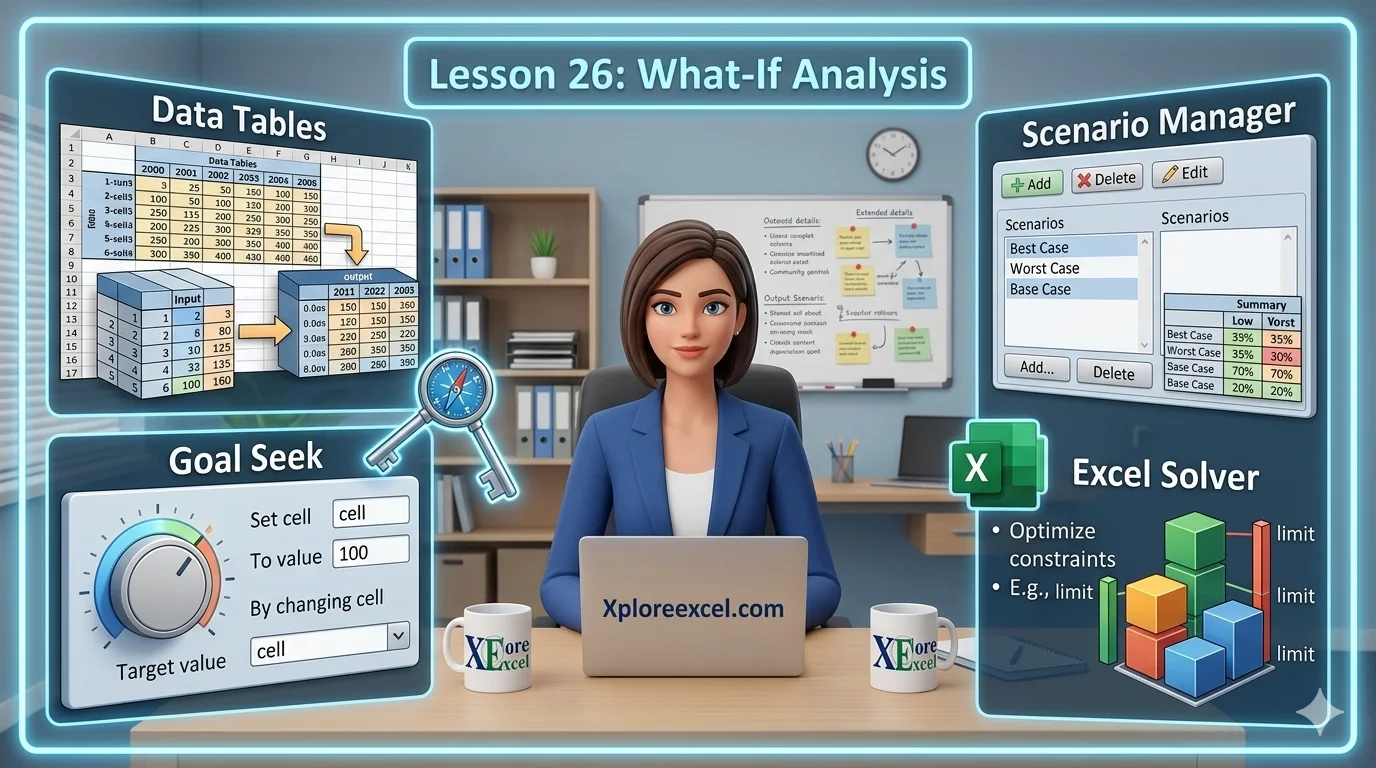
What You’ll Learn
- ✓ What what-if analysis in Excel actually is — and why it’s three tools, not one
- ✓ How to use Goal Seek to work backwards from any target result
- ✓ How Scenario Manager saves and compares multiple versions of your model
- ✓ How to build one-variable and two-variable Data Tables for sensitivity analysis
- ✓ A clear decision framework for choosing the right tool every time
What-if analysis in Excel is the feature most people walk past for years, right up until the day they actually need it — and then they cannot believe they were doing things manually for so long.
Here is how it usually goes. You have a spreadsheet with a formula. You need to know what happens if the interest rate goes up, or if you sell fewer units, or if the project runs over budget. So you start typing different numbers into a cell and watching the result change. One at a time. Manually. Saving nothing. That works — but it is also the slow way. Excel has three tools specifically built for this kind of thinking, and once you know how to use them, that manual process starts to feel like taking notes with a crayon.
The catch is that what-if analysis in Excel is not actually one tool. It is three, grouped under the same menu, each one built for a different kind of question. Most tutorials either skip that distinction entirely or bury it so deep you never absorb it. This lesson will not do that. Before you start: if your spreadsheet relies on IF or nested IF logic, make sure that foundation is solid first. The XplorExcel lesson on IF and Nested IF Functions is worth reviewing before you build anything complex on top of it.
What Is What-If Analysis in Excel?
The simplest way to put it: what-if analysis in Excel means testing how changes to your inputs affect your formula results — without manually editing cells one at a time. You already have a working formula. The numbers are flowing. Now you want to explore possibilities. What if the interest rate drops? What if you hit 80% of your sales target? What if you extend the timeline by three months?
Each of those questions has a right tool. Here is the breakdown:
Why Excel Groups Three Different Tools Under One Menu
Honestly, it is a loose grouping. Microsoft put them together because they all involve testing hypothetical inputs against real formulas — but the way they work underneath is completely different. Scenario Manager saves named snapshots. Data Tables generate an array of results automatically. Goal Seek runs a reverse calculation. They share an idea, not an engine. Do not let the single menu fool you into thinking they are interchangeable.
When You Actually Need What-If Analysis
You need what-if analysis in Excel when your formulas are already built and working, and you want to explore possibilities without touching the model itself. If you are still constructing the spreadsheet, finish that first. Get the formulas right. Once your model is producing results, that is when these tools earn their spot.
Tool 1 — Excel Goal Seek
What Goal Seek Does (and What It Cannot Do)
Think of Goal Seek like working backwards through a calculator. Normally you punch in the inputs and get the result. Goal Seek lets you say: here is the result I need — now figure out the input. You give it three things: the formula cell, the target result you want, and the single input cell it is allowed to change. It then adjusts that input until your formula hits the number you asked for.
The word “single” there is doing a lot of work. Goal Seek can only change one input at a time — that is what the tool is designed for. If you need to change multiple inputs simultaneously, that is a job for Scenario Manager or a Data Table. It also works best with straightforward relationships. If your formula is deeply nested or non-linear, Goal Seek may give you an approximate answer, or it may not converge at all.
How to Use Goal Seek: Step-by-Step
Goal Seek — Step by Step
- Make sure your spreadsheet has a working formula in a cell that produces a numeric result.
- Go to the Data tab on the ribbon.
- Click What-If Analysis in the Forecast group.
- Select Goal Seek from the dropdown.
- In Set cell, click the cell that contains your formula.
- In To value, type the target result you are trying to reach.
- In By changing cell, click the input cell you want Excel to adjust.
- Click OK. Excel updates the input cell if it finds a solution. Click OK to keep or Cancel to revert.
💡 PRO TIP
Goal Seek rewrites the actual input cell — not a copy. If you want to preserve your original numbers, duplicate the sheet before running it. One extra click now saves a frustrating undo session later.
Real-World Example: Finding the Right Loan Term
You are planning a car purchase. The loan amount is 500,000, the annual interest rate is 9%, and you are using the PMT function to calculate your monthly payment. The formula is telling you the EMI is 7,800. Your actual budget is 5,000 per month.
Set cell → PMT formula cell To value → -5000 (negative — PMT returns a negative value) By changing cell → Number of months cell
Goal Seek solves it — no trial and error, no manual testing. It finds the exact loan term that brings your EMI down to your target.
Goal Seek Limitations You Should Know
- It changes the actual input cell value, not a working copy
- It can only adjust one variable at a time
- It may not find a solution for non-linear formulas
- It shows you one specific answer — not a range of possibilities
Tool 2 — Excel Scenario Manager
When to Use Scenario Manager Instead of Goal Seek
Scenario Manager is for when you have multiple complete pictures of your assumptions and you need to move between them cleanly. Goal Seek is a precision tool — it finds one number. Scenario Manager is a filing system. It saves entire sets of input values under descriptive names so you can switch between them instantly without overwriting anything.
You have probably seen this problem before: you are working on a budget model, you adjust the numbers for a conservative estimate, and then you need to go back to the original version. So you either undo a dozen steps or try to remember what the original numbers were. Scenario Manager solves exactly that.
How to Create and Save Scenarios: Step-by-Step
Scenario Manager — Step by Step
- Build your spreadsheet model with your input cells clearly laid out.
- Go to Data, then What-If Analysis, then Scenario Manager.
- Click Add.
- Give the scenario a clear name — Conservative, Base Case, and Aggressive all work well.
- In Changing cells, select all the input cells this scenario will control.
- Click OK, then type in the values for this scenario in the dialog that appears.
- Click Add to create another scenario and repeat.
- Once all scenarios are saved, click Show to switch between them instantly.
Real-World Example: Budget Planning with Three Cost Scenarios
A project manager is presenting three versions of a budget to the board: Conservative (reduced team, lower costs), Base Case (current plan), and Aggressive (full headcount, higher marketing spend). Each version uses different values for headcount, cost per resource, and campaign budget. Without Scenario Manager, she would need three separate files — or spend the meeting frantically typing numbers back in from a notepad. With Scenario Manager, she clicks Show next to each scenario name during the presentation and the spreadsheet updates on the spot. That is the kind of thing that makes you look very prepared in a room full of executives.
How to Generate a Scenario Summary Report
In Scenario Manager, click the Summary button. Choose Scenario Summary for a clean static table, or Scenario PivotTable for a dynamic version. Select the result cells you want to compare across scenarios. Click OK. Excel creates a new sheet with all your scenarios displayed side by side — inputs and outputs for each, at a glance.
The Key Limitation: Scenarios Do Not Update Automatically
This is the most common misunderstanding, and it catches people out every time. The summary report is a snapshot. It captures your model at the moment you generate it. If you go back and change your formulas afterward, the summary does not know. It still shows the old logic.
⚠️ COMMON MISTAKE
Generating a scenario summary, then editing your model formulas, and assuming the summary still reflects what your spreadsheet actually does. It does not. If anything structural changes in your model, delete the summary sheet and generate a fresh one.
Tool 3 — Excel Data Table (What-If)
One-Variable Data Table: Test One Input, See All Outputs
A Data Table is what you reach for when Goal Seek feels too narrow and Scenario Manager feels like too much overhead. It does not find a target and it does not save named versions. It simply shows you what your formula produces across a whole range of input values — all at once. A one-variable Data Table tests how one changing input affects your output across as many values as you want to include. Think of it as running Goal Seek a hundred times and presenting all the results in a column. This is the practical workhorse of Excel sensitivity analysis.
Two-Variable Data Table: The Excel Sensitivity Analysis Grid
A two-variable Data Table goes one step further. It tests two inputs simultaneously against a single output and produces a full grid of results. Rows represent one variable, columns represent the other, and every cell in the grid shows what your formula produces at that specific combination. Trust me on this: once you have seen a two-variable Data Table work, going back to manual testing feels absurd. It is the closest thing Excel has to a built-in sensitivity analysis dashboard.
Step-by-Step: Building a Two-Variable Data Table
Two-Variable Data Table — Step by Step
- Set up your formula in a result cell. This is the formula the table will be based on.
- In a column directly below and to the left of that formula cell, list your first variable values going downward. These are your row inputs.
- In a row directly to the right of the formula cell, list your second variable values going across. These are your column inputs.
- The formula cell must sit exactly at the corner where the row and column meet: one row above the first row value and one column to the left of the first column value.
- Select the entire block: the formula cell, all the row values below it, all the column values to its right, and all the empty cells that will become your results grid.
- Go to Data, then What-If Analysis, then Data Table.
- In Row input cell, select the cell in your main model that represents your row variable.
- In Column input cell, select the cell in your main model that represents your column variable.
- Click OK. Excel fills every cell in the grid automatically.
Real-World Example: Price × Volume Revenue Matrix
A sales manager wants to understand how revenue changes across combinations of unit price and units sold. The formula is simple: Revenue = Price × Units. He sets up a column of prices (500, 600, 700, 800, 900) and a row of unit volumes (100, 200, 300, 400, 500). After building the two-variable Data Table, he has a complete 5×5 grid. That is 25 combinations calculated instantly, laid out in a format anyone can read. What would have taken 25 manual calculations is finished before he has even reached for his coffee.
Why Data Tables Lock as Array Formulas (and How to Work Around It)
Once Excel fills the results grid, each result cell contains an array formula that looks like this:
{=TABLE(row_input, column_input)}
You cannot edit or delete individual cells within the grid. If you need to change the table, select the entire results range and delete it as a block, then set it up again. Do not try to delete a single result cell — Excel will throw an error and refuse.
💡 PRO TIP
Keep your Data Table on the same sheet as the model it references. Cross-sheet references can produce errors or silently incorrect results in Data Tables. Keep everything on one sheet until you are very confident in your setup.
Which What-If Analysis Tool Should You Use?
Decision Framework: Goal Seek vs Scenario Manager vs Data Table
Work through these questions in order:
Combining Tools in a Real Analysis Workflow
These three tools are not rivals — they work well together. A common workflow: you build a two-variable Data Table to scan across a wide range of inputs and identify the zone where results are acceptable. You then use Goal Seek to pinpoint the exact number within that zone. Finally, you save the meaningful versions as Scenarios for reporting. For example: modelling a loan, you want to keep the monthly payment under a certain amount. The Data Table shows which combinations of interest rate and loan term stay under that threshold. You pick a rate, use Goal Seek to find the exact term, then save the conservative, base, and aggressive versions as scenarios for the finance meeting. That is what-if analysis in Excel working the way it was meant to.
Common Mistakes to Avoid in What-If Analysis
⚠️ COMMON MISTAKE
Running Goal Seek without backing up your data first. Goal Seek overwrites the input cell. If you click OK and do not like the result, you need to undo immediately. Duplicate your sheet before running it.
⚠️ COMMON MISTAKE
Placing the formula cell in the wrong position when building a two-variable Data Table. The formula must sit at the exact corner of the row and column input ranges. Even one cell off and the whole table produces wrong results or errors.
⚠️ COMMON MISTAKE
Pointing Goal Seek at a cell that contains a raw number instead of a formula. The Set cell field must reference a formula. If it contains a typed value, Goal Seek has nothing to calculate and will either fail or produce meaningless results.
⚠️ COMMON MISTAKE
Trying to delete a single result cell inside a Data Table grid. You must select and delete the entire results range as one operation — Excel will not allow partial deletion.
What-If Analysis in Excel — Quick Reference Summary
🎯 Try It Yourself
Set up a loan calculator in a new Excel sheet with three input cells: Loan Amount (500,000), Annual Interest Rate (0.09), and Loan Term in Months (60). In a fourth cell, use the PMT function to calculate the monthly payment.
Then work through all three tools:
- Use Goal Seek to find the loan term that brings the monthly payment down to -4,500.
- Create three scenarios in Scenario Manager: 48-month, 60-month, and 72-month terms. Generate a summary report and compare the monthly payments.
- Build a two-variable Data Table using annual interest rates from 7% to 11% (in 1% steps) going down a column, and loan terms of 48, 60, 72, and 84 months going across a row. Watch the full payment grid appear.
If you can do all three on a single spreadsheet, you have genuinely mastered what-if analysis in Excel — not just read about it.
📚 External Resources
The official Microsoft documentation covering all three tools with authoritative detail.
One of the clearest practical walkthroughs of Data Tables available, with strong visual examples.
Once you have your scenarios and sensitivity tables built, the next step is making those results communicate clearly. The XplorExcel lesson on Excel Charts and Data Visualization will show you how to turn a grid of numbers into something a room full of people can grasp in seconds. And if you want your input ranges to stay clean and structured as your models grow, the XplorExcel lesson on Excel Tables and Structured References is worth your time.
What-if analysis in Excel is one of those skill areas where the learning curve is short but the payoff is long. You are not going to become a financial modeller overnight — but you are going to stop manually typing numbers into cells to test ideas. And that alone is worth the hour you spent here.