
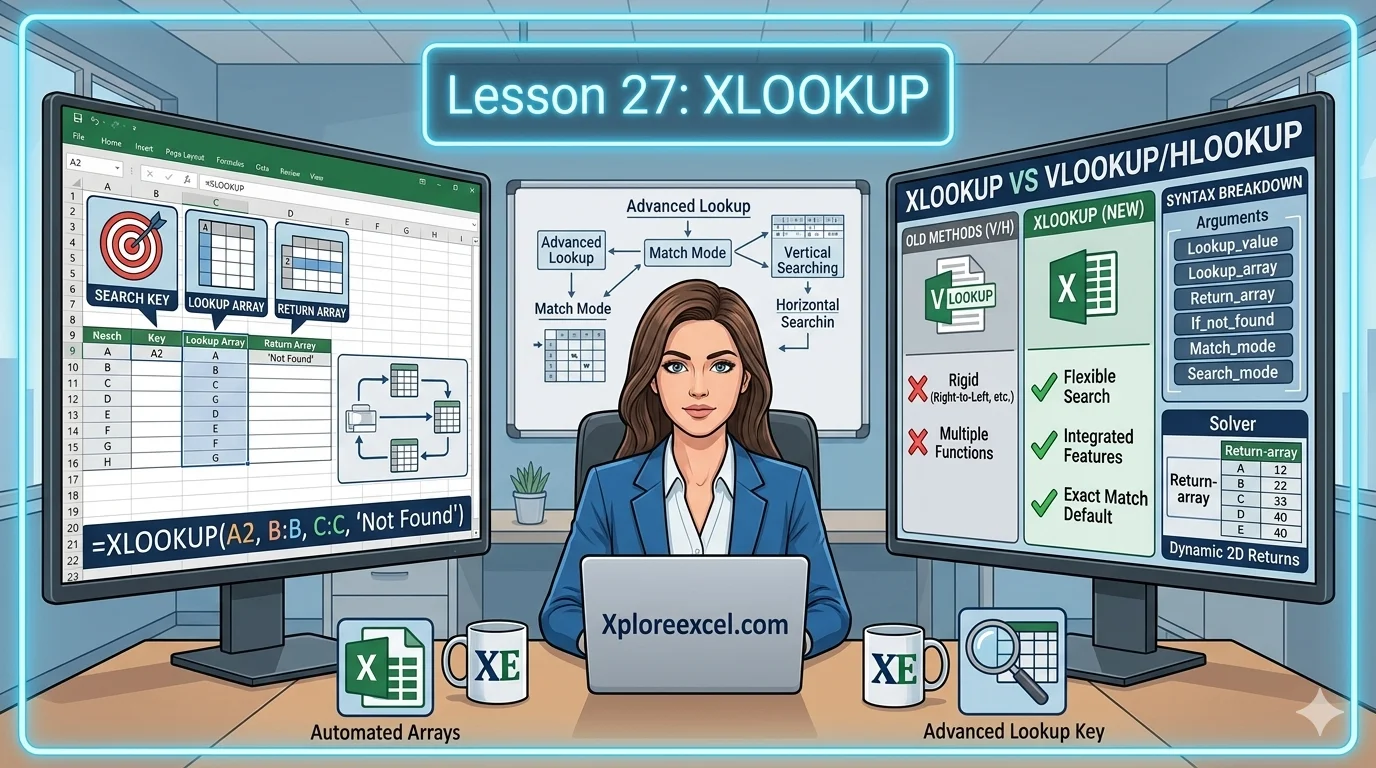
What You’ll Learn
- ✓ The full Excel XLOOKUP syntax — all 6 arguments explained in plain language
- ✓ How to handle XLOOKUP not found errors without wrapping in IFERROR
- ✓ XLOOKUP vs VLOOKUP — 4 things XLOOKUP can do that VLOOKUP simply cannot
- ✓ Excel XLOOKUP wildcard matching for partial text searches on messy real-world data
- ✓ Advanced techniques: multi-column returns, nested two-way lookups, and reverse search
XLOOKUP in Excel is the most powerful lookup function Microsoft has ever released, and if you are still doing everything with VLOOKUP, this guide is about to change how you work for good.
Here is the thing. Most people do not go looking for XLOOKUP. They stumble across it when a VLOOKUP finally lets them down. Maybe you needed to pull a value from a column to the left and realised you simply could not. Maybe someone added a column to your data and suddenly every VLOOKUP in the workbook was returning the wrong answer. Maybe you just got tired of wrapping every single formula in IFERROR to avoid staring at error messages all day.
XLOOKUP fixes all of that. And once you see what it can do beyond just replacing VLOOKUP, you will wonder how you managed without it. This lesson walks you through every argument in the Excel XLOOKUP syntax, covers the real-world scenarios that actually matter, and goes into the advanced features that most tutorials skip entirely.
What Is XLOOKUP in Excel?
XLOOKUP is a lookup and reference function available in Microsoft 365 and Excel 2021. It searches a range or array for a match and then returns a corresponding value from another range or array. That sounds straightforward, but the real power is the flexibility. XLOOKUP can search left, right, up, down, from the bottom upward, and across entire tables.
Think of it this way. VLOOKUP is like a one-way street — it only goes in one direction, and if your destination is behind you, you are out of luck. XLOOKUP is more like a GPS. You tell it where to look and where to return results from, completely independently, and it figures out the rest.
When Was XLOOKUP Introduced?
Microsoft released XLOOKUP in August 2019, initially for Microsoft 365 subscribers. It was later bundled into Excel 2021 as a permanent feature. If you are on Excel 2019 or any earlier version, XLOOKUP is not available to you.
XLOOKUP Availability — Do You Have It?
Click on any empty cell and type =XLOOKUP( and pause. If Excel autocompletes the function, you are good to go. If nothing appears or you get a NAME error, you are on an older version. This compatibility point matters — we will come back to it when we cover sharing files.
Excel XLOOKUP Syntax — All 6 Arguments Explained
There are three required arguments and three optional ones. Here is what each one does in plain language.
Excel XLOOKUP Syntax
=XLOOKUP(lookup_value, lookup_array, return_array, [if_not_found], [match_mode], [search_mode])
— Required arguments: lookup_value · lookup_array · return_array
— Optional arguments: [if_not_found] · [match_mode] · [search_mode]
Required Arguments — The Core Three
1. lookup_value — The value you are searching for. A number, text, cell reference, or the result of another formula.
2. lookup_array — The range you are searching through. Must be a single row or column.
3. return_array — The range you want to pull results from. Must have the same number of rows or columns as the lookup_array.
Optional Argument 4 — if_not_found
This is already one of the biggest reasons to switch from VLOOKUP. Instead of wrapping your formula in IFERROR, you handle missing values inside the formula itself:
=XLOOKUP(A2, D2:D100, E2:E100, "Not Found")Optional Argument 5 — match_mode
Optional Argument 6 — search_mode
Your First Excel XLOOKUP Formula — Step by Step
Let’s build your first formula from scratch. You have an employee table: Employee ID in column A, Name in column B, Department in column C, Salary in column D. You want to type an Employee ID into G2 and see their salary in H2.
Step-by-Step: Build Your First XLOOKUP
- Click on cell H2 where you want the salary result to appear.
- Type
=XLOOKUP( - Click cell G2 — your lookup value (the Employee ID you are searching for).
- Type a comma, then select A2:A100 — the column you are searching through.
- Type a comma, then select D2:D100 — the column you want to return results from.
- Type a comma, then type
"Employee not found"as your fallback message. - Close the bracket and press Enter.
=XLOOKUP(G2, A2:A100, D2:D100, "Employee not found")How XLOOKUP Handles the Return Automatically
VLOOKUP needs a column index number. If Salary is in the 4th column, you type 4. Then someone inserts a new column and VLOOKUP silently returns the wrong value. XLOOKUP points directly at the return range, so it stays accurate no matter how your table changes.
XLOOKUP Not Found — Handling Errors Gracefully
Why the if_not_found Argument Beats IFERROR
The old VLOOKUP approach to error handling looked like this:
=IFERROR(VLOOKUP(A2, D:E, 2, 0), "Not Found")With XLOOKUP, you handle it inside the formula. No outer wrapper needed:
=XLOOKUP(A2, D2:D100, E2:E100, "Not Found")⚠️ Common Mistake
Leaving the if_not_found argument empty. If your lookup value does not exist in the data, Excel returns an ugly #N/A error. That breaks conditional formatting, confuses anyone reading the file, and causes downstream formulas to fail.
Always add a fourth argument — even if it is just "" for a blank or 0 for a zero.
Common XLOOKUP Error Messages and Fixes
XLOOKUP vs VLOOKUP — Which Should You Use?
Here is the honest answer: use XLOOKUP whenever your version of Excel supports it. Here is the fuller picture if you need to explain it to someone else.
Side-by-Side Comparison
4 Things XLOOKUP Can Do That VLOOKUP Cannot
- Look left — XLOOKUP can search column C and return a value from column A. VLOOKUP cannot.
- Find the last match — With search_mode = -1, XLOOKUP finds the most recent occurrence in your data.
- Return multiple columns in one formula — One XLOOKUP can populate three or four columns simultaneously.
- Handle missing values natively — No IFERROR wrapper ever needed.
When VLOOKUP Is Still Acceptable
The one scenario where VLOOKUP still makes sense is compatibility. If you regularly share files with people using Excel 2019 or earlier, XLOOKUP formulas will show as errors on their end. In those cases, sticking with VLOOKUP is the safer choice.
If you want to brush up on exactly where VLOOKUP holds its own, check out the XplorExcel VLOOKUP lesson which covers all the cases where it remains a solid choice.
Excel XLOOKUP Wildcard — Partial Text Matching
This is one of those features that you do not realise you needed until the moment it saves you an hour of manual work. Wildcard mode lets you search using partial text — invaluable when your data is inconsistent or you only know part of a value.
Enabling Wildcard Mode — match_mode = 2
To use wildcards, set the fifth argument to 2:
=XLOOKUP("*"&A2&"*", D2:D100, E2:E100, "Not Found", 2)Your wildcard characters:
*matches any number of characters?matches exactly one character~escapes a wildcard if you need to search for a literal asterisk
Real Example — Search a Product Catalog by Partial Name
You work in procurement. Your supplier uses names like “Samsung 55 Inch QLED 4K Smart TV 2023 Model”. Your internal system just has “Samsung 55”. Nobody is typing that full name by hand.
=XLOOKUP("*"&A2&"*", B2:B500, C2:C500, "No match", 2)As long as the supplier’s product name contains “Samsung 55” anywhere, XLOOKUP finds it.
💡 Pro Tip
Wildcard mode is not case-sensitive. “samsung 55” and “SAMSUNG 55” both return the same match. You do not need to normalise the capitalisation in your lookup value first — XLOOKUP handles it for you.
Returning Multiple Columns with XLOOKUP
Here is the one that genuinely surprises people the first time they see it work. XLOOKUP is not limited to returning a single cell. You can point the return_array at a multi-column range and XLOOKUP spills the entire result across adjacent cells automatically.
How to Select a Multi-Column Return Array
Instead of pointing at a single column, select a wider range:
=XLOOKUP(G2, A2:A100, B2:D100, "Not Found")This single formula returns all three columns (B, C, and D) for the matching row, spilling the results to the right automatically — no dragging, no copying.
Real Example — Pull Name, Department and Salary in One Formula
A manager types an Employee ID into G2 and wants to see the full record. Without XLOOKUP this requires three separate formulas. With XLOOKUP, one formula written in H2 spills the Name, Department, and Salary into H2, I2, and J2 simultaneously. For large reporting dashboards, that means fewer formulas and fewer places where something can break.
Nested XLOOKUP — Two-Way Lookup Made Simple
A two-way lookup means searching by both row and column at the same time. The classic approach is INDEX-MATCH-MATCH, which works but takes a minute to write and is easy to get wrong. Nested XLOOKUP is cleaner.
How Nested XLOOKUP Replaces INDEX-MATCH-MATCH
You nest one XLOOKUP inside another at the return_array position. The inner XLOOKUP finds the right column. The outer XLOOKUP finds the right row. Their intersection is your answer.
=XLOOKUP(row_value, row_range, XLOOKUP(col_value, header_row, data_range))If the underlying logic of nested lookups feels unfamiliar, the XplorExcel INDEX-MATCH lesson builds exactly the intuition you need before practising this technique.
Step-by-Step — Row and Column Lookup in One Formula
Scenario: Sales figures by Product and Month
- Product names run down column A (A2:A50). Month names run across the top row (B1:M1). Sales figures fill the middle (B2:M50).
- Put your product name in G2 and your month in G3.
- Write the inner formula:
XLOOKUP(G3, B1:M1, B2:M50)— this selects the entire March column. - Wrap it with the outer XLOOKUP:
=XLOOKUP(G2, A2:A50, XLOOKUP(G3, B1:M1, B2:M50)) - Press Enter. Excel returns the exact sales figure for that product in that month. Change either cell and the result updates instantly.
Advanced Search Modes in XLOOKUP
Most users only ever use the default search mode. These two are worth adding to your toolkit — and one of them is a genuine hidden gem.
Reverse Search — search_mode = -1 — Find the Last Match
When your data has duplicate lookup values and you want the most recent one, set search_mode to -1. Excel starts from the bottom of your range and works upward, so the first match it encounters is the last one chronologically.
=XLOOKUP(A2, D2:D1000, E2:E1000, "Not Found", 0, -1)Binary Search — search_mode 2 or -2 — Speed on Large Data
If your lookup column is sorted ascending, use search_mode = 2. Sorted descending, use -2. Instead of scanning every row one by one, Excel divides the range mathematically and narrows down the answer in steps — like flipping to the middle of a phonebook rather than reading from page one.
Only use binary search when your data is genuinely sorted. If it is not, you will get wrong results with no error warning.
Real Example — Last Purchase Date per Customer
A sales analyst has a transaction log with 10,000 rows. Customer names in column A, purchase dates in column B. They need the most recent purchase date for each customer:
=XLOOKUP(G2, A2:A10000, B2:B10000, "No purchases", 0, -1)XLOOKUP Tips, Traps and Best Practices
💡 Pro Tip — Absolute References
Always lock your lookup_array and return_array with absolute references when copying formulas down a column:
=XLOOKUP(A2, $D$2:$D$100, $E$2:$E$100, "Not Found")The A2 reference stays relative and shifts as you drag down. The ranges stay fixed. Press F4 after selecting a range to toggle absolute references instantly.
XLOOKUP Performance on Large Datasets
For most workbooks, even with tens of thousands of rows, XLOOKUP is fast. On datasets of 500,000+ rows, binary search mode on sorted data is your first option. For anything beyond that scale, Power Query is the better tool for lookup logic.
Compatibility Warning — Sharing Files with Older Excel Users
XLOOKUP does not exist in Excel 2019, 2016, or earlier. If someone opens your file on one of those versions, they see a #NAME! error everywhere XLOOKUP appears. Your options:
- Ask them to use Excel for the web (free, supports XLOOKUP)
- Use Paste Special → Values to convert formulas to static values before sharing
- Maintain a separate version using INDEX-MATCH as the fallback
Frequently Asked Questions
Can XLOOKUP Return Multiple Values?
Yes. When you select a multi-column or multi-row range as your return_array, XLOOKUP spills the results automatically into adjacent cells. No special array entry required in Microsoft 365.
Does XLOOKUP Work with Tables?
It does, and it works very well. You can use structured table references directly:
=XLOOKUP(A2, EmployeeTable[ID], EmployeeTable[Salary], "Not Found")The formula reads clearly and adjusts automatically when rows are added to the table.
Is XLOOKUP Case-Sensitive?
By default, no. XLOOKUP treats “Excel” and “EXCEL” as identical. If you need case-sensitive lookup behaviour, you would need a more complex approach using EXACT with XMATCH and INDEX. For the overwhelming majority of real-world use cases, the default behaviour is exactly what you want.
🧪 Try It Yourself
This exercise covers basic lookup, multi-column returns, and error handling all in one session.
- Open a blank workbook and create headers in columns A–D: Employee ID, Name, Department, Salary.
- Enter at least 8 rows of sample employee data.
- In F2, type a valid Employee ID from your data.
- In G2, write an XLOOKUP formula that returns only the employee’s full name.
- In H2, write a second XLOOKUP using a multi-column return_array to return both Department and Salary at once.
- In F3, type an ID that does not exist. Test the difference between having an if_not_found argument and not having one.
- Bonus: Add a duplicate Employee ID to your table, then modify the formula to use search_mode = -1. Observe which record it returns.
📚 External Resources
Microsoft Official Documentation
The authoritative reference for every XLOOKUP argument with official examples and version notes.
support.microsoft.com → XLOOKUP function ↗Exceljet — XLOOKUP Function Guide
A clean, practical cheat sheet with concise syntax notes and quick-reference examples for the most common scenarios.
exceljet.net → XLOOKUP function ↗Wrapping Up
XLOOKUP in Excel is not just a shinier version of VLOOKUP. It is a genuinely better way to think about lookups in spreadsheets. It searches in any direction, handles missing values without extra wrappers, returns multiple columns at once, finds the last match in your data, and supports partial text matching with wildcards.
Start by replacing the VLOOKUPs you write most often. Then work through the optional arguments one at a time. Once you have a nested XLOOKUP working for a two-way lookup, something will click and you will realise how much unnecessary complexity you were dealing with before.
The Excel XLOOKUP formula is your new default. Get comfortable with it and you will find yourself reaching for it every single day.
Previous Lesson
← What-If Analysis in ExcelNext Lesson
Dynamic Array Functions in Excel →Download the Practice Workbook
Work through the questions in Excel, then check your answers.