📌 Introduction
Managing a project without a proper plan is like driving without a map — you might reach your destination eventually, but you will waste a lot of time and energy. Whether you are a project manager, a team leader, or a student working on an assignment, keeping track of tasks, timelines, and deadlines is very important.
A Gantt Chart is one of the most popular and effective tools for project planning. The good news is, you do not need expensive software like Microsoft Project or Jira. You can create a fully functional, professional-looking Project Timeline Gantt Chart directly in Microsoft Excel.
In this post, you will learn what a Gantt Chart is, how to build one in Excel step by step, which formulas to use, and how to download a free, ready-made template from XplorExcel.
📌 What is a Gantt Chart?
A Gantt Chart is a type of bar chart that visually shows a project schedule. It displays:
- A list of tasks or activities on the left side
- A timeline (dates) across the top
- Horizontal bars that show when each task starts and ends
- The duration of each task at a glance
- Progress tracking — how much of each task is completed
For example, imagine Rahul is managing a website launch project. His team has tasks like content writing, design, development, testing, and deployment — all happening at different times. A Gantt Chart lets Rahul see the entire project on one screen and track which tasks are on time, delayed, or completed.
📌 Why Build a Gantt Chart in Excel?
Excel is the most widely used tool in Indian offices and businesses. Here is why building your Gantt Chart in Excel makes sense:
| Reason | Details |
|---|---|
| No extra cost | Excel is already installed in most offices — no need to buy project management software |
| Fully customizable | Add your own tasks, colors, team members, and progress tracking |
| Easy to share | Share via email or WhatsApp — everyone can open it without special software |
| Formula powered | Use Excel formulas to auto-calculate durations, progress %, and remaining days |
| Conditional formatting | Use color-coded bars to highlight task status automatically |
📌 Structure of the Gantt Chart Template
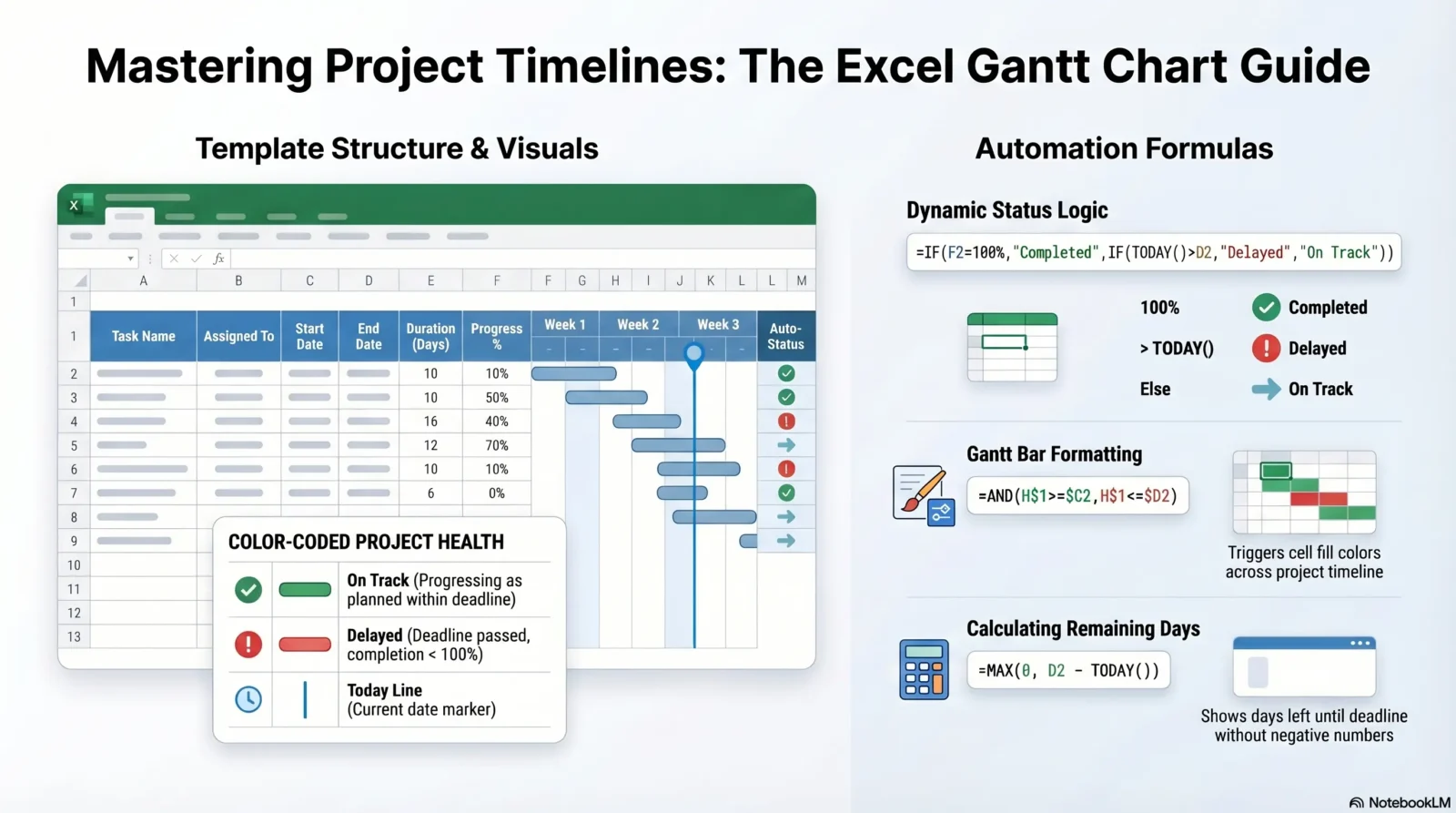
Our free XplorExcel Gantt Chart template has the following columns and sections:
| Column / Section | Purpose | Example |
|---|---|---|
| Task Name | Name of the activity or deliverable | Content Writing, UI Design, Testing |
| Assigned To | Team member responsible for the task | Priya, Amit, Rahul |
| Start Date | Date when the task begins | 01-Apr-2026 |
| End Date | Date when the task should be completed | 10-Apr-2026 |
| Duration (Days) | Auto-calculated using a formula | = End Date – Start Date |
| Progress % | Manually enter % of task completed | 75% |
| Status | Auto-calculated using the IF formula | On Track / Delayed / Completed |
| Gantt Bar Area | Color-filled cells showing task duration visually | Green = active, Red = delayed, Grey = pending |
📌 Key Excel Formulas Used in This Template
These are the important formulas that power the Gantt Chart template:
1. Calculate Duration
To find how many days a task will take:
Example: If Start Date is in C2 and End Date is in D2, write =D2-C2 in the Duration column. Format the result as a Number (not Date).
2. Auto Status using IF formula
To automatically show whether a task is Completed, Delayed, or On Track:
- F2 = Progress % column
- D2 = End Date column
- If progress is 100% → shows “Completed.”
- If today’s date is past the End Date → shows “Delayed.”
- Otherwise → shows “On Track.”
3. Gantt Bar using Conditional Formatting
This is the heart of the Gantt Chart. Each cell in the timeline area gets filled with color if it falls within the task’s Start and End Dates. The formula used in Conditional Formatting is:
- H$1 = the date in the column header of the timeline area (row 1)
- $C2 = Start Date of the task (column C)
- $D2 = End Date of the task (column D)
- If this condition is TRUE, the cell fills with your chosen color — creating the Gantt bar!
4. Calculate Remaining Days
This formula shows how many days are remaining before the task deadline. If the task is already past due, it shows 0 instead of a negative number (thanks to MAX).
5. Overall Project Progress
This gives you the average progress % across all tasks — a quick summary of how your entire project is going.
📌 Step-by-Step: How to Build the Gantt Chart in Excel
Follow these steps to build the Gantt Chart from scratch in Excel:
Set up the data table
In columns A to G, create headers: Task Name, Assigned To, Start Date, End Date, Duration, Progress %, Status. Enter your project tasks row by row from row 2 onwards.
Add the Duration formula
In cell E2 type =D2-C2 and drag it down. Format column E as Number (right-click → Format Cells → Number).
Add the Status formula
In cell G2 type: =IF(F2=1,"Completed",IF(TODAY()>D2,"Delayed","On Track")) and drag it down.
Create the timeline header
Starting from column H onwards in Row 1, enter your project dates. Type the first date in H1, then in I1 type =H1+1 and drag right to cover your full project period. Format these cells as Date (dd-mmm) and make the columns narrow (about 30px wide).
Apply Conditional Formatting for the Gantt bars
Select the entire timeline area (H2 to the last column and last row). Go to Home → Conditional Formatting → New Rule → Use a formula. Enter the formula: =AND(H$1>=$C2,H$1<=$D2). Click Format → Fill → choose green colour → OK.
Add a second rule for Delayed tasks
Add another Conditional Formatting rule on the same range: =AND(H$1>=$C2,H$1<=$D2,TODAY()>$D2,$F2<1). Set the fill colour to Red. This will highlight delayed tasks in red automatically.
Highlight today’s date
Add one more rule for Row 1 (the date header row): =H$1=TODAY(). Fill with a dark blue or orange colour. This creates a vertical “today” line across your Gantt Chart so you always know where you are in the project.
Freeze panes for easy scrolling
Click on cell H2. Go to View → Freeze Panes → Freeze Panes. Now, when you scroll right to see more dates, columns A to G (your task data) will remain visible on the left.
Select all the date columns in the timeline area, right-click → Column Width → set to 3 or 4. This makes the bars look like a proper Gantt Chart and fits more dates on screen. Also, remove gridlines for a cleaner look: View → uncheck Gridlines.
📌 Colour Coding System in the Template
Our template uses a simple colour coding system so anyone can understand the project status at a glance:
| Colour | Status | Meaning |
|---|---|---|
| Green | On Track | Task is progressing as planned within the deadline |
| Red | Delayed | The task deadline has passed, but it is not yet completed |
| Grey | Not Started | The task is planned for the future but has not begun yet |
| Blue | Today Line | Vertical marker showing today’s date on the timeline |
| Orange | Completed | Task is 100% done — marked with a different shade to distinguish |
When writing the Conditional Formatting formula, always use mixed references —
H$1 locks the row (so it always looks at row 1 for the date), and $C2 locks the column (so it always looks at column C for the start date). Getting this wrong is the most common mistake beginners make.📌 Pro Tips to Make Your Gantt Chart Better
Add a dropdown for the Status column using Data Validation → List → “On Track, Delayed, Completed”. This avoids typing mistakes.
Lock the formula cells so team members don’t accidentally delete them. Go to Review → Protect Sheet and allow only specific cells to be edited.
Use =NETWORKDAYS(C2,D2) Instead of simple subtraction to exclude weekends from the duration count.
To print the Gantt Chart on one page, go to Page Layout → Orientation → Landscape → Fit Sheet on One Page. This gives a clean A4 printout for meetings.
Do not want to build it from scratch? Download the XplorExcel Project Timeline Gantt Chart Template — it is fully ready with all formulas, conditional formatting, colour coding, and instructions already set up. Just enter your task names, dates, and progress %, and your Gantt Chart is ready in minutes!
🎯 Conclusion
A Gantt Chart in Excel is one of the most powerful tools you can add to your project management toolkit — and the best part is it costs nothing extra if you already have Excel. Whether you are managing a software project, a marketing campaign, a construction schedule, or a college assignment, this template will keep you organised and on track.
Here is a quick recap of what you learned:
Key formulas used
Step-by-step build guide
Colour coding system
Pro tips for advanced users
Download the free template, try it on your current project, and let us know how it went in the comments below. If you found this post helpful, share it with your colleagues and team members. Happy learning! 😊